Note
Access to this page requires authorization. You can try signing in or changing directories.
Access to this page requires authorization. You can try changing directories.
This article identifies critical known issues and their workarounds in Azure Local 24xx releases.
Note
Azure Local 24xx releases are not in a supported state. For more information, see Azure Local release information.
Known issues for version 2411.3
This software release maps to software version number 2411.3.2.
Important
The new deployments of this software use the 2411.3.2 build. You can also update from 2411.2.
Release notes for this version include the issues fixed in this release, known issues in this release, and release note issues carried over from previous versions.
Note
For detailed remediation for common known issues, see the Azure Local Supportability GitHub repository.
Fixed issues
There are no fixed issues in this release.
Known issues in this release
The following table lists the known issues in this release:
| Feature | Issue | Workaround |
|---|---|---|
| Deployment | During Azure Local deployment via portal, Validate selected machines fails with this error message: Mandatory extension [Lcm controller] installed version [30.2503.0.907] is not equal to the required version [30.2411.2.789] for Arc machine [Name of the machine]. Please create EdgeDevice resource again for this machine to fix the issue. |
Reinstall the correct version of AzureEdgeLifecycleManager extension. Follow these steps: 1. Select the machine and then select Install extensions. 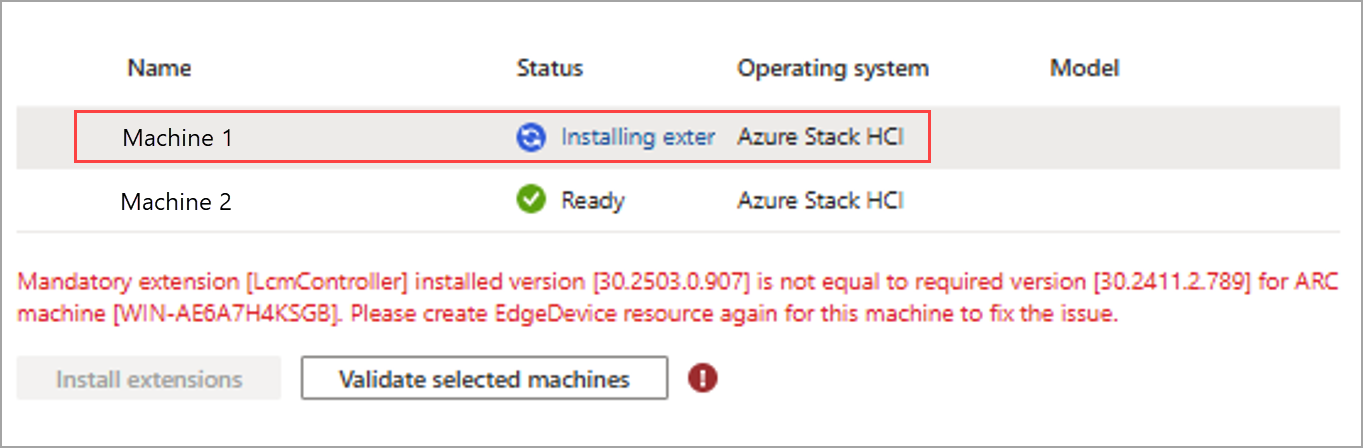 2. Repeat this step for each machine you intend to cluster. It takes roughly 15 minutes for the installation to complete. 3. Verify that the AzureEdgeLifecycleManager extension version is 30.2411.2.789. 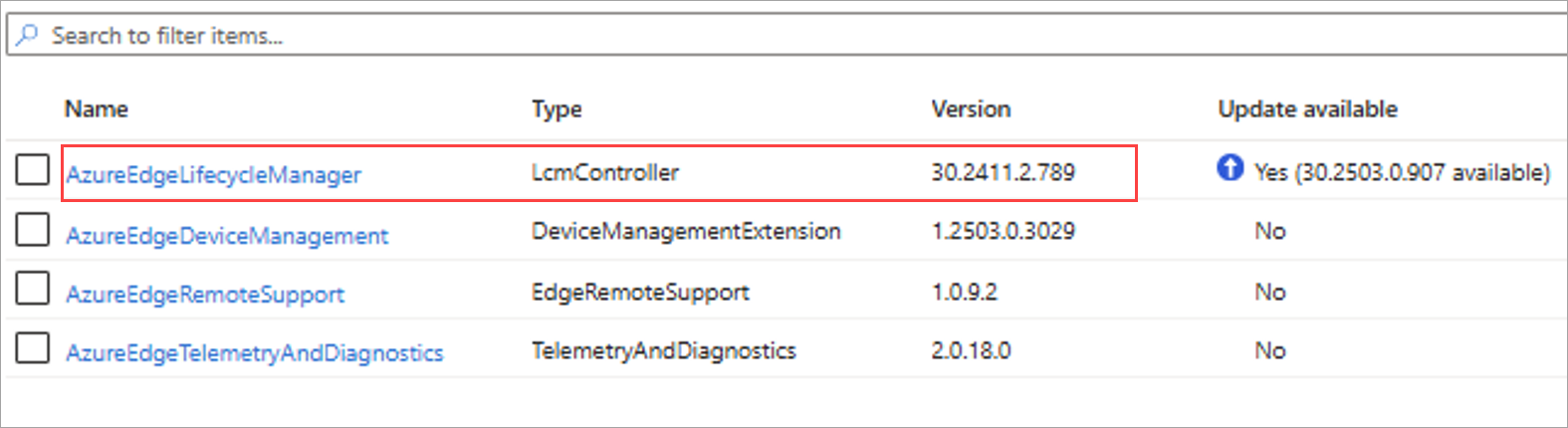 4. After the extensions are installed on all the machines in the list, select Add machines to refresh the list. 5. Select Validate selected machines. The validation should succeed. |
Known issues from previous releases
The following table lists the known issues from previous releases:
| Feature | Issue | Workaround |
|---|---|---|
| Deployment | This issue affects deployment and update on OEM-licensed devices. During deployment, you might see this error at Apply security settings on servers: Type 'ConfigureSecurityBaseline' of Role 'AzureStackOSConfig' raised an exception: [ConfigureSecurityBaseline] ConfigureSecurityBaseline failed on <server name> with exception: -> Failed to apply OSConfiguration enforcement for ASHCIApplianceSecurityBaselineConfig on <server name>. |
If you haven't started the update, see Azure Local OEM license devices to apply the preventive steps before updating to Azure Local 2411.3. If you've encountered the issue, use the same instructions to validate and apply the mitigation. |
| Update | When viewing the readiness check results for an Azure Local instance via the Azure Update Manager, there might be multiple readiness checks with the same name. | There's no known workaround in this release. Select View details to view specific information about the readiness check. |
| Update | There's an intermittent issue in this release where the Azure portal may incorrectly display the update status as Failed to update or In progress, even though the update has actually completed successfully. This behavior is particularly observed when updating Azure Local instances via Azure Update Manager, where the update progress and results may not be visible in the portal. | You might need to wait up to 30 minutes or more to see the updated status. If the status still isn't refreshed after that time, follow these steps: Connect to your Azure Local instance via a remote PowerShell session. To confirm the update status, run the following PowerShell cmdlets: $Update = get-solutionupdate| ? version -eq "<version string>"Replace the version string with the version you're running. For example, "10.2405.0.23". $Update.stateIf the update status is Installed, no further action is required on your part. Azure portal refreshes the status correctly within 24 hours. To refresh the status sooner, follow these steps on one of the nodes. Restart the Cloud Management cluster group. Stop-ClusterGroup "Cloud Management"Start-ClusterGroup "Cloud Management" |
| Add server | In this release and previous releases, when adding a machine to the system, isn't possible to update the proxy bypass list string to include the new machine. Updating environment variables proxy bypass list on the hosts won't update the proxy bypass list on Azure resource bridge or AKS. | There's no workaround in this release. If you encounter this issue, contact Microsoft Support to determine next steps. |
| Azure portal | In some instances, the Azure portal might take a while to update and the view might not be current. | You might need to wait for 30 minutes or more to see the updated view. |
| Security | When fixing the compliance for the minimum password length rule, even after you've changed the minimum password length on the Azure Local host to 14, you continue to see it as non-compliant in Azure policy. | You can verify the length of the password using the net accounts cmdlet. In the output, find Minimum password length to see the value. |
Known issues for version 2411.2
This software release maps to software version number 2411.2.12.
Important
The new deployments of this software use the 2411.2.12 build. You can also update from 2411.0 and 2411.1.
Release notes for this version include the issues fixed in this release, known issues in this release, and release note issues carried over from previous versions.
Note
For detailed remediation for common known issues, see the Azure Local Supportability GitHub repository.
Fixed issues
The following issues are fixed in this release:
| Feature | Issue | Workaround/Comments |
|---|---|---|
| Azure Local VM Management | The storage path couldn't be deleted with a pre-downloaded AKS required image. | |
| Azure Local VM Management | Image deletion retry fails after the node restarts. | When the node goes down and if you try deleting an image, the deletion times out. When the node restarts and retries deletion, the deletion fails again. |
| Deployment | Validation times out due to timestamp deserialization. | When deploying the operating system, select English (United States) as the installation language, as well as the time and currency format. For detailed remediation steps, see the troubleshooting guide in the Azure Local Supportability GitHub repository. |
| Update | A solution extension package was unintentionally applied into a solution update. | |
| Azure Local VM management | Arc Extensions on Azure Local VMs stay in "Creating" state indefinitely. | Sign in to the VM, open a command prompt, and type the following: Windows: notepad C:\ProgramData\AzureConnectedMachineAgent\Config\agentconfig.json Linux: sudo vi /var/opt/azcmagent/agentconfig.json Next, find the resourcename property. Delete the GUID that is appended to the end of the resource name, so this property matches the name of the VM. Then restart the VM. |
| Azure Local VM management | Restart of Azure Local VM operation completes after approximately 20 minutes although the VM itself restarts in about a minute. | There's no known workaround in this release. |
| Azure Local VM management | In rare instances, deleting a network interface on an Azure Local VM from Azure portal doesn't work in this release. | Use the Azure CLI to first remove the network interface and then delete it. For more information, see Remove the network interface and see Delete the network interface. |
Known issues in this release
The following table lists the known issues in this release:
| Feature | Issue | Workaround |
|---|---|---|
| Deployment | This issue affects deployment and update on OEM-licensed devices. During deployment, you might see this error at Apply security settings on servers: Type 'ConfigureSecurityBaseline' of Role 'AzureStackOSConfig' raised an exception: [ConfigureSecurityBaseline] ConfigureSecurityBaseline failed on <server name> with exception: -> Failed to apply OSConfiguration enforcement for ASHCIApplianceSecurityBaselineConfig on <server name>. |
If you haven't started the update, see Azure Local OEM license devices to apply the preventive steps before updating to Azure Local 2411.3. If you've encountered the issue, use the same instructions to validate and apply the mitigation. |
Known issues from previous releases
The following table lists the known issues from previous releases:
| Feature | Issue | Workaround |
|---|---|---|
| Update | When viewing the readiness check results for an Azure Local instance via the Azure Update Manager, there might be multiple readiness checks with the same name. | There's no known workaround in this release. Select View details to view specific information about the readiness check. |
| Update | There's an intermittent issue in this release where the Azure portal may incorrectly display the update status as Failed to update or In progress, even though the update has actually completed successfully. This behavior is particularly observed when updating Azure Local instances via Azure Update Manager, where the update progress and results may not be visible in the portal. | You might need to wait up to 30 minutes or more to see the updated status. If the status still isn't refreshed after that time, follow these steps: Connect to your Azure Local instance via a remote PowerShell session. To confirm the update status, run the following PowerShell cmdlets: $Update = get-solutionupdate| ? version -eq "<version string>"Replace the version string with the version you're running. For example, "10.2405.0.23". $Update.stateIf the update status is Installed, no further action is required on your part. Azure portal refreshes the status correctly within 24 hours. To refresh the status sooner, follow these steps on one of the nodes. Restart the Cloud Management cluster group. Stop-ClusterGroup "Cloud Management"Start-ClusterGroup "Cloud Management" |
| Add server | In this release and previous releases, when adding a machine to the system, isn't possible to update the proxy bypass list string to include the new machine. Updating environment variables proxy bypass list on the hosts won't update the proxy bypass list on Azure Arc resource bridge or AKS. | There's no workaround in this release. If you encounter this issue, contact Microsoft Support to determine next steps. |
| Azure portal | In some instances, the Azure portal might take a while to update and the view might not be current. | You might need to wait for 30 minutes or more to see the updated view. |
| Security | When fixing the compliance for the minimum password length rule, even after you've changed the minimum password length on the Azure Local host to 14, you continue to see it as non-compliant in Azure policy. | You can verify the length of the password using the net accounts cmdlet. In the output, find Minimum password length to see the value. |
Known issues for version 2411.1
This software release maps to software version number 2411.1.10.
Important
The new deployments of this software use the 2411.1.10 build. If you updated from 2408.2, you've received either the 2411.0.22 or 2411.0.24 build. Both builds can be updated to 2411.1.10.
Release notes for this version include the issues fixed in this release, known issues in this release, and release note issues carried over from previous versions.
Note
For detailed remediation for common known issues, see the Azure Local Supportability GitHub repository.
Fixed issues
The following issues are fixed in this release:
| Feature | Issue | Workaround/Comments |
|---|---|---|
| Azure Local VM Management | Redeploying an Azure Local VM causes connection issues with that Azure Local VM and the agent disconnects. | |
| Upgrade | Resolved conflict with third party PowerShell modules. | |
| Upgrade | Stopped indefinite logging of negligible error events. | |
| Upgrade | Added validation to check for free memory. | |
| Update | Added check to ensure that solution extension content has been copied correctly. | |
| Update | When applying solution update in this release, the update can fail. This will occur only if the update was started prior to November 26. The issue that causes the failure can result in one of the following error messages: Error 1 - The step "update ARB and extension" error "Clear-AzContext failed with 0 and Exception calling "Initialize" with "1" argument(s): "Object reference not set to an instance of an object." at "Clear-AzPowerShellCache". Error 2 - The step "EvalTVMFlow" error "CloudEngine.Actions.InterfaceInvocationFailedException: Type 'EvalTVMFlow' of Role 'ArcIntegration' raised an exception: This module requires Az.Accounts version 3.0.5. An earlier version of Az.Accounts is imported in the current PowerShell session. Please open a new session before importing this module. This error could indicate that multiple incompatible versions of the Azure PowerShell cmdlets are installed on your system. Please see https://aka.ms/azps-version-error for troubleshooting information." Depending on the version of PowerShell modules, the above error could be reported for both versions 3.0.4 and 3.0.5. |
For detailed steps on how to mitigate this issue, go to: https://aka.ms/azloc-update-30221399. |
| Deployment Upgrade |
If the timezone isn't set to UTC before you deploy Azure Local, an ArcOperationTimeOut error occurs during validation. The following error message is displayed: *OperationTimeOut, No updates received from device for operation. | |
| Security vulnerability | Microsoft identified a security vulnerability that could expose the local admin credentials used during the creation of Azure Local VMs on Azure Local to non-admin users on the VM and on the hosts. Azure Local VMs running on releases prior to Azure Local 2411 release are vulnerable. |
|
| Repair server | After you repair a node and run the command Set-AzureStackLCMUserPassword, you may encounter the following error: CloudEngine.Actions.InterfaceInvocationFailedException: Type 'ValidateCredentials' of Role 'SecretRotation' raised an exception: Cannot load encryption certificate. The certificate setting 'CN=DscEncryptionCert' does not represent a valid base-64 encoded certificate, nor does it represent a valid certificate by file, directory, thumbprint, or subject name. at Validate-Credentials |
This issue is now fixed. |
Known issues in this release
Microsoft isn't aware of any known issues in this release.
Known issues from previous releases
The following table lists the known issues from previous releases:
| Feature | Issue | Workaround |
|---|---|---|
| Update | When viewing the readiness check results for an Azure Local instance via the Azure Update Manager, there might be multiple readiness checks with the same name. | There's no known workaround in this release. Select View details to view specific information about the readiness check. |
| Update | There's an intermittent issue in this release where the Azure portal may incorrectly display the update status as Failed to update or In progress, even though the update has actually completed successfully. This behavior is particularly observed when updating Azure Local instances via Azure Update Manager, where the update progress and results may not be visible in the portal. | You might need to wait up to 30 minutes or more to see the updated status. If the status still isn't refreshed after that time, follow these steps: Connect to your Azure Local instance via a remote PowerShell session. To confirm the update status, run the following PowerShell cmdlets: $Update = get-solutionupdate| ? version -eq "<version string>"Replace the version string with the version you're running. For example, "10.2405.0.23". $Update.stateIf the update status is Installed, no further action is required on your part. Azure portal refreshes the status correctly within 24 hours. To refresh the status sooner, follow these steps on one of the nodes. Restart the Cloud Management cluster group. Stop-ClusterGroup "Cloud Management"Start-ClusterGroup "Cloud Management" |
| Add server | In this release and previous releases, when adding a machine to the system, isn't possible to update the proxy bypass list string to include the new machine. Updating environment variables proxy bypass list on the hosts won't update the proxy bypass list on Azure Arc resource bridge or AKS. | There's no workaround in this release. If you encounter this issue, contact Microsoft Support to determine next steps. |
| Azure portal | In some instances, the Azure portal might take a while to update and the view might not be current. | You might need to wait for 30 minutes or more to see the updated view. |
| Security | When fixing the compliance for the minimum password length rule, even after you've changed the minimum password length on the Azure Local host to 14, you continue to see it as non-compliant in Azure policy. | You can verify the length of the password using the net accounts cmdlet. In the output, find Minimum password length to see the value. |
Known issues for version 2411
This software release maps to software version number 2411.0.24.
Important
The new deployments of this software will use the 2411.0.22 build whereas if you update from 2408.2, you'll get the 2411.0.24 build. No action is required if you have already updated from 2408.2 to 2411.0.22.
Release notes for this version include the issues fixed in this release, known issues in this release, and release note issues carried over from previous versions.
Note
For detailed remediation for common known issues, see the Azure Local Supportability GitHub repository.
Fixed issues
The following issues are fixed in this release:
| Feature | Issue | Workaround/Comments |
|---|---|---|
| Azure Local VM management | If you try to enable guest management on a migrated VM, the operation fails with the following error: (InternalError) admission webhook "createupdatevalidationwebhook.infrastructure.azstackhci.microsoft.com" denied the request: OsProfile cannot be changed after resource creation | |
| Deployment | Providing the OU name in an incorrect syntax isn't detected in the Azure portal. The incorrect syntax includes unsupported characters such as &,",',<,>. The incorrect syntax is detected at a later step during system validation. |
Make sure that the OU path syntax is correct and doesn't include unsupported characters. |
| Networking | When a node is configured with a proxy server that has capital letters in its address, such as HTTPS://10.100.000.00:8080, Arc extensions fail to install or update on the node in existing builds, including version 2408.1. However, the node remains Arc connected. | Follow these steps to mitigate the issue: 1. Set the environment values in lowercase. [System.Environment]::SetEnvironmentVariable("HTTPS_PROXY", "https://10.100.000.00:8080", "Machine"). 2. Validate that the values were set. [System.Environment]::GetEnvironmentVariable("HTTPS_PROXY", "Machine"). 3. Restart Arc services. Restart-Service himds Restart-Service ExtensionService Restart-Service GCArcService 4. Signal the AzcmaAgent with the lowercase proxy information. & 'C:\Program Files\AzureConnectedMachineAgent\azcmagent.exe' config set proxy.url https://10.100.000.00:8080 & 'C:\Program Files\AzureConnectedMachineAgent\azcmagent.exe' config list |
| Upgrade | When upgrading the stamp from 2311 or prior builds to 2408 or later, add node and repair node operations may fail. For example, you could see an error: Type 'AddAsZHostToDomain' of Role 'BareMetal' raised an exception. |
|
| Update | In some cases, SolutionUpdate commands could fail if run after the Send-DiagnosticData command. |
Make sure to close the PowerShell session used for Send-DiagnosticData. Open a new PowerShell session and use it for SolutionUpdate commands. |
Known issues in this release
The following table lists the known issues in this release:
| Feature | Issue | Workaround |
|---|---|---|
| Azure Migrate | Migration of Gen 1 (non-sysprep) VMs using Azure Migrate fails with the error: Failed to clean up seed ISO disk from the file system for VM. | Contact Microsoft Support to apply a patch that resolves the VM failures associated with this issue. |
| Security vulnerability | Microsoft has identified a security vulnerability that could expose the local admin credentials used during the creation of Azure Local VMs to non-admin users on the VM and on the hosts. Azure Local VMs running on releases prior to Azure Local 2411 release are vulnerable. |
To identify the Azure Local VMs that require this change and to change the account passwords, see detailed instructions in: Security vulnerability for VMs on Azure Local. |
| Deployment Upgrade |
If the timezone is not set to UTC before you deploy Azure Local, an ArcOperationTimeOut error occurs during validation. The following error message is displayed: OperationTimeOut, No updates received from device for operation. | Depending on your scenario, choose one of the following workarounds for this issue: Scenario 1. Before you start the deployment, make sure that the timezone is set to UTC. Connect to each of the Azure Local nodes and change the timezone to UTC. Run the following command: Set-TimeZone -Id "UTC". Scenario 2. If you started the deployment without setting the UTC timezone and received the error mentioned in the validation phase, follow these steps: 1. Connect to each Azure Local node. Change the time zone to UTC with Set-TimeZone -Id "UTC". Reboot the nodes.2. After the nodes have restarted, go to the Azure Local resource in Azure portal. Start the validation again to resolve the issue and continue with the deployment or upgrade. For detailed remediation steps, see the troubleshooting guide in the Azure Local Supportability GitHub repository. |
Known issues from previous releases
The following table lists the known issues from previous releases:
| Feature | Issue | Workaround |
|---|---|---|
| Update | When viewing the readiness check results for an Azure Local instance via the Azure Update Manager, there might be multiple readiness checks with the same name. | There's no known workaround in this release. Select View details to view specific information about the readiness check. |
| Update | There's an intermittent issue in this release where the Azure portal may incorrectly display the update status as Failed to update or In progress, even though the update has actually completed successfully. This behavior is particularly observed when updating Azure Local instances via Azure Update Manager, where the update progress and results may not be visible in the portal. | You might need to wait up to 30 minutes or more to see the updated status. If the status still isn't refreshed after that time, follow these steps: Connect to your Azure Local instance via a remote PowerShell session. To confirm the update status, run the following PowerShell cmdlets: $Update = get-solutionupdate| ? version -eq "<version string>"Replace the version string with the version you're running. For example, "10.2405.0.23". $Update.stateIf the update status is Installed, no further action is required on your part. Azure portal refreshes the status correctly within 24 hours. To refresh the status sooner, follow these steps on one of the nodes. Restart the Cloud Management cluster group. Stop-ClusterGroup "Cloud Management"Start-ClusterGroup "Cloud Management" |
| Add server | In this release and previous releases, when adding a machine to the system, is not possible to update the proxy bypass list string to include the new machine. Updating environment variables proxy bypass list on the hosts will not update the proxy bypass list on Azure Arc resource bridge or AKS. | There's no workaround in this release. If you encounter this issue, contact Microsoft Support to determine next steps. |
| Azure portal | In some instances, the Azure portal might take a while to update and the view might not be current. | You might need to wait for 30 minutes or more to see the updated view. |
| Security | When fixing the compliance for the minimum password length rule, even after you've changed the minimum password length on the Azure Local host to 14, you continue to see it as non-compliant in Azure policy. | You can verify the length of the password using the net accounts cmdlet. In the output, find Minimum password length to see the value. |
Known issues for version 2408.2
This software release maps to software version number 2408.2.7.
Release notes for this version include the issues fixed in this release, known issues in this release, and release note issues carried over from previous versions.
Note
For detailed remediation for common known issues, see the Azure Local Supportability GitHub repository.
Fixed issues
The following issues are fixed in this release:
| Feature | Issue | Workaround/Comments |
|---|---|---|
| Security | SideChannelMitigation is reporting properly in both local cmdlets and Windows Admin Center. | |
| Update | An update would unnecessarily download Solution Builder Extension content that was already added. | |
| Upgrade | Cluster resources weren't in the same group. | |
| Upgrade | Fixed IP pool validation in the Azure portal. | |
| Upgrade | Added validation to ensure the package is the latest version | |
| Upgrade | Validation would fail due to group policies. |
Known issues in this release
The following table lists the known issues in this release:
| Feature | Issue | Workaround |
|---|---|---|
| Security | When fixing the compliance for the minimum password length rule, even after you've changed the minimum password length on the Azure Local host to 14, you continue to see it as non-compliant in Azure policy. | You can verify the length of the password using the net accounts cmdlet. In the output, find Minimum password length to see the value. |
Known issues from previous releases
The following table lists the known issues from previous releases:
| Feature | Issue | Workaround |
|---|---|---|
| Azure Local VM management | If you try to enable guest management on a migrated VM, the operation fails with the following error: (InternalError) admission webhook "createupdatevalidationwebhook.infrastructure.azstackhci.microsoft.com" denied the request: OsProfile can't be changed after resource creation | |
| Security | The SideChannelMitigation security feature may not show an enabled state even if it's enabled. | There's no workaround in this release. If you encounter this issue, contact Microsoft Support to determine next steps. |
| Update | When viewing the readiness check results for an Azure Local instance via the Azure Update Manager, there might be multiple readiness checks with the same name. | There's no known workaround in this release. Select View details to view specific information about the readiness check. |
| Update | There's an intermittent issue in this release where the Azure portal may incorrectly display the update status as Failed to update or In progress, even though the update has actually completed successfully. This behavior is particularly observed when updating Azure Local instances via Azure Update Manager, where the update progress and results may not be visible in the portal. | You might need to wait up to 30 minutes or more to see the updated status. If the status still isn't refreshed after that time, follow these steps: Connect to your Azure Local instance via a remote PowerShell session. To confirm the update status, run the following PowerShell cmdlets: $Update = get-solutionupdate| ? version -eq "<version string>"Replace the version string with the version you're running. For example, "10.2405.0.23". $Update.stateIf the update status is Installed, no further action is required on your part. Azure portal refreshes the status correctly within 24 hours. To refresh the status sooner, follow these steps on one of the nodes. Restart the Cloud Management cluster group. Stop-ClusterGroup "Cloud Management"Start-ClusterGroup "Cloud Management" |
| AKS on HCI | AKS cluster creation fails with the Error: Invalid AKS network resource id. This issue can occur when the associated logical network name has an underscore. |
Underscores aren't supported in logical network names. Make sure to not use underscore in the names for logical networks deployed on your Azure Local. |
| Add node | In this release and previous releases, when adding a node to the cluster, isn't possible to update the proxy bypass list string to include the new node. Updating environment variables proxy bypass list on the hosts won't update the proxy bypass list on Azure Arc resource bridge or AKS. | There's no workaround in this release. If you encounter this issue, contact Microsoft Support to determine next steps. |
| Azure portal | In some instances, the Azure portal might take a while to update and the view might not be current. | You might need to wait for 30 minutes or more to see the updated view. |
Known issues for version 2408.1
This software release maps to software version number 2408.1.9.
Release notes for this version include the issues fixed in this release, known issues in this release, and release note issues carried over from previous versions.
Note
For detailed remediation for common known issues, see the Azure Local Supportability GitHub repository.
Fixed issues
The following issues are fixed in this release:
| Feature | Issue | Workaround/Comments |
|---|---|---|
| Azure Local VM management | The MAC address of the VM network interface wouldn't appear if the customer didn't pass the mac address at the time of creation. | |
| Deployment | In some instances, during the registration of Azure Stack HCI servers, this error might be seen in the debug logs: Encountered internal server error. One of the mandatory extensions for device deployment might not be installed. | Follow these steps to mitigate the issue: $Settings = @{ "CloudName" = $Cloud; "RegionName" = $Region; "DeviceType" = "AzureEdge" } New-AzConnectedMachineExtension -Name "AzureEdgeTelemetryAndDiagnostics" -ResourceGroupName $ResourceGroup -MachineName $env:COMPUTERNAME -Location $Region -Publisher "Microsoft.AzureStack.Observability" -Settings $Settings -ExtensionType "TelemetryAndDiagnostics" -EnableAutomaticUpgrade New-AzConnectedMachineExtension -Name "AzureEdgeDeviceManagement" -ResourceGroupName $ResourceGroup -MachineName $env:COMPUTERNAME -Location $Region -Publisher "Microsoft.Edge" -ExtensionType "DeviceManagementExtension"New-AzConnectedMachineExtension -Name "AzureEdgeLifecycleManager" -ResourceGroupName $ResourceGroup -MachineName $env:COMPUTERNAME -Location $Region -Publisher "Microsoft.AzureStack.Orchestration" -ExtensionType "LcmController" New-AzConnectedMachineExtension -Name "AzureEdgeRemoteSupport" -ResourceGroupName $ResourceGroup -MachineName $env:COMPUTERNAME -Location $Region -Publisher "Microsoft.AzureStack.Observability" -ExtensionType "EdgeRemoteSupport" -EnableAutomaticUpgrade |
| Networking | When Azure Local machines go down, the "All Clusters" page, in the new portal experience shows a "PartiallyConnected" or "Not Connected Recently status. Even when the Azure Local machines become healthy, they may not show a "Connected" status. | There's no known workaround for this issue. To check the connectivity status, use the old experience to see if it shows as "Connected". |
| Update | MOC node agent would get stuck in a restart pending stage during the update MOC step. | |
| Update | Required permissions weren't granted when upgrading which caused update to fail later. | |
| Upgrade | Added validation to check for an IPv6 address. | |
| Update | SBE interfaces wouldn't execute on all the machines if the hostname in the system was a subset of another hostname. |
Known issues in this release
Microsoft isn't aware of any known issues in this release.
Known issues from previous releases
The following table lists the known issues from previous releases:
| Feature | Issue | Workaround |
|---|---|---|
| Azure Local VM management | If you try to enable guest management on a migrated VM, the operation fails with the following error: (InternalError) admission webhook "createupdatevalidationwebhook.infrastructure.azstackhci.microsoft.com" denied the request: OsProfile cannot be changed after resource creation | |
| Security | The SideChannelMitigation security feature may not show an enabled state even if it's enabled. | There's no workaround in this release. If you encounter this issue, contact Microsoft Support to determine next steps. |
| Update | When viewing the readiness check results for an Azure Local instance via the Azure Update Manager, there might be multiple readiness checks with the same name. | There's no known workaround in this release. Select View details to view specific information about the readiness check. |
| Update | There's an intermittent issue in this release where the Azure portal may incorrectly display the update status as Failed to update or In progress, even though the update has actually completed successfully. This behavior is particularly observed when updating Azure Local instances via Azure Update Manager, where the update progress and results may not be visible in the portal. | You might need to wait up to 30 minutes or more to see the updated status. If the status still isn't refreshed after that time, follow these steps: Connect to your Azure Local instance via a remote PowerShell session. To confirm the update status, run the following PowerShell cmdlets: $Update = get-solutionupdate| ? version -eq "<version string>"Replace the version string with the version you're running. For example, "10.2405.0.23". $Update.stateIf the update status is Installed, no further action is required on your part. Azure portal refreshes the status correctly within 24 hours. To refresh the status sooner, follow these steps on one of the nodes. Restart the Cloud Management cluster group. Stop-ClusterGroup "Cloud Management"Start-ClusterGroup "Cloud Management" |
| Add server | In this release and previous releases, when adding a machine to the system, is not possible to update the proxy bypass list string to include the new machine. Updating environment variables proxy bypass list on the hosts will not update the proxy bypass list on Azure Arc resource bridge or AKS. | There's no workaround in this release. If you encounter this issue, contact Microsoft Support to determine next steps. |
| Azure portal | In some instances, the Azure portal might take a while to update and the view might not be current. | You might need to wait for 30 minutes or more to see the updated view. |
Known issues for version 2408
This software release maps to software version number 2408.0.29.
Release notes for this version include the issues fixed in this release, known issues in this release, and release note issues carried over from previous versions.
Note
For detailed remediation for common known issues, see the Azure Local Supportability GitHub repository.
Fixed issues
The following issues are fixed in this release:
| Feature | Issue | Workaround/Comments |
|---|---|---|
| Updates | An update issue related to missing resource type ID field in the health checks was fixed. | |
| Updates | An update issue related to different health checks having the same name was fixed. | |
| Azure Local VM management | In large deployment scenarios, such as extensive AVD host pool deployments or large-scale VM provisioning, you might encounter reliability issues caused by a Hyper-V socket external library problem. | |
| Deployment | Deployments via Azure Resource Manager time out after 2 hours. Deployments that exceed 2 hours show up as failed in the resource group though the system is successfully created. | To monitor the deployment in the Azure portal, go to the Azure Local instance resource and then go to new Deployments entry. |
Known issues in this release
The following table lists the known issues in this release:
| Feature | Issue | Workaround |
|---|---|---|
| Azure Local VM management | If you try to enable guest management on a migrated VM, the operation fails with the following error: (InternalError) admission webhook "createupdatevalidationwebhook.infrastructure.azstackhci.microsoft.com" denied the request: OsProfile cannot be changed after resource creation | |
| Security | The SideChannelMitigation security feature may not show an enabled state even if it's enabled. This happens when using Windows Admin Center (Cluster Security View) or when this cmdlet returns False: Get-AzSSecurity -FeatureName SideChannelMitigation. |
There's no workaround in this release to fix the output of these applications. To validate the expected value, run the following cmdlet: Get-ItemProperty 'HKLM:\SYSTEM\CurrentControlSet\Control\Session Manager\Memory Management' -name "FeatureSettingsOverride*"The expected output is: FeatureSettingsOverride: 83886152 FeatureSettingsOverrideMask: 3 If your output matches the expected output, you can safely ignore the output from Windows Admin Center and Get-AzSSecurity cmdlet. |
| Update | When installing an SBE update for your Azure Local system, some SBE interfaces aren't executed on all the machines if the hostname in the cluster is a subset of another hostname. For example, host-1 is a subset of host-10. This could result in failures in the CAU scan or CAU run. | Microsoft recommends using at least 2 digits for hostname instance counts in your host naming conventions. For more information, see Define your naming convention. |
Known issues from previous releases
The following table lists the known issues from previous releases:
| Feature | Issue | Workaround |
|---|---|---|
| Update | When viewing the readiness check results for an Azure Local instance via the Azure Update Manager, there might be multiple readiness checks with the same name. | There's no known workaround in this release. Select View details to view specific information about the readiness check. |
| Update | There's an intermittent issue in this release where the Azure portal may incorrectly display the update status as Failed to update or In progress, even though the update has actually completed successfully. This behavior is particularly observed when updating Azure Local instances via Azure Update Manager, where the update progress and results may not be visible in the portal. | You might need to wait up to 30 minutes or more to see the updated status. If the status still isn't refreshed after that time, follow these steps: Connect to your Azure Local instance via a remote PowerShell session. To confirm the update status, run the following PowerShell cmdlets: $Update = get-solutionupdate| ? version -eq "<version string>"Replace the version string with the version you're running. For example, "10.2405.0.23". $Update.stateIf the update status is Installed, no further action is required on your part. Azure portal refreshes the status correctly within 24 hours. To refresh the status sooner, follow these steps on one of the nodes. Restart the Cloud Management cluster group. Stop-ClusterGroup "Cloud Management"Start-ClusterGroup "Cloud Management" |
| AKS on HCI | AKS cluster creation fails with the Error: Invalid AKS network resource id. This issue can occur when the associated logical network name has an underscore. |
Underscores aren't supported in logical network names. Make sure to not use underscore in the names for logical networks deployed on your Azure Local instance. |
| Add server | In this release and previous releases, when adding a machine to the cluster, is not possible to update the proxy bypass list string to include the new machine. Updating environment variables proxy bypass list on the hosts will not update the proxy bypass list on Azure Arc resource bridge or AKS. | There's no workaround in this release. If you encounter this issue, contact Microsoft Support to determine next steps. |
| Azure portal | In some instances, the Azure portal might take a while to update and the view might not be current. | You might need to wait for 30 minutes or more to see the updated view. |
Issues for version 2405.3
This software release maps to software version number 2405.3.7.
Release notes for this version include the issues fixed in this release, known issues in this release, and release noted issues carried over from previous versions.
Fixed issues
Here are the fixed issues in this release:
| Feature | Issue | Workaround/Comments |
|---|---|---|
| Update | In this release, an update issue related to SDN not working once the hosts go through the secret rotation and update, was fixed. | |
| Update | In this release, an update issue related to the Physical Disks environment readiness check incorrectly failing and blocking the update, was fixed | |
| Deployment | In this release, a deployment operation related to null value in cloud deployment, was fixed. | |
| Update | In this release, a health check update to prevent a Summary XML error was fixed. |
Known issues in this release
Microsoft isn't aware of any known issues in this release.
Known issues from previous releases
Here are the known issues from previous releases:
| Feature | Issue | Workaround |
|---|---|---|
| Update | When viewing the readiness check results for an Azure Stack HCI cluster via the Azure Update Manager, there might be multiple readiness checks with the same name. | There's no known workaround in this release. Select View details to view specific information about the readiness check. |
| Azure Local VM management | In large deployment scenarios, such as extensive AVD host pool deployments or large-scale VM provisioning, you might encounter reliability issues caused by a Hyper-V socket external library problem. | Follow these steps to mitigate the issue: 1. Run the command Get-service mochostagent (\) get-process (\) kill. Check the output of the command and verify if the handle count is in the thousands. 2. Run the command Get-service mochostagent (\) get-process to terminate the processes. 3. Run the command restart-service mochostagent to restart the mochostagent service. |
| Deployment | When deploying Azure Local via the Azure portal, you might encounter the following deployment validation failure: Could not complete the operation. 400: Resource creation validation failed. Details: [{"Code":"AnswerFileValidationFailed","Message":"Errors in Value Validation:\r\nPhysicalNodesValidator found error at deploymentdata.physicalnodes[0].ipv4address: The specified for \u0027deploymentdata.physicalnodes[0].ipv4address\u0027 is not a valid IPv4 address. Example: 192.168.0.1 or 192.168.0.1","Target":null,"Details":null}]. If you go to the Networking tab in Azure portal deployment, within the Network Intent configuration, you could see the following error: The selected physical network adapter is not bound to the management virtual switch. |
Follow the procedure in Troubleshoot deployment validation failures in Azure portal. |
| Deployment | The deployment via the Azure portal fails with this error: Failed to fetch secret LocalAdminCredential from key vault. | There's no workaround for this issue in this release. If the issue occurs, contact Microsoft Support for next steps. |
| Update | There's an intermittent issue in this release where the Azure portal may incorrectly display the update status as Failed to update or In progress, even though the update has actually completed successfully. This behavior is particularly observed when updating Azure Local instances via Azure Update Manager, where the update progress and results may not be visible in the portal. | You might need to wait up to 30 minutes or more to see the updated status. If the status still isn't refreshed after that time, follow these steps: Connect to your Azure Local instance via a remote PowerShell session. To confirm the update status, run the following PowerShell cmdlets: $Update = get-solutionupdate| ? version -eq "<version string>"Replace the version string with the version you're running. For example, "10.2405.0.23". $Update.stateIf the update status is Installed, no further action is required on your part. Azure portal refreshes the status correctly within 24 hours. To refresh the status sooner, follow these steps on one of the nodes. Restart the Cloud Management cluster group. Stop-ClusterGroup "Cloud Management"Start-ClusterGroup "Cloud Management" |
| AKS on HCI | AKS cluster creation fails with the Error: Invalid AKS network resource id. This issue can occur when the associated logical network name has an underscore. |
Underscores aren't supported in logical network names. Make sure to not use underscore in the names for logical networks deployed on your Azure Stack HCI. |
| Add server | In this release and previous releases, when adding a server to the cluster, is not possible to update the proxy bypass list string to include the new server. Updating environment variables proxy bypass list on the hosts will not update the proxy bypass list on Azure Arc resource bridge or AKS. | There's no workaround in this release. If you encounter this issue, contact Microsoft Support to determine next steps. |
| Azure portal | In some instances, the Azure portal might take a while to update and the view might not be current. | You might need to wait for 30 minutes or more to see the updated view. |
| Update | When updating the Azure Stack HCI cluster via the Azure Update Manager, the update progress and results may not be visible in the Azure portal. | To work around this issue, on each cluster node, add the following registry key (no value needed):New-Item -Path "HKLM:\SYSTEM\CurrentControlSet\Services\HciCloudManagementSvc\Parameters" -forceThen on one of the cluster nodes, restart the Cloud Management cluster group. Stop-ClusterGroup "Cloud Management"Start-ClusterGroup "Cloud Management"This won't fully remediate the issue as the progress details may still not be displayed for a duration of the update process. To get the latest update details, you can Retrieve the update progress with PowerShell. |
Issues for version 2405.2
This software release maps to software version number 2405.2.7.
Release notes for this version include the issues fixed in this release, known issues in this release, and release noted issues carried over from previous versions.
Fixed issues
Here are the fixed issues in this release:
| Feature | Issue | Workaround/Comments | ||||||||||||||||||
|---|---|---|---|---|---|---|---|---|---|---|---|---|---|---|---|---|---|---|---|---|
| Updates | In this release, an update issue related to missing resource type ID field in the health checks, was fixed. | |||||||||||||||||||
| Updates | In this release, an update issue related to different health checks having the same name, was fixed. | |||||||||||||||||||
| Updates | In this release, an issue where Solution Builder Extension Update health checks were missing from the pre-update or daily health checks, was fixed. | |||||||||||||||||||
| Updates | In this release, an issue that caused an inability to view or start new updates due to the update service crashing on servers in a bad state, was fixed. | |||||||||||||||||||
| Updates | In this release, the update service was improved to prevent flooding of actions on the cluster. | |||||||||||||||||||
| Updates | In this release, a health check was added to prevent updates when adding or removing servers fails. | |||||||||||||||||||
| Update | During an initial MOC update, a failure occurs due to the target MOC version not being found in the catalog cache. The follow-up updates and retries show MOC in the target version, without the update succeeding, and as a result the Azure Arc resource bridge update fails. To validate this issue, collect the update logs using Troubleshoot solution updates for Azure Local. The log files should show a similar error message (current version might differ in the error message): [ERROR: { "errorCode": "InvalidEntityError", "errorResponse": "{\n\"message\": \"the cloud fabric (MOC) is currently at version v0.13.1. A minimum version of 0.15.0 is required for compatibility\"\n}" }] |
Follow these steps to mitigate the issue: 1. To find the MOC agent version, run the following command: 'C:\Program Files\AksHci\wssdcloudagent.exe' version.2. Use the output of the command to find the MOC version from the table below that matches the agent version, and set $initialMocVersion to that MOC version. Set the $targetMocVersion by finding the Azure Local build you're updating to and get the matching MOC version from the following table. Use these values in the mitigation script provided below:
For example, if the agent version is v0.13.0-6-gf13a73f7, v0.11.0-alpha.38,01/06/2024, then $initialMocVersion = "1.0.24.10106" and if you are updating to 2405.0.23, then $targetMocVersion = "1.3.0.10418".3. Run the following PowerShell commands on the first node: $initialMocVersion = "<initial version determined from step 2>"$targetMocVersion = "<target version determined from step 2>"# Import MOC module twice import-module mocimport-module moc$verbosePreference = "Continue"# Clear the SFS catalog cache Remove-Item (Get-MocConfig).manifestCache# Set version to the current MOC version prior to update, and set state as update failed Set-MocConfigValue -name "version" -value $initialMocVersionSet-MocConfigValue -name "installState" -value ([InstallState]::UpdateFailed)# Rerun the MOC update to desired version Update-Moc -version $targetMocVersion4. Resume the update. |
||||||||||||||||||
| Azure Local VM management | In earlier releases, any power state change operation of a VM such as start stop, save, and pause, would initially return the state of the VM as running and eventually display the correct state after a refresh 30+ seconds later. In this release, the power state change operation only returns after the VM state is changed to the expected one. |
Known issues in this release
| Feature | Issue | Workaround |
|---|---|---|
| Update | Owing to a bug in SDN infrastructure VMs, SDN stops working once the hosts go through the secret rotation and update. | There's no workaround for this issue in this release. If the issue occurs, contact Microsoft Support for next steps. |
| Update | Owing to a bug in Environment readiness checker, the Physical Disks environment readiness check incorrectly fails and blocks the update. | Wait for a few minutes and retry the update. |
| Deployment | In this release, you may receive the following error: Invoke Cloud Deploy Failed With - Value cannot be null. | There's no workaround for this issue in this release. If the issue occurs, contact Microsoft Support for next steps. |
| Update | In this release, an environment check fails with the following error: Update is in Failed state: HealthCheckFailed. Summary XML from ECE not present. | There's no workaround for this issue in this release. If the issue occurs, contact Microsoft Support for next steps. |
Known issues from previous releases
Here are the known issues from previous releases:
| Feature | Issue | Workaround |
|---|---|---|
| Update | When viewing the readiness check results for an Azure Stack HCI cluster via the Azure Update Manager, there might be multiple readiness checks with the same name. | There's no known workaround in this release. Select View details to view specific information about the readiness check. |
| Azure Local VM management | In large deployment scenarios, such as extensive AVD host pool deployments or large-scale VM provisioning, you might encounter reliability issues caused by a Hyper-V socket external library problem. | Follow these steps to mitigate the issue: 1. Run the command Get-service mochostagent (\) get-process (\) kill. Check the output of the command and verify if the handle count is in the thousands. 2. Run the command Get-service mochostagent (\) get-process to terminate the processes. 3. Run the command restart-service mochostagent to restart the mochostagent service. |
| Deployment | When deploying Azure Local via the Azure portal, you might encounter the following deployment validation failure: Could not complete the operation. 400: Resource creation validation failed. Details: [{"Code":"AnswerFileValidationFailed","Message":"Errors in Value Validation:\r\nPhysicalNodesValidator found error at deploymentdata.physicalnodes[0].ipv4address: The specified for \u0027deploymentdata.physicalnodes[0].ipv4address\u0027 is not a valid IPv4 address. Example: 192.168.0.1 or 192.168.0.1","Target":null,"Details":null}]. If you go to the Networking tab in Azure portal deployment, within the Network Intent configuration, you could see the following error: The selected physical network adapter is not bound to the management virtual switch. |
Follow the procedure in Troubleshoot deployment validation failures in Azure portal. |
| Deployment | The deployment via the Azure portal fails with this error: Failed to fetch secret LocalAdminCredential from key vault. | There's no workaround for this issue in this release. If the issue occurs, contact Microsoft Support for next steps. |
| Update | There's an intermittent issue in this release where the Azure portal may incorrectly display the update status as Failed to update or In progress, even though the update has actually completed successfully. This behavior is particularly observed when updating Azure Local instances via Azure Update Manager, where the update progress and results may not be visible in the portal. | You might need to wait up to 30 minutes or more to see the updated status. If the status still isn't refreshed after that time, follow these steps: Connect to your Azure Local instance via a remote PowerShell session. To confirm the update status, run the following PowerShell cmdlets: $Update = get-solutionupdate| ? version -eq "<version string>"Replace the version string with the version you're running. For example, "10.2405.0.23". $Update.stateIf the update status is Installed, no further action is required on your part. Azure portal refreshes the status correctly within 24 hours. To refresh the status sooner, follow these steps on one of the nodes. Restart the Cloud Management cluster group. Stop-ClusterGroup "Cloud Management"Start-ClusterGroup "Cloud Management" |
| AKS on HCI | AKS cluster creation fails with the Error: Invalid AKS network resource id. This issue can occur when the associated logical network name has an underscore. |
Underscores aren't supported in logical network names. Make sure to not use underscore in the names for logical networks deployed on your Azure Stack HCI. |
| Add server | In this release and previous releases, when adding a server to the cluster, is not possible to update the proxy bypass list string to include the new server. Updating environment variables proxy bypass list on the hosts will not update the proxy bypass list on Azure Arc resource bridge or AKS. | There's no workaround in this release. If you encounter this issue, contact Microsoft Support to determine next steps. |
| Azure portal | In some instances, the Azure portal might take a while to update and the view might not be current. | You might need to wait for 30 minutes or more to see the updated view. |
| Update | When updating the Azure Stack HCI cluster via the Azure Update Manager, the update progress and results may not be visible in the Azure portal. | To work around this issue, on each cluster node, add the following registry key (no value needed):New-Item -Path "HKLM:\SYSTEM\CurrentControlSet\Services\HciCloudManagementSvc\Parameters" -forceThen on one of the cluster nodes, restart the Cloud Management cluster group. Stop-ClusterGroup "Cloud Management"Start-ClusterGroup "Cloud Management"This won't fully remediate the issue as the progress details may still not be displayed for a duration of the update process. To get the latest update details, you can Retrieve the update progress with PowerShell. |
Issues for version 2405.1
This software release maps to software version number 2405.1.4.
Release notes for this version include the issues fixed in this release, known issues in this release, and release noted issues carried over from previous versions.
Fixed issues
Here are the fixed issues in this release:
| Feature | Issue | Workaround/Comments |
|---|---|---|
| Updates | An update issue was fixed. This issue caused the update to fail after the Cluster-Aware Updating (CAU) step although a CAU rerun in this case would fix the issue. | |
| Observability | In this release, an issue was fixed that resulted in proactive log collection being disabled by default after the extension was installed. | |
| Updates | An issue was fixed where the Agent Lifecycle Manager (ALM) failed to restart services after secret rotation. | |
| Updates | In this release, an issue was fixed where using the PowerShell command Start-SolutionUpdate to retry a failed solution update failed. |
|
| Updates | An issue was fixed that caused a Solution Builder Extension update to fail to download. | |
| Updates | An issue was fixed where the updates failed during the Service Principal Name (SPN) verification based on the deployment SPN settings. | |
| Updates | An issue was fixed where the update of Azure Arc resource bridge (ARB) takes a long time and the update fails. | |
| Updates | An issue was fixed where the Solution Builder Update health checks were missing from the preupdate or daily health checks. | |
| Add server Repair server |
During Add-Server, the cluster storage network shouldn't be expected to be the same as the storage VLAN ID. |
|
| Networking | AzStackHci_Network_Test_Infra_IP_Connection needs to honor the severity of the endpoint definition. |
Known issues in this release
Microsoft isn't aware of any known issues in this release.
Known issues from previous releases
Here are the known issues from previous releases:
| Feature | Issue | Workaround |
|---|---|---|
| Update | When viewing the readiness check results for an Azure Stack HCI cluster via the Azure Update Manager, there might be multiple readiness checks with the same name. | There's no known workaround in this release. Select View details to view specific information about the readiness check. |
| Azure Local VM management | In large deployment scenarios, such as extensive AVD host pool deployments or large-scale VM provisioning, you might encounter reliability issues caused by a Hyper-V socket external library problem. | Follow these steps to mitigate the issue: 1. Run the command Get-service mochostagent (\) get-process (\) kill. Check the output of the command and verify if the handle count is in the thousands. 2. Run the command Get-service mochostagent (\) get-process to terminate the processes. 3. Run the command restart-service mochostagent to restart the mochostagent service. |
| Deployment | When deploying Azure Local via the Azure portal, you might encounter the following deployment validation failure: Could not complete the operation. 400: Resource creation validation failed. Details: [{"Code":"AnswerFileValidationFailed","Message":"Errors in Value Validation:\r\nPhysicalNodesValidator found error at deploymentdata.physicalnodes[0].ipv4address: The specified for \u0027deploymentdata.physicalnodes[0].ipv4address\u0027 is not a valid IPv4 address. Example: 192.168.0.1 or 192.168.0.1","Target":null,"Details":null}]. If you go to the Networking tab in Azure portal deployment, within the Network Intent configuration, you could see the following error: The selected physical network adapter is not bound to the management virtual switch. |
Follow the procedure in Troubleshoot deployment validation failures in Azure portal. |
| Deployment | The deployment via the Azure portal fails with this error: Failed to fetch secret LocalAdminCredential from key vault. | There's no workaround for this issue in this release. If the issue occurs, contact Microsoft Support for next steps. |
| Update | There's an intermittent issue in this release where the Azure portal may incorrectly display the update status as Failed to update or In progress, even though the update has actually completed successfully. This behavior is particularly observed when updating Azure Local instances via Azure Update Manager, where the update progress and results may not be visible in the portal. | You might need to wait up to 30 minutes or more to see the updated status. If the status still isn't refreshed after that time, follow these steps: Connect to your Azure Local instance via a remote PowerShell session. To confirm the update status, run the following PowerShell cmdlets: $Update = get-solutionupdate| ? version -eq "<version string>"Replace the version string with the version you're running. For example, "10.2405.0.23". $Update.stateIf the update status is Installed, no further action is required on your part. Azure portal refreshes the status correctly within 24 hours. To refresh the status sooner, follow these steps on one of the nodes. Restart the Cloud Management cluster group. Stop-ClusterGroup "Cloud Management"Start-ClusterGroup "Cloud Management" |
| AKS on HCI | AKS cluster creation fails with the Error: Invalid AKS network resource id. This issue can occur when the associated logical network name has an underscore. |
Underscores aren't supported in logical network names. Make sure to not use underscore in the names for logical networks deployed on your Azure Stack HCI. |
| Add server | In this release and previous releases, when adding a server to the cluster, is not possible to update the proxy bypass list string to include the new server. Updating environment variables proxy bypass list on the hosts will not update the proxy bypass list on Azure Arc resource bridge or AKS. | There's no workaround in this release. If you encounter this issue, contact Microsoft Support to determine next steps. |
| Azure portal | In some instances, the Azure portal might take a while to update and the view might not be current. | You might need to wait for 30 minutes or more to see the updated view. |
| Update | When updating the Azure Stack HCI cluster via the Azure Update Manager, the update progress and results may not be visible in the Azure portal. | To work around this issue, on each cluster node, add the following registry key (no value needed):New-Item -Path "HKLM:\SYSTEM\CurrentControlSet\Services\HciCloudManagementSvc\Parameters" -forceThen on one of the cluster nodes, restart the Cloud Management cluster group. Stop-ClusterGroup "Cloud Management"Start-ClusterGroup "Cloud Management"This won't fully remediate the issue as the progress details may still not be displayed for a duration of the update process. To get the latest update details, you can Retrieve the update progress with PowerShell. |
Issues for version 2405
This software release maps to software version number 2405.0.24.
Release notes for this version include the issues fixed in this release, known issues in this release, and release noted issues carried over from previous versions.
Fixed issues
Here are the fixed issues in this release:
| Feature | Issue | Workaround/Comments |
|---|---|---|
| Active Directory | During cluster deployments that use a large Active Directory, an issue that can cause timeouts when adding users to the local administrator group, is fixed. | |
| Deployment | New ARM templates are released for cluster creation that simplify the dependency resource creation. These templates include some fixes that addressed the missing mandatory fields. | |
| Deployment | The secret rotation PowerShell command Set-AzureStackLCMUserPassword supports a new parameter to skip the confirmation message. |
|
| Deployment | Improved the reliability of secret rotation when services aren't restarting in a timely manner. | |
| Deployment | Fixed an issue so that the deployment is enabled when a disjoint namespace is used. | |
| SBE | A new PowerShell command is released that can be used to update the SBE partner property values provided at deployment time. | |
| SBE | Fixed an issue that prevents the update service to respond to requests after an SBE only update run. | |
| Add server Repair server |
An issue is fixed that prevents a node from joining Active Directory during an add server operation. | |
| Repair server | In rare instances, the Repair-Server operation fails with the HealthServiceWaitForDriveFW error. In these cases, the old drives from the repaired node aren't removed and new disks are stuck in the maintenance mode. |
|
| Repair server | This issue is seen when the single server Azure Stack HCI is updated from 2311 to 2402 and then the Repair-Server is performed. The repair operation fails. |
|
| Networking | Improved the reliability of Network ATC when setting up the host networking configuration with certain network adapter types. | |
| Networking | Improved reliability when detecting firmware versions for disk drives. | |
| Updates | Improved the reliability of update notifications for health check results sent from the device to AUM (Azure Update Manager). In certain cases, the message size could be too large and caused no results to be shown in AUM. | |
| Updates | Fixed a file lock issue that can cause update failures for the trusted launch VM agent (IGVM). | |
| Updates | Fixed an issue that prevented the orchestrator agent from being restarted during an update run. | |
| Updates | Fixed a rare condition where it took a long time for the update service to discover or start an update. | |
| Updates | Fixed an issue for Cluster-Aware Updating (CAU) interaction with the orchestrator when an update in progress is reported by CAU. | |
| Updates | The naming schema for updates was adjusted to allow the identification of feature versus cumulative updates. | |
| Updates | Improved the reliability of reporting the cluster update progress to the orchestrator. | |
| Azure Arc | Resolved an issue where the Azure Arc connection was lost when the Hybrid Instance Metadata service (HIMDS) restarted, breaking Azure portal functionality. The device now automatically reinitiates the Azure Arc connection in these cases. | |
| Update | Attempts to install solution updates can fail at the end of the CAU steps with:There was a failure in a Common Information Model (CIM) operation, that is, an operation performed by software that Cluster-Aware Updating depends on. This rare issue occurs if the Cluster Name or Cluster IP Address resources fail to start after a node reboot and is most typical in small clusters. |
This issue is now fixed. |
Known issues in this release
Here are the known issues in this release:
| Feature | Issue | Workaround/Comments |
|---|---|---|
| Azure Local VM management | In large deployment scenarios, such as extensive AVD host pool deployments or large-scale VM provisioning, you might encounter reliability issues caused by a Hyper-V socket external library problem. | Follow these steps to mitigate the issue: 1. Run the command Get-service mochostagent (\) get-process (\) kill. Check the output of the command and verify if the handle count is in the thousands. 2. Run the command Get-service mochostagent (\) get-process to terminate the processes. 3. Run the command restart-service mochostagent to restart the mochostagent service. |
| Deployment | When deploying Azure Local via the Azure portal, you might encounter the following deployment validation failure: Could not complete the operation. 400: Resource creation validation failed. Details: [{"Code":"AnswerFileValidationFailed","Message":"Errors in Value Validation:\r\nPhysicalNodesValidator found error at deploymentdata.physicalnodes[0].ipv4address: The specified for \u0027deploymentdata.physicalnodes[0].ipv4address\u0027 is not a valid IPv4 address. Example: 192.168.0.1 or 192.168.0.1","Target":null,"Details":null}]. If you go to the Networking tab in Azure portal deployment, within the Network Intent configuration, you could see the following error: The selected physical network adapter is not bound to the management virtual switch. |
Follow the procedure in Troubleshoot deployment validation failures in Azure portal. |
| Deployment | The deployment via the Azure portal fails with this error: Failed to fetch secret LocalAdminCredential from key vault. | There's no workaround for this issue in this release. If the issue occurs, contact Microsoft Support for next steps. |
| Deployment | The new ISO image for the Azure Stack HCI, version 23H2 operating system was rolled back to a previous version owing to compatibility issues with some hardware configurations. | If you encounter any issues in Arc registration, roll back to the previous version. No action is required for you if you have already successfully deployed the newer image. Both the ISO images are the same operating system build version. |
| Update | When viewing the readiness check results for an Azure Stack HCI cluster via the Azure Update Manager, there may be multiple readiness checks with the same name. | There's no known workaround in this release. Select View details to view specific information about the readiness check. |
| Update | There's an intermittent issue in this release where the Azure portal may incorrectly display the update status as Failed to update or In progress, even though the update has actually completed successfully. This behavior is particularly observed when updating Azure Local instances via Azure Update Manager, where the update progress and results may not be visible in the portal. | You might need to wait up to 30 minutes or more to see the updated status. If the status still isn't refreshed after that time, follow these steps: Connect to your Azure Local instance via a remote PowerShell session. To confirm the update status, run the following PowerShell cmdlets: $Update = get-solutionupdate| ? version -eq "<version string>"Replace the version string with the version you're running. For example, "10.2405.0.23". $Update.stateIf the update status is Installed, no further action is required on your part. Azure portal refreshes the status correctly within 24 hours. To refresh the status sooner, follow these steps on one of the nodes. Restart the Cloud Management cluster group. Stop-ClusterGroup "Cloud Management"Start-ClusterGroup "Cloud Management" |
| Security | The SideChannelMitigation security feature may not show an enabled state even if it's enabled. This happens when using Windows Admin Center (Cluster Security View) or when this cmdlet returns False: Get-AzSSecurity -FeatureName SideChannelMitigation. |
There's no workaround in this release to fix the output of these applications. To validate the expected value, run the following cmdlet: Get-ItemProperty 'HKLM:\SYSTEM\CurrentControlSet\Control\Session Manager\Memory Management' -name "FeatureSettingsOverride*"The expected output is: FeatureSettingsOverride: 83886152 FeatureSettingsOverrideMask: 3 If your output matches the expected output, you can safely ignore the output from Windows Admin Center and Get-AzSSecurity cmdlet. |
Known issues from previous releases
Here are the known issues from previous releases:
| Feature | Issue | Workaround |
|---|---|---|
| AKS on HCI | AKS cluster creation fails with the Error: Invalid AKS network resource id. This issue can occur when the associated logical network name has an underscore. |
Underscores aren't supported in logical network names. Make sure to not use underscore in the names for logical networks deployed on your Azure Stack HCI. |
| Azure portal | In some instances, the Azure portal might take a while to update and the view might not be current. | You might need to wait for 30 minutes or more to see the updated view. |
| Update | When updating the Azure Stack HCI cluster via the Azure Update Manager, the update progress and results may not be visible in the Azure portal. | To work around this issue, on each cluster node, add the following registry key (no value needed):New-Item -Path "HKLM:\SYSTEM\CurrentControlSet\Services\HciCloudManagementSvc\Parameters" -forceThen on one of the cluster nodes, restart the Cloud Management cluster group. Stop-ClusterGroup "Cloud Management"Start-ClusterGroup "Cloud Management"This won't fully remediate the issue as the progress details may still not be displayed for a duration of the update process. To get the latest update details, you can Retrieve the update progress with PowerShell. |
Issues for version 2402.4
This software release maps to software version number 2402.4.4.
Release notes for this version include the issues fixed in this release, known issues in this release, and release noted issues carried over from previous versions.
Fixed issues
Here are the issues fixed in this release:
| Feature | Issue | Workaround/Comments |
|---|---|---|
| Networking | An environment check fails when a proxy server is used. By design, the bypass list is different for winhttp and wininet, which causes the validation check to fail. |
Known issues in this release
Microsoft isn't aware of any known issues in this release.
Known issues from previous releases
Here are the known issues from previous releases:
| Feature | Issue | Workaround |
|---|---|---|
| AKS on HCI | AKS cluster creation fails with the Error: Invalid AKS network resource id. This issue can occur when the associated logical network name has an underscore. |
Underscores aren't supported in logical network names. Make sure to not use underscore in the names for logical networks deployed on your Azure Stack HCI. |
| Azure portal | In some instances, the Azure portal might take a while to update and the view might not be current. | You might need to wait for 30 minutes or more to see the updated view. |
| Update | When updating the Azure Stack HCI cluster via the Azure Update Manager, the update progress and results may not be visible in the Azure portal. | To work around this issue, on each cluster node, add the following registry key (no value needed):New-Item -Path "HKLM:\SYSTEM\CurrentControlSet\Services\HciCloudManagementSvc\Parameters" -forceThen on one of the cluster nodes, restart the Cloud Management cluster group. Stop-ClusterGroup "Cloud Management"Start-ClusterGroup "Cloud Management"This won't fully remediate the issue as the progress details may still not be displayed for a duration of the update process. To get the latest update details, you can Retrieve the update progress with PowerShell. |
Issues for version 2402.3
This software release maps to software version number 2402.3.10.
Release notes for this version include the issues fixed in this release, known issues in this release, and release noted issues carried over from previous versions.
Fixed issues
Here are the issues fixed in this release:
| Feature | Issue | Workaround/Comments |
|---|---|---|
| Updates | When applying a cluster update to 10.2311.5.6 the Get-SolutionUpdate cmdlet may not respond and eventually fails with a RequestTimeoutException after approximately 10 minutes. This is likely to occur following an add or repair server scenario. |
This issue is now fixed. |
Known issues in this release
Microsoft isn't aware of any known issues in this release.
Known issues from previous releases
Here are the known issues from previous releases:
| Feature | Issue | Workaround |
|---|---|---|
| AKS on HCI | AKS cluster creation fails with the Error: Invalid AKS network resource id. This issue can occur when the associated logical network name has an underscore. |
Underscores aren't supported in logical network names. Make sure to not use underscore in the names for logical networks deployed on your Azure Stack HCI. |
| Azure portal | In some instances, the Azure portal might take a while to update and the view might not be current. | You might need to wait for 30 minutes or more to see the updated view. |
| Update | When updating the Azure Stack HCI cluster via the Azure Update Manager, the update progress and results may not be visible in the Azure portal. | To work around this issue, on each cluster node, add the following registry key (no value needed):New-Item -Path "HKLM:\SYSTEM\CurrentControlSet\Services\HciCloudManagementSvc\Parameters" -forceThen on one of the cluster nodes, restart the Cloud Management cluster group. Stop-ClusterGroup "Cloud Management"Start-ClusterGroup "Cloud Management"This won't fully remediate the issue as the progress details may still not be displayed for a duration of the update process. To get the latest update details, you can Retrieve the update progress with PowerShell. |
Issues for version 2402.2
This software release maps to software version number 2402.2.12.
Release notes for this version include the issues fixed in this release, known issues in this release, and release noted issues carried over from previous versions.
Fixed issues
Microsoft isn't aware of any fixed issues in this release.
Known issues in this release
There's no known issue in this release. Any previously known issues have been fixed in subsequent releases.
Known issues from previous releases
Here are the known issues from previous releases:
| Feature | Issue | Workaround |
|---|---|---|
| AKS on HCI | AKS cluster creation fails with the Error: Invalid AKS network resource id. This issue can occur when the associated logical network name has an underscore. |
Underscores aren't supported in logical network names. Make sure to not use underscore in the names for logical networks deployed on your Azure Local. |
| Azure portal | In some instances, the Azure portal might take a while to update and the view might not be current. | You might need to wait for 30 minutes or more to see the updated view. |
Issues for version 2402.1
This software release maps to software version number 10.2402.1.5.
Release notes for this version include the issues fixed in this release, known issues in this release, and release noted issues carried over from previous versions.
Fixed issues
Here are the issues fixed in this release:
| Feature | Issue | Workaround/Comments |
|---|---|---|
| Updates | In this release, there's a health check issue owing to which a single server Azure Local can't be updated from the Azure portal. | Update your Azure Local via PowerShell. |
| Azure Local VM management | When you create a disk or a network interface in this release with underscore in the name, the operation fails. | Make sure to not use underscore in the names for disks or network interfaces. |
| Azure Local VM management | If the resource group used to deploy an Azure Local VM on your Azure Local has an underscore in the name, the guest agent installation fails. As a result, you won't be able to enable guest management. | Make sure that there are no underscores in the resource groups used to deploy Azure Local VMs. |
| Deployment | If you prepare the Active Directory on your own (not using the script and procedure provided by Microsoft), your Active Directory validation could fail with missing Generic All permission. This is due to an issue in the validation check that checks for a dedicated permission entry for msFVE-RecoverInformationobjects – General – Permissions Full control, which is required for BitLocker recovery. |
This issue is now fixed. |
| Deployment | There's a rare issue in this release where the DNS record is deleted during the Azure Local deployment. When that occurs, the following exception is seen: Type 'PropagatePublicRootCertificate' of Role 'ASCA' raised an exception:<br>The operation on computer 'ASB88RQ22U09' failed: WinRM cannot process the request. The following error occurred while using Kerberos authentication: Cannot find the computer ASB88RQ22U09.local. Verify that the computer exists on the network and that the name provided is spelled correctly at PropagatePublicRootCertificate, C:\NugetStore\Microsoft.AzureStack, at Orchestration.Roles.CertificateAuthority.10.2402.0.14\content\Classes\ASCA\ASCA.psm1: line 38, at C:\CloudDeployment\ECEngine\InvokeInterfaceInternal.psm1: line 127,at Invoke-EceInterfaceInternal, C:\CloudDeployment\ECEngine\InvokeInterfaceInternal.psm1: line 123. |
This issue is now fixed. |
| Add/Repair server | In this release, when adding or repairing a server, a failure is seen when the software load balancer or network controller VM certificates are being copied from the existing nodes. The failure is because these certificates weren't generated during the deployment/update. | This issue is now fixed. |
| Deployment | In this release, there's a transient issue resulting in the deployment failure with the following exception:Type 'SyncDiagnosticLevel' of Role 'ObservabilityConfig' raised an exception:*<br>*Syncing Diagnostic Level failed with error: The Diagnostic Level does not match. Portal was not set to Enhanced, instead is Basic. |
This issue is now fixed. |
| Update | In rare instances, if a failed update is stuck in an In progress state in Azure Update Manager, the Try again button is disabled. | This issue is now fixed. |
Known issues in this release
Here are the known issues in this release:
| Feature | Issue | Workaround/Comments |
|---|---|---|
| AKS on HCI | AKS cluster creation fails with the Error: Invalid AKS network resource id. This issue can occur when the associated logical network name has an underscore. |
Underscores aren't supported in logical network names. Make sure to not use underscore in the names for logical networks deployed on your Azure Local. |
Known issues from previous releases
Here are the known issues from previous releases:
| Feature | Issue | Workaround |
|---|---|---|
| Azure portal | In some instances, the Azure portal might take a while to update and the view might not be current. | You might need to wait for 30 minutes or more to see the updated view. |
Issues for version 2402
This software release maps to software version number 10.2402.0.23.
Release notes for this version include the issues fixed in this release, known issues in this release, and release noted issues carried over from previous versions.
Fixed issues
Here are the issues fixed in this release:
| Feature | Issue | Workaround/Comments |
|---|---|---|
| Deployment | The first deployment step: Before Cloud Deployment when Deploying via Azure portal can take from 45 minutes to an hour to complete. | |
| Deployment | There's a sporadic heartbeat reliability issue in this release due to which the registration encounters the error: HCI registration failed. Error: Arc integration failed. | This issue is intermittent. Try rerunning the deployment. For more information, see Rerun the deployment. |
| Deployment | There's an intermittent issue in this release where the Arc integration validation fails with this error: Validator failed. Can't retrieve the dynamic parameters for the cmdlet. PowerShell Gallery is currently unavailable. Please try again later. |
This issue is intermittent. Try rerunning the deployment. For more information, see Rerun the deployment. |
| Deployment | In some instances, running the Arc registration script doesn't install the mandatory extensions, Azure Edge device Management or Azure Edge Lifecycle Manager. | The issue was fixed in this release. The extensions remediate themselves and get into a successful deployment state. |
| Update | When you try to change your AzureStackLCMUserPassword using command: Set-AzureStackLCMUserPassword, you might encounter this error: Can't find an object with identity: 'object id'*. |
There's no known workaround in this release. |
| Security | For new deployments, Secured-core capable devices won't have Dynamic Root of Measurement (DRTM) enabled by default. If you try to enable (DRTM) using the Enable-AzSSecurity cmdlet, you see an error that DRTM setting isn't supported in the current release. Microsoft recommends defense in depth, and UEFI Secure Boot still protects the components in the Static Root of Trust (SRT) boot chain by ensuring that they're loaded only when they're signed and verified. |
|
| Networking | There's an infrequent DNS client issue in this release that causes the deployment to fail on a two-node cluster with a DNS resolution error: A WebException occurred while sending a RestRequest. WebException.Status: NameResolutionFailure. As a result of the bug, the DNS record of the second node is deleted soon after it's created resulting in a DNS error. | This issue is now fixed. |
| Cluster aware updating | Resume node operation failed to resume node. | This issue is now fixed. |
| Cluster aware updating | Suspend node operation was stuck for greater than 90 minutes. | This issue is now fixed. |
| Updates | In rare instances, when applying an update from 2311.0.24 to 2311.2.4, cluster status reports In Progress instead of expected Failed to update. | This issue is now fixed. |
Known issues in this release
Here are the known issues in this release:
| Feature | Issue | Workaround/Comments |
|---|---|---|
| Deployment | If you prepare the Active Directory on your own (not using the script and procedure provided by Microsoft), your Active Directory validation could fail with missing Generic All permission. This is due to an issue in the validation check that checks for a dedicated permission entry for msFVE-RecoverInformationobjects – General – Permissions Full control, which is required for BitLocker recovery. |
Use the Prepare AD script method or if using your own method, make sure to assign the specific permission msFVE-RecoverInformationobjects – General – Permissions Full control. |
| Deployment | In this release, there's a remote task failure on a multi-node deployment that results in the following exception:ECE RemoteTask orchestration failure with ASRR1N42R01U31 (node pingable - True): A WebException occurred while sending a RestRequest. WebException.Status: ConnectFailure on [https://<URL>](https://<URL>). |
The mitigation is to restart the ECE agent on the affected node. On your server, open a PowerShell session and run the following command:Restart-Service ECEAgent. |
| Updates | In this release, there's a health check issue owing to which a single server Azure Stack HCI can't be updated from the Azure portal. | Update your Azure Stack HCI via PowerShell. |
Known issues from previous releases
Here are the known issues from previous releases:
| Feature | Issue | Workaround |
|---|---|---|
| Azure portal | In some instances, the Azure portal might take a while to update and the view might not be current. | You might need to wait for 30 minutes or more to see the updated view. |
| Azure Local VM management | When you create a disk or a network interface in this release with underscore in the name, the operation fails. | Make sure to not use underscore in the names for disks or network interfaces. |
| Update | When updating the Azure Stack HCI cluster via the Azure Update Manager, the update progress and results may not be visible in the Azure portal. | To work around this issue, on each cluster node, add the following registry key (no value needed):New-Item -Path "HKLM:\SYSTEM\CurrentControlSet\Services\HciCloudManagementSvc\Parameters" -forceThen on one of the cluster nodes, restart the Cloud Management cluster group. Stop-ClusterGroup "Cloud Management"Start-ClusterGroup "Cloud Management"This won't fully remediate the issue as the progress details may still not be displayed for a duration of the update process. To get the latest update details, you can Retrieve the update progress with PowerShell. |
| Update | In this release, if you run the Test-CauRun cmdlet prior to actually applying the 2311.2 update, you see an error message regarding a missing firewall rule to remotely shut down the Azure Stack HCI system. |
No action is required on your part as the missing rule is automatically created when 2311.2 updates are applied. When applying future updates, make sure to run the Get-SolutionUpdateEnvironment cmdlet instead of Test-CauRun. |
| Azure Local VM management | If the resource group used to deploy an Azure Local VM on your Azure Stack HCI has an underscore in the name, the guest agent installation fails. As a result, you won't be able to enable guest management. | Make sure that there are no underscores in the resource groups used to deploy Azure Local VMs. |
Next steps
- Read the Deployment overview.