Note
Access to this page requires authorization. You can try signing in or changing directories.
Access to this page requires authorization. You can try changing directories.
This article shows you how to use the outbound network and fully qualified domain name (FQDN) rules for AKS clusters to control egress traffic using Azure Firewall. To simplify this configuration, Azure Firewall provides an Azure Kubernetes Service (AzureKubernetesService) FQDN tag that restricts outbound traffic from the AKS cluster.
Firewall frontend IP requirements
- Production minimum: Use at least 20 frontend IPs on Azure Firewall to avoid source network address translation (SNAT) port exhaustion.
- High-traffic clusters: If your cluster creates many outbound connections to the same destinations, you might need more frontend IPs to avoid maxing out ports per IP
- API server protection: Add the firewall's public frontend IP to API server authorized IP ranges for enhanced security
- Developer access: When using authorized IP ranges, either use a jumpbox in the firewall's virtual network (VNet) or add developer endpoint IPs to the authorized range
This guidance applies throughout the configuration process described in this article.
Note
The FQDN tag contains all the FQDNs listed in outbound network and FQDN rules for AKS clusters and is automatically updated.
Architecture overview
The following diagram illustrates the architecture of an AKS cluster with restricted egress traffic using Azure Firewall:
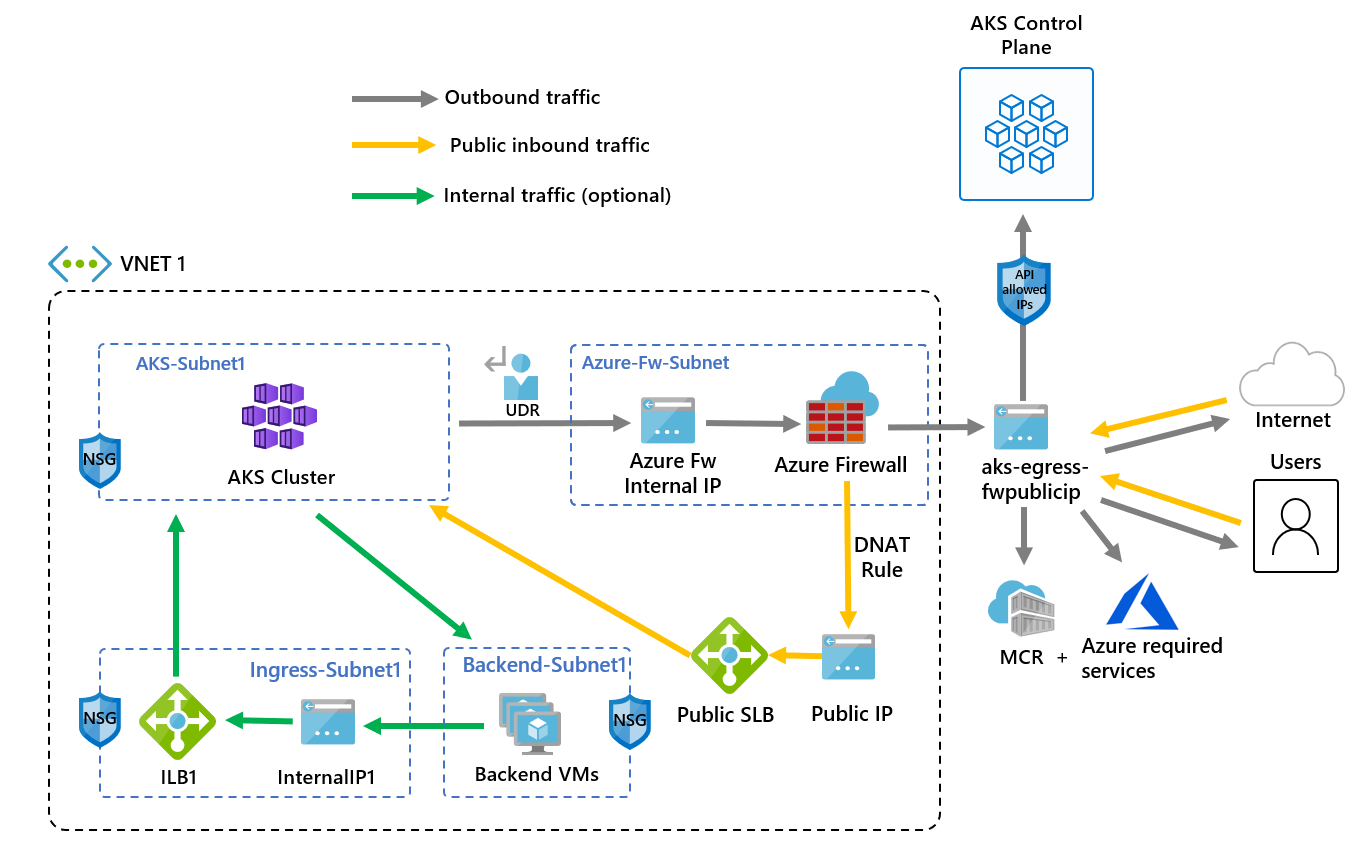
Key components of this architecture include:
- Public ingress is forced to flow through firewall filters:
- AKS agent nodes are isolated in a dedicated subnet.
- Azure Firewall is deployed in its own subnet.
- A DNAT rule translates the firewall public IP into the load balancer frontend IP.
- Outbound requests start from agent nodes to the Azure Firewall internal IP using a user-defined route (UDR):
- Requests from AKS agent nodes follow a UDR that has been placed on the subnet the AKS cluster was deployed into.
- Azure Firewall egresses out of the VNet from a public IP frontend.
- Access to the public internet or other Azure services flows to and from the firewall frontend IP address.
- You can protect access to the AKS control plane using API server authorized IP ranges, including the firewall public frontend IP address.
- Internal traffic:
- You can use an internal load balancer for internal traffic, which you could isolate on its own subnet, instead of or alongside a public load balancer.
Configure environment variables
The following table lists the environment variables used in this article. Set these variables in your shell before proceeding, or modify the commands to use your own values.
| Variable | Description | Example value |
|---|---|---|
PREFIX |
Prefix for resource names | aks-egress |
RESOURCE_GROUP |
Name of the resource group | aks-egress-rg |
LOCATION |
Azure region for resources | eastus |
PLUGIN |
Network plugin for AKS | azure |
CLUSTER_NAME |
Name of the AKS cluster | aks-egress |
VNET_NAME |
Name of the virtual network | aks-egress-vnet |
AKS_SUBNET_NAME |
Name of the subnet for AKS | aks-subnet |
FW_SUBNET_NAME |
Name of the subnet for Azure Firewall | AzureFirewallSubnet |
FW_NAME |
Name of the Azure Firewall | aks-egress-fw |
FW_PUBLICIP_NAME |
Name of the public IP for Azure Firewall | aks-egress-fwpublicip |
FW_IPCONFIG_NAME |
Name of the IP configuration for Azure Firewall | aks-egress-fwconfig |
FW_ROUTE_TABLE_NAME |
Name of the route table for Azure Firewall | aks-egress-fwrt |
FW_ROUTE_NAME_1 |
Name of the route for Azure Firewall | aks-egress-fwrn |
FW_ROUTE_NAME_2 |
Name of the internet route for Azure Firewall | aks-egress-fwrn-internet |
Create a resource group
Create a resource group using the
az group createcommand.az group create --name $RESOURCE_GROUP --location $LOCATION
Create a virtual network with multiple subnets
Provision a VNet with two separate subnets: one for the cluster and one for the firewall. Optionally, you can create one for internal service ingress. The following diagram illustrates the empty network topology before deploying any resources:

Create a VNet using the
az network vnet createcommand.az network vnet create \ --resource-group $RESOURCE_GROUP \ --name $VNET_NAME \ --location $LOCATION \ --address-prefixes 10.42.0.0/16 \ --subnet-name $AKS_SUBNET_NAME \ --subnet-prefix 10.42.1.0/24Create a subnet for Azure Firewall using the
az network vnet subnet createcommand.# Dedicated subnet for Azure Firewall (subnet must be named "AzureFirewallSubnet") az network vnet subnet create \ --resource-group $RESOURCE_GROUP \ --vnet-name $VNET_NAME \ --name $FW_SUBNET_NAME \ --address-prefix 10.42.2.0/24
Create a public IP for Azure Firewall
Create a standard SKU public IP resource using the
az network public-ip createcommand. This resource is used as the frontend IP address for the Azure Firewall.az network public-ip create --resource-group $RESOURCE_GROUP --name $FW_PUBLICIP_NAME --location $LOCATION --sku "Standard"
Install the Azure Firewall CLI extension
Register the Azure Firewall CLI extension to create an Azure Firewall using the
az extension addcommand.az extension add --name azure-firewall
Create an Azure Firewall and enable DNS proxy
Note
For high-traffic scenarios, see the firewall frontend IP requirements section.
For more information on how to create an Azure Firewall with multiple IPs, see Create an Azure Firewall with multiple public IP addresses using Bicep.

Create an Azure Firewall and enable DNS proxy using the
az network firewall createcommand with--enable-dns-proxyset totrue.az network firewall create --resource-group $RESOURCE_GROUP --name $FW_NAME --location $LOCATION --enable-dns-proxy trueSetting up the public IP address to the Azure Firewall might take a few minutes. Once it's ready, you can assign the IP address to the firewall front end.
Note
To use FQDN on network rules, you need DNS proxy enabled. When DNS proxy is enabled, the firewall listens on port 53 and forwards DNS requests to the DNS server you specify. This setting allows the firewall to automatically translate the FQDN.
Create an IP configuration for Azure Firewall
Create an Azure Firewall IP configuration using the
az network firewall ip-config createcommand.az network firewall ip-config create --resource-group $RESOURCE_GROUP --firewall-name $FW_NAME --name $FW_IPCONFIG_NAME --public-ip-address $FW_PUBLICIP_NAME --vnet-name $VNET_NAME
Get the Azure Firewall IP addresses
Save the public and private firewall frontend IP addresses for configuration later using the following commands:
export FW_PUBLIC_IP=$(az network public-ip show --resource-group $RESOURCE_GROUP --name $FW_PUBLICIP_NAME --query "ipAddress" -o tsv)
export FW_PRIVATE_IP=$(az network firewall show --resource-group $RESOURCE_GROUP --name $FW_NAME --query "ipConfigurations[0].privateIPAddress" -o tsv)
Note
For API server security, see the firewall frontend IP requirements section.
UDR configuration for AKS egress through Azure Firewall
Azure automatically routes traffic between Azure subnets, VNets, and on-premises networks. To modify default routing, create a route table with the following requirements:
Required route parameters:
- Route destination:
0.0.0.0/0(all traffic) - Next hop type: Network virtual appliance (NVA)
- Next hop IP: Azure Firewall private IP address
- Association: One route table per subnet (zero or one allowed)
UDR constraints:
- Default internet route (
0.0.0.0/0) already exists but requires public IP for SNAT. - Route must point to gateway/NVA, not directly to internet.
- AKS validates route configuration and prevents direct internet routes.
- Each subnet supports maximum of one associated route table.
Outbound type impact:
- UDR (
userDefinedRouting): No load balancer public IP created for outbound requests. - Load Balancer public IP: Only created for inbound requests with
LoadBalancerservice type. - SNAT configuration: Requires proper public IP configuration for outbound connectivity.
For more information, see Outbound rules for Azure Load Balancer.
Create a route with a hop to Azure Firewall
Create an empty route table using the
az network route-table createcommand. The route table defines the Azure Firewall as the next hop. Each subnet can have zero or one route table associated to it.az network route-table create --resource-group $RESOURCE_GROUP --location $LOCATION --name $FW_ROUTE_TABLE_NAMECreate routes in the route table for the subnets using the
az network route-table route createcommand.az network route-table route create --resource-group $RESOURCE_GROUP --name $FW_ROUTE_NAME_1 --route-table-name $FW_ROUTE_TABLE_NAME --address-prefix 0.0.0.0/0 --next-hop-type VirtualAppliance --next-hop-ip-address $FW_PRIVATE_IP az network route-table route create --resource-group $RESOURCE_GROUP --name $FW_ROUTE_NAME_2 --route-table-name $FW_ROUTE_TABLE_NAME --address-prefix $FW_PUBLIC_IP/32 --next-hop-type Internet
For information on how to override Azure's default system routes or add more routes to a subnet's route table, see the Virtual network route table documentation.
Azure Firewall outbound rules for AKS
Note
For applications outside of the kube-system or gatekeeper-system namespaces that need to talk to the API server, an extra network rule to allow TCP communication to port 443 for the API server IP in addition to adding application rule for fqdn-tag of AzureKubernetesService is required.
The following network rules are required for AKS egress traffic control through Azure Firewall:
- The first network rule allows access to port 9000 via TCP.
- The second network rule allows access to port 1194 via UDP. If you're deploying to Microsoft Azure operated by 21Vianet, see the Azure operated by 21Vianet required network rules. In this article, the commands use the
AzureCloud.$LOCATIONservice tag as the destination address. Service tags represent groups of IP address prefixes for Azure services in specific regions. This automatically includes the appropriate CIDR ranges for Azure services without requiring manual IP range specification. - The third network rule opens port 123 to
ntp.ubuntu.comFQDN via UDP. Adding an FQDN as a network rule is one of the specific features of Azure Firewall, so you need to adapt it when using your own options. - The fourth and fifth network rules allow access to pull containers from GitHub Container Registry (
ghcr.io) and Docker Hub (docker.io).
Create network rules on Azure Firewall
Create the network rules using the following
az network firewall network-rule createcommands.az network firewall network-rule create --resource-group $RESOURCE_GROUP --firewall-name $FW_NAME --collection-name 'aksfwnr' --name 'apitcp' --protocols 'TCP' --source-addresses '*' --destination-addresses "AzureCloud.$LOCATION" --destination-ports 9000 az network firewall network-rule create --resource-group $RESOURCE_GROUP --firewall-name $FW_NAME --collection-name 'aksfwnr' --name 'apiudp' --protocols 'UDP' --source-addresses '*' --destination-addresses "AzureCloud.$LOCATION" --destination-ports 1194 --action allow --priority 100 az network firewall network-rule create --resource-group $RESOURCE_GROUP --firewall-name $FW_NAME --collection-name 'aksfwnr' --name 'time' --protocols 'UDP' --source-addresses '*' --destination-fqdns 'ntp.ubuntu.com' --destination-ports 123 az network firewall network-rule create --resource-group $RESOURCE_GROUP --firewall-name $FW_NAME --collection-name 'aksfwnr' --name 'ghcr' --protocols 'TCP' --source-addresses '*' --destination-fqdns ghcr.io pkg-containers.githubusercontent.com --destination-ports '443' az network firewall network-rule create --resource-group $RESOURCE_GROUP --firewall-name $FW_NAME --collection-name 'aksfwnr' --name 'docker' --protocols 'TCP' --source-addresses '*' --destination-fqdns docker.io registry-1.docker.io production.cloudflare.docker.com --destination-ports '443'
Create application rules on Azure Firewall
Create the application rule using the
az network firewall application-rule createcommand.az network firewall application-rule create --resource-group $RESOURCE_GROUP --firewall-name $FW_NAME --collection-name 'aksfwar' --name 'fqdn' --source-addresses '*' --protocols 'http=80' 'https=443' --fqdn-tags "AzureKubernetesService" --action allow --priority 100
To learn more about Azure Firewall, see the Azure Firewall documentation.
Associate the route table to AKS
To associate the cluster with the firewall, the dedicated subnet for the cluster's subnet must reference the route table.
Associate the route table to AKS using the
az network vnet subnet updatecommand.az network vnet subnet update --resource-group $RESOURCE_GROUP --vnet-name $VNET_NAME --name $AKS_SUBNET_NAME --route-table $FW_ROUTE_TABLE_NAME
Deploy an AKS cluster that follows your outbound rules
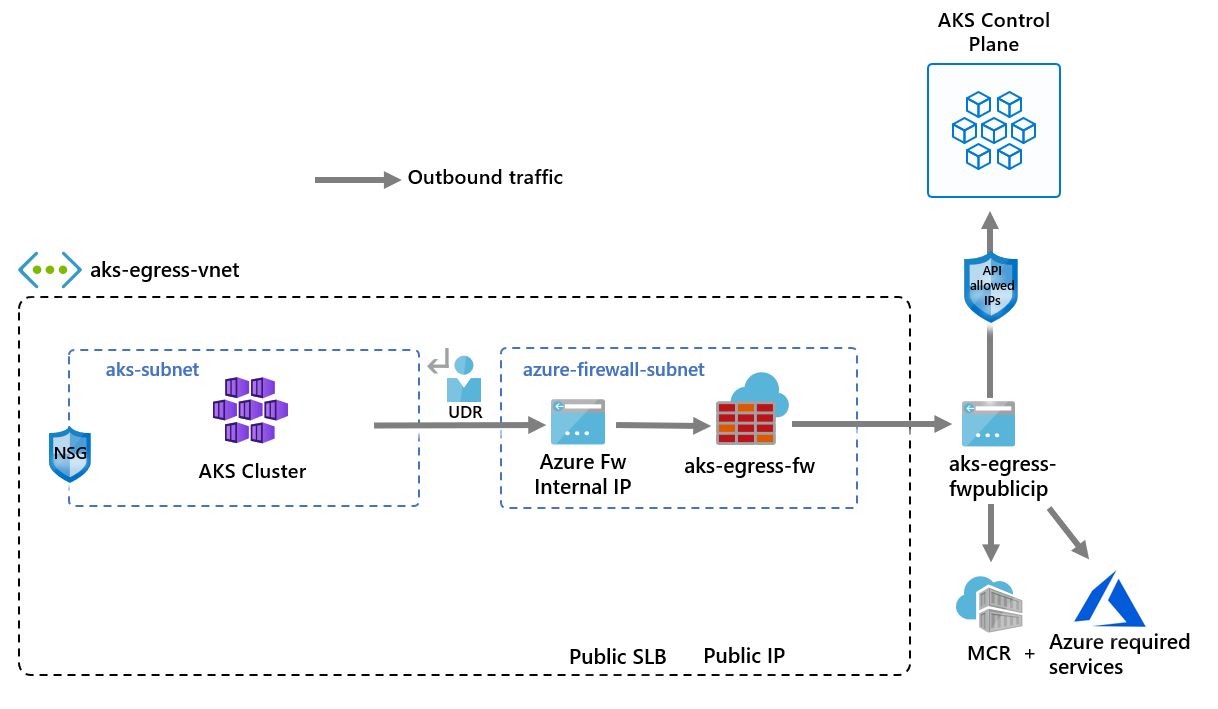
You can now deploy an AKS cluster into the existing VNet. You use the userDefinedRouting outbound type, which ensures that any outbound traffic is forced through the firewall and no other egress paths exist. You can also use the loadBalancer outbound type.
Set an environment variable for the subnet ID of the target subnet using the following command:
SUBNET_ID=$(az network vnet subnet show --resource-group $RESOURCE_GROUP --vnet-name $VNET_NAME --name $AKS_SUBNET_NAME --query id -o tsv)
You define the outbound type to use the UDR that already exists on the subnet. This configuration enables AKS to skip the setup and IP provisioning for the load balancer.
Tip
You can add extra features to the cluster deployment, such as private clusters.
For API server authorized IP ranges setup and developer access considerations, see the firewall frontend IP requirements section.
Create an AKS cluster with system-assigned identities
Note
AKS creates a system-assigned kubelet identity in the node resource group if you don't specify your own kubelet managed identity.
For user-defined routing, system-assigned identity only supports the CNI network plugin.
Create an AKS cluster using a system-assigned managed identity with the CNI network plugin using the
az aks createcommand.az aks create --resource-group $RESOURCE_GROUP --name $CLUSTER_NAME --location $LOCATION \ --node-count 3 \ --network-plugin azure \ --outbound-type userDefinedRouting \ --vnet-subnet-id $SUBNET_ID \ --api-server-authorized-ip-ranges $FW_PUBLIC_IP \ --generate-ssh-keys
Create user-assigned identities
If you don't have user-assigned identities, follow the steps in this section. If you already have user-assigned identities, skip to Create an AKS cluster with user-assigned identities.
Create a managed identity using the
az identity createcommand.az identity create --name myIdentity --resource-group $RESOURCE_GROUPThe output should resemble the following example output:
 {
   ...
   "id": "/subscriptions/<subscriptionid>/resourcegroups/aks-egress-rg/providers/Microsoft.ManagedIdentity/userAssignedIdentities/myIdentity",
   "location": "eastus",
   "name": "myIdentity",
   ...
   "type": "Microsoft.ManagedIdentity/userAssignedIdentities"
 }
Create a kubelet managed identity using the
az identity createcommand.az identity create --name myKubeletIdentity --resource-group $RESOURCE_GROUPThe output should resemble the following example output:
{
  ...
  "id": "/subscriptions/<subscriptionid>/resourcegroups/aks-egress-rg/providers/Microsoft.ManagedIdentity/userAssignedIdentities/myKubeletIdentity",
  "location": "eastus",
  "name": "myKubeletIdentity",
  ...
  "resourceGroup": "aks-egress-rg",
  ...
  "type": "Microsoft.ManagedIdentity/userAssignedIdentities"
}
Note
If you create your own VNet and route table where the resources are outside of the worker node resource group, the CLI automatically adds the role assignment. If you're using an ARM template or other method, you need to use the principal ID of the cluster managed identity to perform a role assignment.
Create an AKS cluster with user-assigned identities
Create an AKS cluster with your existing user-assigned managed identities in the subnet using the
az aks createcommand. Provide the resource ID of the managed identity for the control plane and the resource ID of the kubelet identity.az aks create \ --resource-group $RESOURCE_GROUP \ --name $CLUSTER_NAME \ --location $LOCATION \ --node-count 3 \ --network-plugin kubenet \ --outbound-type userDefinedRouting \ --vnet-subnet-id $SUBNET_ID \ --api-server-authorized-ip-ranges $FW_PUBLIC_IP \ --assign-identity <identity-resource-id> \ --assign-kubelet-identity <kubelet-identity-resource-id> \ --generate-ssh-keys
Enable developer access to the API server
If you used authorized IP ranges for your cluster in the previous step, you need to add your developer tooling IP addresses to the AKS cluster list of approved IP ranges so you access the API server from there. You can also configure a jumpbox with the needed tooling inside a separate subnet in the firewall's VNet.
Retrieve your IP address using the following command:
CURRENT_IP=$(dig @resolver1.opendns.com ANY myip.opendns.com +short)Add the IP address to the approved ranges using the
az aks updatecommand.az aks update --resource-group $RESOURCE_GROUP --name $CLUSTER_NAME --api-server-authorized-ip-ranges $CURRENT_IP/32
Connect to the AKS cluster
Configure
kubectlto connect to your AKS cluster using theaz aks get-credentialscommand.az aks get-credentials --resource-group $RESOURCE_GROUP --name $CLUSTER_NAME
Deploy a public service on AKS
You can now start exposing services and deploying applications to this cluster. This example exposes a public service, but you also might want to expose an internal service using an internal load balancer.

Review the AKS Store Demo quickstart manifest to understand the deployed components.
Deploy the service using the
kubectl applycommand.kubectl apply -f https://raw.githubusercontent.com/Azure-Samples/aks-store-demo/main/aks-store-quickstart.yaml
Get the load balancer internal IP and service IP
Get the internal IP address assigned to the load balancer using the
kubectl get servicescommand.kubectl get servicesThe IP address should be listed in the
EXTERNAL-IPcolumn, as shown in the following example output:NAME TYPE CLUSTER-IP EXTERNAL-IP PORT(S) AGE kubernetes ClusterIP 10.0.0.1 <none> 443/TCP 9m10s order-service ClusterIP 10.0.104.144 <none> 3000/TCP 11s product-service ClusterIP 10.0.237.60 <none> 3002/TCP 10s rabbitmq ClusterIP 10.0.161.128 <none> 5672/TCP,15672/TCP 11s store-front LoadBalancer 10.0.89.139 20.39.18.6 80:32271/TCP 10sGet the service IP using the
kubectl get svc store-frontcommand.SERVICE_IP=$(kubectl get svc store-front -o jsonpath='{.status.loadBalancer.ingress[*].ip}')
Create a DNAT rule on Azure Firewall
Important
When you use Azure Firewall to restrict egress traffic and create a UDR to force all egress traffic, make sure you create an appropriate DNAT rule in Azure Firewall to correctly allow ingress traffic. Using Azure Firewall with a UDR breaks the ingress setup due to asymmetric routing. The issue occurs if the AKS subnet has a default route that goes to the firewall's private IP address, but you're using a public load balancer - ingress or Kubernetes service of type loadBalancer. In this case, the incoming load balancer traffic is received via its public IP address, but the return path goes through the firewall's private IP address. Because the firewall is stateful, it drops the returning packet because the firewall isn't aware of an established session. To learn how to integrate Azure Firewall with your ingress or service load balancer, see Integrate Azure Firewall with Azure Standard Load Balancer.
To configure inbound connectivity, you need to write a DNAT rule to the Azure Firewall. To test connectivity to your cluster, a rule is defined for the firewall frontend public IP address to route to the internal IP exposed by the internal service. You can customize the destination address. The translated address must be the IP address of the internal load balancer. The translated port must be the exposed port for your Kubernetes service. You also need to specify the internal IP address assigned to the load balancer created by the Kubernetes service.
Add the NAT rule using the
az network firewall nat-rule createcommand.az network firewall nat-rule create --collection-name exampleset --destination-addresses $FW_PUBLIC_IP --destination-ports 80 --firewall-name $FW_NAME --name inboundrule --protocols Any --resource-group $RESOURCE_GROUP --source-addresses '*' --translated-port 80 --action Dnat --priority 100 --translated-address $SERVICE_IP
Validate connectivity
Navigate to the Azure Firewall frontend IP address in a browser to validate connectivity. You should see the AKS store app. In this example, the firewall public IP was
52.253.228.132: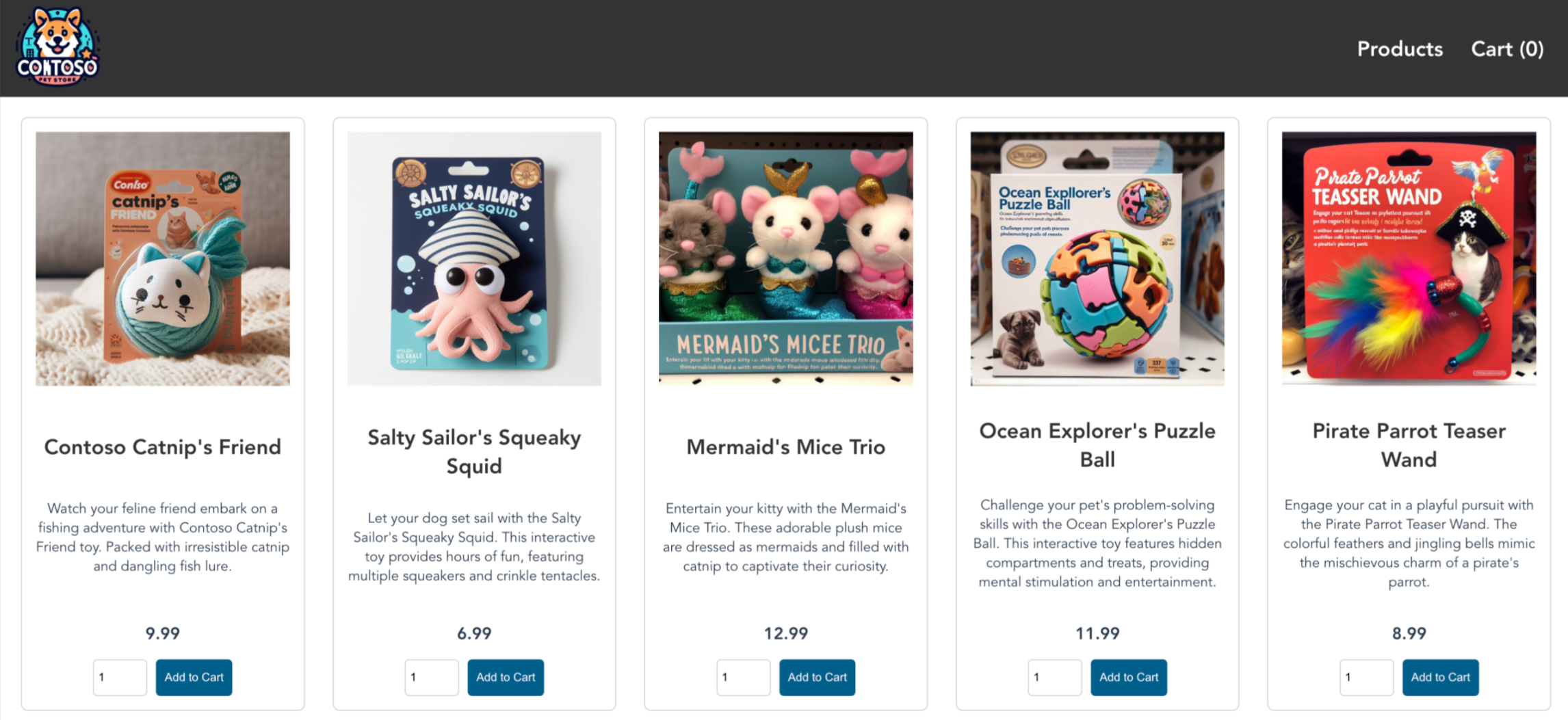
On this page, you can view products, add them to your cart, and then place an order.
Clean up resources
If you no longer need the resources created in this article, you can delete them to avoid incurring future costs.
Delete the AKS resource group using the
az group deletecommand.az group delete --name $RESOURCE_GROUP