Note
Access to this page requires authorization. You can try signing in or changing directories.
Access to this page requires authorization. You can try changing directories.
Question
Tuesday, August 25, 2015 3:32 PM
I have a domain joined (Windows 2008) Windows 10 desktop that is unable to access the shares on my W2K8R2 server. Turning off the firewall on the server fixes the issue, however that is not a viable solution. Running wfpdiag on the server shows that the firewall is dropping the Windows 10 packets with filter ID 207371 (remote administration) on port 445.
Has something changed with Win 10? All of my Windows 7 and Windows 8 machines can access the shares on this server. Do I now have to allow remote administration on my file server in order for Win 10 to access the shares?
Any help would be greatly appreciated.
All replies (14)
Monday, August 31, 2015 9:06 AM ✅Answered
Thanks Karen. File and printer sharing is allowed on the server (as I mentioned, all the Windows 7 and XP machines on the network have access) and NetBIOS is set to default on the Windows 10 client. Setting it to "Enable" made no difference either.
What are the implications of allowing Remote Administration(NP-In) on the server? And why is this necessary for Windows 10 but not the other flavors of Windows?
Since when you use the high edition of SMB to access the low edition, it would access via the port 445. Windows 7 and Windows XP use the lower or same edition of SMB than Windows Server 2008R2. It won't traffic via the port 445.
Please remember to mark the replies as answers if they help, and unmark the answers if they provide no help. If you have feedback for TechNet Support, contact [email protected].
Tuesday, August 25, 2015 5:43 PM
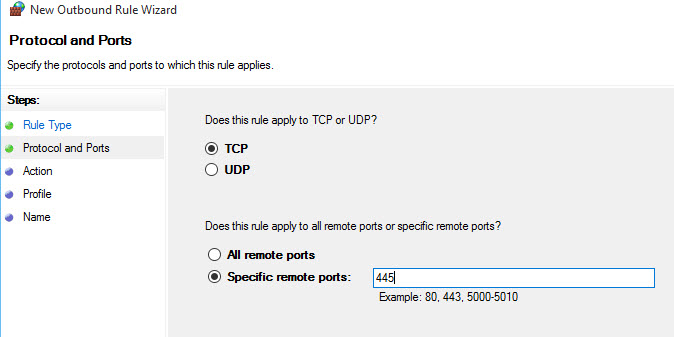
What happen if you create an outbound rule on Windows 10 Firewall that allows the communication (TCP 445) to your server?
Tuesday, August 25, 2015 6:19 PM
The inbound rule on the 2008R2 server is what is blocking the connection... but an outbound rule blocking remote administration to the remote port 445 might work but I can't find that service in the list.
Tuesday, August 25, 2015 7:29 PM | 5 votes
I had the same or a similar problem on my company’s domain network. Here is a brief description of the computers on the domain.
Servers: Windows Server 2008 R2
Clients: Windows 7 Pro 32-bit, Windows 7 Pro 64-bit, Windows 8 Pro 64-bit, Windows 8.1 Pro 64-bit, Windows 10 Pro 64-bit
I could not connect to Windows Server 2008 R2 network shares from any Windows 10 Pro x64 device. Windows 10 computers were also unable to connect to administrative shares \computername\C$\ on client computers throughout the network. However, Windows 7 and Windows 8 computers were able to connect to both network shares and administrative shares. Only the Windows 10 computers failed to connect. The specific errors were either 0x80070035 or 0x80004005.
File and print sharing resource is online but isn’t responding to connection attempts.
The remote computer isn’t responding to connections on port 445, possibly due to firewall or security policy settings, or because it might be temporarily unavailable. Windows couldn’t find any problems with the firewall on your computer.
Contact the service provider or owner of the remote system for further assistance, or try again later.
I followed many suggested changes to the registry, local security policy, firewall, etc., but none of these tricks worked for me. I still could not connect to the shared network resources. The solution that finally worked was to disable SMBv2 and SMBv3 on the client Windows 10 computers (https://support.microsoft.com/en-us/kb/2696547).
- Open “Windows Powershell” and right-click to “Run As Administrator”
- Enter the following command in Powershell:
sc.exe config lanmanworkstation depend= bowser/mrxsmb10/nsi
sc.exe config mrxsmb20 start= disabled
3. Restart the computer.
Tuesday, August 25, 2015 11:00 PM
Thanks Steven, that worked like a charm, but it doesn't make sense as to why. Here's what I did:
I disbled the firewall (on the W2K8r2 server) which allowed the Windows 10 machine to access the shares. I ran the PowerShell cmdlet "Get-SmbConnection" (on the Win 10 client) which told me that SMBv2.1 was being used.
I enabled the firewall which blocked the connection.
After following your instructions to disable SMBv2/3 on the client I was indeed able to access the shares on the server with the firewall still on. Running Get-SMBConnection on the client returned the dialect as 1.5.
So, my question is: Which firewall rule is affecting the use of SMBv2.1? I would rather use v2.1 than v1.5 if at all possible.
Wednesday, August 26, 2015 1:49 AM
I honestly do not understand it myself. I came upon this solution through weeks of trial and error. Since I do not fully understand WHY this works or what the setting OUGHT to be in the future, I suspect that an update will some day make this workaround unworkable. Another oddity was that I could connect to Server 2003 network shares even with SMBv2/3 enabled. It was only a problem with Server 2008. I hope others will chime in with their experiences and share their knowledge on this subject as well.
Wednesday, August 26, 2015 8:32 AM
The inbound rule on the 2008R2 server is what is blocking the connection... but an outbound rule blocking remote administration to the remote port 445 might work but I can't find that service in the list.
Hi,
Which services and which list?
Please check your Server side inbound and outbound File and printer Sharing(SMB-IN) is allowed via the port 445. Meanwhile, make Remote Administration(NP-In) is allowed traffic via the port 445.


In addition, If you NetBIOS is not activated, and when you use the high edition of SMB to access the low edition, it would access via the port 445.
Thus when you disable the Firewall or disable the SMB 3.0 on the client, it would works.
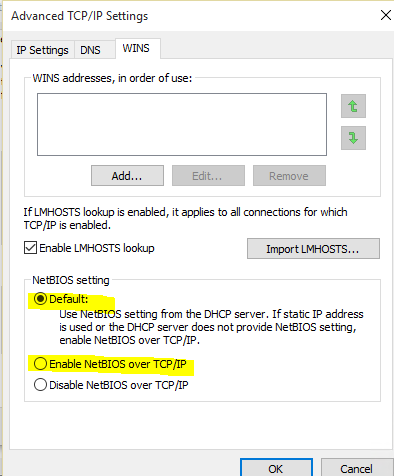
You could check the client network adapter NetBIOS setting to make sure it's Enable or Default.
Please remember to mark the replies as answers if they help, and unmark the answers if they provide no help. If you have feedback for TechNet Support, contact [email protected].
Friday, August 28, 2015 12:55 PM
I found a treasure trove of information on this topic since I initially responded. This has helped me and perhaps will help you too.
What’s new in SMB 3.1.1 in the Windows Server 2016 Technical Preview 2
Friday, August 28, 2015 2:20 PM
Thanks Karen. File and printer sharing is allowed on the server (as I mentioned, all the Windows 7 and XP machines on the network have access) and NetBIOS is set to default on the Windows 10 client. Setting it to "Enable" made no difference either.
What are the implications of allowing Remote Administration(NP-In) on the server? And why is this necessary for Windows 10 but not the other flavors of Windows?
Friday, August 28, 2015 2:26 PM
Thanks Steven, looks like my weekend plans will have to be put on hold while I get educated. I thought it might be a SMBv3 issue and have been looking for a way to disable v3 without disabling v2, but apparently that's not possible as the two versions use the same stack so disabling one disables the other.
Wednesday, September 30, 2015 2:57 PM
I found that some systems had the blocking inbound rule "Remote Administration (NP-In)" that was blocking port 445. That rule is controlled by a Group Policy "Windows Firewall: Allow inbound remote administration exception". Although there might be a Group Policy Object in the domain that has set that policy to "Disabled", it is also possible likely that there is just some inconsistency (cruft) in the cached policy data on the local system.
I fix this by using the Local Group Policy Editor (gpedit.msc) and changing the policy from "Not Configured" to "Enabled". A refresh of the firewall rules shows that the "Remote Administration (NP-In)" rule is now opening port 445.
You can then try setting the policy state back to "Not Configured" and see whether the blocking rule gets reinstated. If it doesn't, then great! If it does, then just set the policy to "Enabled" again.
Tuesday, October 18, 2016 2:09 AM
This fixed worked perfectly. One workaround I found was to use the the ip address of the server (\xxx.yyy.zzz.000\file_storage). I've been using this workaround for the last 6 months without any issues. Thank you for putting this together and posting for us.
Wednesday, May 17, 2017 8:01 PM
Thanks !
Monday, December 3, 2018 11:53 PM
If you cannot access your shared drives on a server, it may have a local policy blocking access. Look on the server for a netbc policy that may be blocking the connection. Do this on the server that hosts the share you're trying to connect to.
Open the local security policy - Application Control Policies - IP Security Policies on Local Computer - NetBC
Remove the check mark next to block and you should be able to access your shares immediately after clearing the checkmark.
This policy is created by the Adylkuzz.B malware.