Note
Access to this page requires authorization. You can try signing in or changing directories.
Access to this page requires authorization. You can try changing directories.
Question
Tuesday, October 18, 2016 5:41 AM
Hi,
I want to create a schedule task for RDP users that whenever any user connect server with "MSTSC" administrator will received and email notification with details. Who logged in, Computer name, IP, User Name with timestamp.
I was trying below script but it give an error and not provide the newest user login details.
** $FromAddress = "[email protected]"**
** $ToAddress = "[email protected]"**
** $SMTPAddress = “10.10.1.10”**
$USERDetails = @()
$a = "<style>"
$a = $a + "TABLE{border-width: 1px;border-style: solid;border-color:black;}"
$a = $a + "Table{background-color:#ffffff;border-collapse: collapse;}"
$a = $a + "TH{border-width:1px;padding:0px;border-style:solid;border-color:black;}"
$a = $a + "TR{border-width:1px;padding-left:5px;border-style:solid;border-color:black;}"
$a = $a + "TD{border-width:1px;padding-left:5px;border-style:solid;border-color:black;}"
$a = $a + "</style>"
** $Computer = hostname**
** quser | Select-Object -Last 1 | ForEach-Object {**
** $CurrentLine = $_.Trim() -Replace '\s+',' ' -Split '\s'**
** $HashProps = @{**
** UserName = $CurrentLine[0].replace(">","")**
** ComputerName = $Computer**
** ClientIP = $LogOnEvents.Properties[18].value**
** }**
** $HashProps.SessionName = $CurrentLine[1]**
** $HashProps.Id = $CurrentLine[2]**
** $HashProps.State = $CurrentLine[3]**
** $HashProps.LogonTime = $CurrentLine[5..7] -join ' '**
** $USERDetails = New-Object -TypeName PSCustomObject -Property $HashProps |**
** Select-Object -Property UserName,ComputerName,ClientIP,State,LogonTime,SessionName**
** $User = $USERDetails | Select -ExpandProperty UserName**
** $messageParameters = @{**
** Subject = "[RDP Event] $User LoggedIn to $Computer "**
** Body = ( $USERDetails | ConvertTo-Html -Head $a |**
** Out-String -Width ([int]::MaxValue))**
** From = $FromAddress**
** To = $ToAddress**
** SmtpServer = $SMTPAddress**
** }**
** Send-MailMessage @messageParameters -BodyAsHtml**
** }**
please help me on this
Regards
Namjals
All replies (7)
Tuesday, October 18, 2016 8:18 AM ✅Answered | 1 vote
Hello,
First you need to check this log, to see the user details. Event ID 21.

then you need to setup a scheduled task to capture this, Trigger tab view
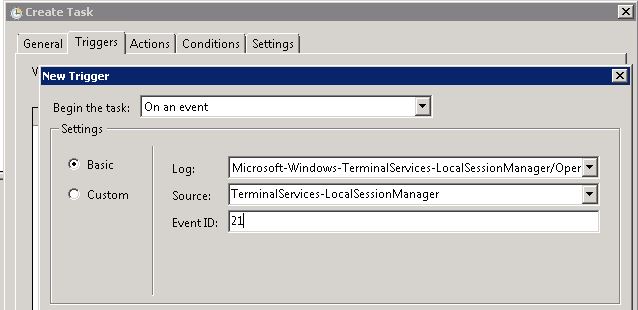
then you could tweak your code to get the last even ID 21. put that line in a .ps1 and attach it to the Scheduled Task.
Get-WinEvent -LogName Microsoft-Windows-TerminalServices-LocalSessionManager/Operational | Where {$_.Id -eq "21"}| select -ExpandProperty Message -First 1
output:
Remote Desktop Services: Session logon succeeded:

User: RunServer01\Administrator
Session ID: 2
Source Network Address: 192.168.1.12
Assign the above output to a Variable and use Send-mailmessage.
Hope you create a separate 'mail rule' for these notifications ;)
Regards,
Venu
Tuesday, October 18, 2016 11:42 AM ✅Answered | 1 vote
Thanks jrv, for the idea, it would certainly help! I didn't had a thought its possible till now def. learned something new.
are you referring to
@Namjals, you could try what jrv mentioned or if you would like to still continue with the above script,
you could try this..
assign the output to variable, at the end i've added the 'TimeCreated' which would capture the timestamp.
$evenVal = Get-WinEvent -LogName Microsoft-Windows-TerminalServices-LocalSessionManager/Operational | Where {$_.Id -eq "21"}| select Message,TimeCreated -First 1
then your output as required for the 'Send-MailMessage'
PS C:\Users\RunUser01> $EvenVal

Message                                                                                             TimeCreated

Remote Desktop Services: Session logon succeeded:...                                                10/18/2016 11:56:49 AM


PS C:\Users\RunUser01> $EvenVal | select -ExpandProperty Message
Remote Desktop Services: Session logon succeeded:

User: RunServer01\RunUser01
Session ID: 2
Source Network Address: 192.168.1.17


PS C:\Users\RunUser01> $EvenVal | select TimeCreated

TimeCreated

10/18/2016 11:56:49 AM
Regards,
Venu
Tuesday, October 18, 2016 6:01 AM
Your script cannot detect the newest user. You will need to use an event log task to do this.
\(ツ)_/
Tuesday, October 18, 2016 8:53 AM
Hi Venu,
Thanks for your mail.
In this if I want to add time stamp than?
Regards
Namjals
Tuesday, October 18, 2016 10:19 AM
A task can be added to an event in the EventVwr by right clicking on the event and select "Attach task to this event". The attached script will be called whenever the event arrives in the event log. No need to use Get-WinEvent as the event arrives with all values which can be passed to the PS1 script as arguments.
\(ツ)_/
Tuesday, October 18, 2016 11:53 AM
Thanks jrv, for the idea, it would certainly help! I didn't had a thought its possible till now def. learned something new.
are you referring to
Regards,
Venu
Yes. That is how we normally allow the logons to generate an event that runs a script. It is the most reliable and easiest way to event the logins or to get notified on any event that occurs.
This has been available since Windows Vista.
\(ツ)_/
Wednesday, October 19, 2016 11:10 AM
Thanks a lot Venu
It's worked fine and also received an email notification.
Once again thanks for your help.
Regards
Kejal