Note
Access to this page requires authorization. You can try signing in or changing directories.
Access to this page requires authorization. You can try changing directories.
Question
Saturday, November 9, 2019 4:26 PM
Hi,
I have been trying to clear up my inbox and sort emails into folders. I have been creating rules as I go in order for future emails to go directly into their respective folders automatically.
I have had no issues with these rules until I have gotten to emails that are more than a year old that are stored on the Microsoft Exchange. (I am using a hotmail account). I am coming across emails that should have already moved with the others as I have already set up rules.
I have been onto the Microsoft Office Support chat with no luck in solving the issue.
I have tried deleting and re-creating the rule and deactivating and reactivating the rule with no luck. Both times, when trying to reactivate or recreate the rule, I got a pop up message telling me that the rules on my computer don't match the rules on the server. It has then asked me to chose between the server or the computer/client. I have tried the above attempts to fix selecting both separately with no luck.
I have also tried using the Rules and Alerts manager direct to run the rules manually. I have tried this with all the rules at the same time and with just one rule for a specific email I know hasn't moved.
I have also tried closing down Outlook and restarting and have gone as far as restarting my computer as well. The rules are working for new emails coming in as far as I can see however, it has started to not work with emails that are over 1 year old.
Can anyone place any light on a fix for this issue or do rules not work for emails that are already 1 year old meaning I will have to move the emails myself instead?
Thanks
All replies (3)
Monday, November 11, 2019 3:16 AM ✅Answered
Hi Pete,
>>I have had no issues with these rules until I have gotten to emails that are more than a year old
Do you want to move previous emails using Rules?
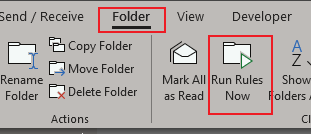
Normally, rules will be applied to new messages automatically. To move emails that are already existing in the folder, click Folder > Run Rules Now
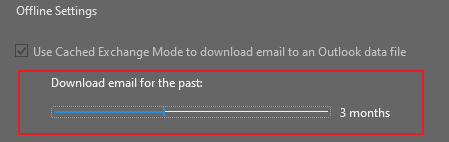
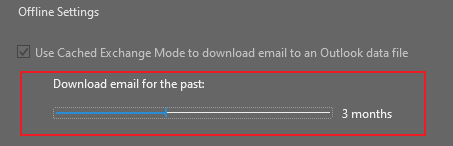
Besides, what’s your Offline Settings? One year? This option “Run rules Now” will works on Outlook client side and apply to emails that are downloaded to local OST file.
Try first changing the Offline settings to “ALL” to let Outlook cache all your emails to local OST file. And then run the rule on folders. After moving successfully, change it back to your original settings.
Hope the information is helpful to you.
Regards,
Perry
Please remember to mark the replies as answers if they helped. If you have feedback for TechNet Subscriber Support, contact [email protected].
Monday, November 11, 2019 1:13 PM
Thanks Perry,
The "Run rules now" had been tried by myself. It wasn't working though. I have checked my offline settings and it was only downloading my emails for the past year. I have changed it as you suggested to "all".
This has now worked.
Many Thanks,
Peter
Tuesday, November 12, 2019 1:08 AM
You are welcome :)
Here I will provide a brief summary of this post for your information.
[Issue Symptiom]
====================
After creating a rule, it doesn’t move existing emails to the destinated folder.
[Possible Cause]
====================
Normally, rules will be applied to new messages automatically. To move emails that are already existing in the folder, we need to manually run the rule on the folder.
Besides, this option “Run rules Now” will works on Outlook client side and apply to emails that are downloaded to local OST file.
[Solution]
====================
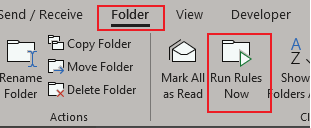
1. Click Folder > Run Rules Now
2. If you want to move all previous emails, try first changing the Offline settings to “ALL” to let Outlook cache all your emails to local OST file. And then run the rule on folders. After moving successfully, change it back to your original settings.