Note
Access to this page requires authorization. You can try signing in or changing directories.
Access to this page requires authorization. You can try changing directories.
Question
Saturday, March 26, 2016 8:14 AM
Hi Expertz,
I have been working with WICD-creating ppkg file for package provisioning, and I found that to run the ppkg file, I have to double click it manually and worse thing is that "yes" prompt which is coming after clicking the package.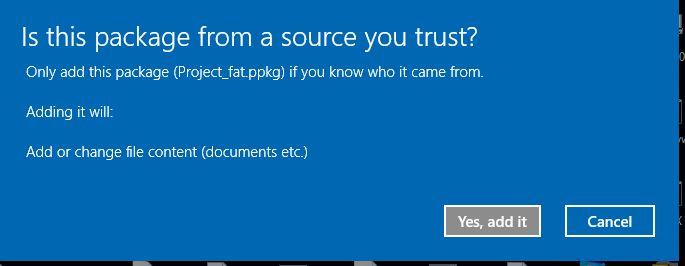
In order to automate the running of the ppkg file what step should we follow? Is there any way /workaround to not to display this warning !! and silently complete the execution of ppkg like we do for UAC & Registry changes warning pages??
Does anyone know any trick to disable this warning page while creating the packge within WICD itself?
All replies (10)
Monday, March 28, 2016 12:11 AM
Kindly go through the following:
Step-By-Step: Building Windows 10 Provisioning Packages
S.Sengupta, Windows Experience MVP
Monday, March 28, 2016 4:26 AM
Hello,
S.Sengupta Sir,
I have gone through the link but it did not help me with the automation of ppkg.
Tuesday, March 29, 2016 1:55 PM
Hi,
I don't think it is easy to implement.
I have tried to use provtool.exe ppkgfile /s like what we can do on setup.exe, but failed.
Also, I have used process monitor to capture the traces when I trying to do so, it appears that it will general a GUID to register in registry hive and also wintrust.dll, we cannot manually to pass through the trusted clarification phase.
I have no deployment evironment, you can try the task sequence in deployment tool by using DISM /Add-ProvisioningPackage:
https://msdn.microsoft.com/en-us/library/windows/hardware/mt228169(v=vs.85).aspx
Please remember to mark the replies as answers if they help, and unmark the answers if they provide no help. If you have feedback for TechNet Support, contact [email protected].
Wednesday, April 13, 2016 11:01 PM
Dhanraj,
the prompt will be skipped if the package is signed by a trusted source. Its basically prompting you to decide whether or not you trust the source
Thursday, April 14, 2016 4:26 AM
Ok Anand,thats sounds corrct!!!
Can you please tell me how to sign the package
Monday, May 9, 2016 5:34 AM
Dear Mr Anand, though you said so, Singing the ppkg file is not straight forward, I have tried creating the certificate and tried to add it on the package , but it says::

Monday, May 9, 2016 9:17 PM
Dhanraj,
we have been working on providing clearer documentation on achieving just that. Could you please take a look at the updated documentation posted here (https://msdn.microsoft.com/en-us/library/windows/hardware/dn916107%28v=vs.85%29.aspx#to_build_and_customize_a_provisioning_package) under "Customize a provisioning package", Step 5. Please take a look and let us know if this is sufficient?
Monday, May 9, 2016 11:08 PM
Anand,
It seems that a code-signing certificate must be issued and included in the provisioning package in order to bypass user interaction upon installation of the provisioning package.
The link you provided is helpful, but is not sufficient to solve the issue. According to the article, "you must set the TrustedProvisioners setting prior to installing the trusted provisioning package". However, on a new Windows Server 2012 R2 server with the Certificate Authority role installed, the "TrustedProvisioners" store is not included by default. I have not been able to find documentation online regarding creation of the TrustedProvisioners store. This issue is blocking progress on deployment of provisioning packages.
Note that William and Matthew from this article are having the same issue in this thread. https://social.technet.microsoft.com/Forums/exchange/en-US/a01ad169-7aaa-42be-937a-e82169f88d4f/provisioning-and-code-signing?forum=win10itprosetup
Thank you for your time.
Wednesday, May 11, 2016 6:42 AM
No, Mr. Anand, That was not sufficient,
Today I was able to add a self signed code signing certificate to the ppkg after creating using MAKECERT tool and installing it using CERTMGR locally in a machine. But still the prompt is appearing.

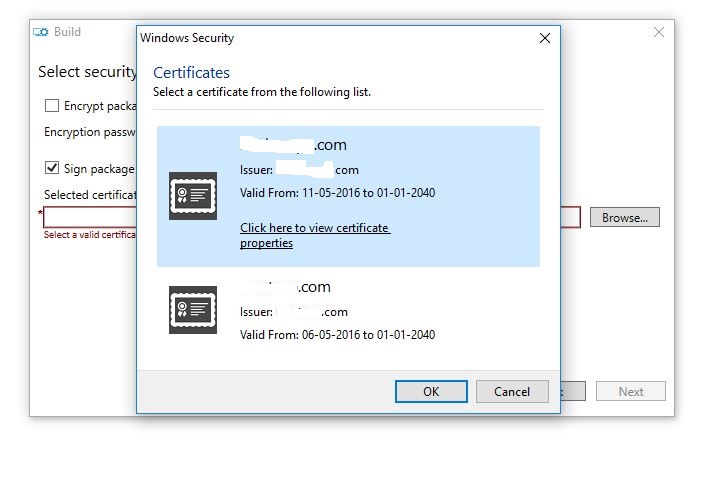
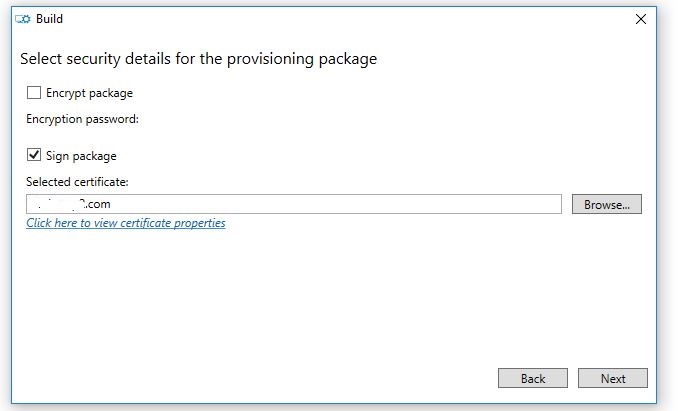
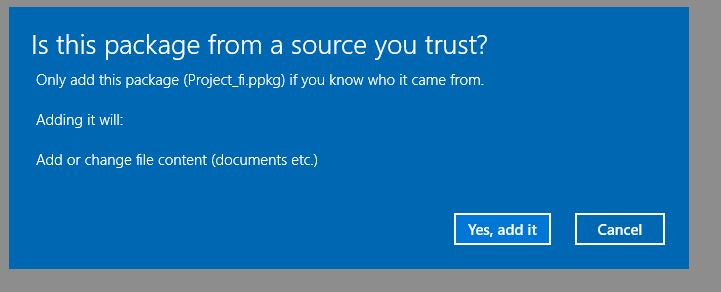
So what could possibly gone wrong with the certificate ?? It was a locally created self signed test certificate.
Thursday, January 3, 2019 9:59 PM
I found a method that works without any registry copy. There were two aspects to this. Firstly, getting the ppkg file signed, which requires generating a certificate. Secondly, getting the powershell to do the install added to sccm and executed on collections i specify. I do believe i have it all working now as it works in my test VM. I am going to roll to production but wanted to document here first. here are the steps:
1) open up certmgr.msc and request a new certificate. I did this on the actual certificate authority machine (domain controller) but it probably does not matter. I am generating this from my
select "active directory enrollment policy"
select "code signing" and configure the certificate (properties button) with as much or as little info as you want. I would recommend at minimum, a descriptive name so you can find it again.
Under the "Private Key" tab, expand the "key options" section and click the radio box that says "make private key exportable"
apply your changes and enroll the certificate. Should enrol fine.
before closing the "certificate installation results" window, click view certificate.
go to the "details" tab and click "copy to file"
export the certificate WITH the private key. give it a password
Import this PFX file into the machine where you are building the ppkg file, where you are needing to sign it.
You should now be able to select and sign the ppkg file with your certificate which is validated against your domain.
now when you want to apply it, simply run the following powershell command. It will now install silently. No need to add the certificate to the machine beforehand or anything!
Install-ProvisioningPackage -QuietInstall "PATH_TO_PPKG_FILE"
- i then created an application of type script in system center, to push this to all the machines i wanted.
When you are making your deployment type, use powershell script and then use the command 'get-provisioningpackage' to detect whether it has been run before on the workstation. That is how you do an application detect, i cant see a better way. This will only work if you only have one provisioning package, as any result from that command will return true (installed). A more artful powershell command may be used instead but i am not a PS wizard. feel free to comment if you get a better conditional check for this.
the powershell command to start the script is
Powershell.exe -ExecutionPolicy ByPass -File YOUR_SCRIPT_FILE
, starting in the parent directory with the ppkg file in it.
and the script file simply contains the powershell above.