Note
Access to this page requires authorization. You can try signing in or changing directories.
Access to this page requires authorization. You can try changing directories.
Question
Sunday, October 21, 2012 9:08 PM
Is it possible to change icon for already published RemoteApp? I didn't find any simple solution, e.g. a button in RemoteApp Properties Dialog Box.
All replies (18)
Monday, October 22, 2012 10:29 PM
Does anybode have a Change Icon button in RemoteApp Properties Dialog Box? It seems that such a button exists in Windows Server 2008 R2 - at least few posts in this forum mentions it.
But how I can manage it in Windows Server 2012?
Tuesday, October 23, 2012 7:40 AM
Hi,
I am trying to involve someone familiar with this topic to further look at this issue. There might be some time delay. Appreciate your patience.
Thank you for your understanding and support.
Regards,
Clarence
TechNet Subscriber Support
If you are TechNet Subscription user and have any feedback on our support quality, please send your feedback here.
Please remember to click “Mark as Answer” on the post that helps you, and to click “Unmark as Answer” if a marked post does not actually answer your question. This can be beneficial to other community members reading the thread.
Wednesday, October 24, 2012 8:46 AM
Hello Clarence,
I tried to find any relevant info regarding a change of RemoteApp icon published via RD Web in Windows Server 2012, but found nothing.
You gave me at least some hope that I will find a solution, so looking forward to seeing some hints here.
Kasparek
Thursday, October 25, 2012 3:33 AM | 1 vote
Hi,
Based on my internal test, I am afraid that it seems we couldn't directly change the RemoteApp icon in RDWeb, but there is a workaround as below:
On one Windwos 7 or Windows 8 client, open Control Panel and open RemoteApp and Desktop Connections.
Type the right URL, such as https://RDWeb FQDN name/rdweb/feed/webfeed.aspx.
When the connection finishes, the published RemoteApp icon will locate at c:\users%username%\AppData\Roaming\Microsoft\Windows\Start Menu\Programs\RemoteApp and Desktop Connections\Work Resources\
Right click the specific RemoteApp you want change icon and click Properties.
Under Shortcut table, please click Change Icon and select the icon you want.
Regards,
Please remember to click “Mark as Answer” on the post that helps you, and to click “Unmark as Answer” if a marked post does not actually answer your question. This can be beneficial to other community members reading the thread.
Thursday, October 25, 2012 8:25 AM
Hello,
I tried the workaround, but if I am not mistaken, it changes an icon just on Windows 7 (8) client, on which I setup RemoteApp via RD Web feed.
But I would need to change an icon on RD Web page, i.e. an icon that is seen by all users when they log on to RD Web via a web browser.
Regards,
Kasparek
Thursday, October 25, 2012 11:09 AM | 4 votes
Hi,
Based on my test, I think below steps can achieve your goal:
Please prepare a .ico file you want, such as a (bing.ico file). You can search *.ico on the C drive and find the icon file you want.
I suspect you have published a Wordpad on the Windows Server 2012 Connection Broker server, then locate to C:\Windows\RemotePackages\CPubFarms\RemoteApp_applic\CPubRemoteApps.
Under this folder, we can see that the published WordPad ico file(such as wordpad.ico), then copy the specific ico(bing.ico) file you want to this folder, and rename the bing.ico file to Wordpad.ico.
Restart the Windows Server 2012 Connection Broker server and try to reproduce the issue, this should works.
Regards,
Please remember to click “Mark as Answer” on the post that helps you, and to click “Unmark as Answer” if a marked post does not actually answer your question. This can be beneficial to other community members reading the thread.
Friday, October 26, 2012 7:09 AM
Replacing a corresponding icon in C:\Windows\RemotePackages\CPubFarms\RemoteApp_applic\CPubRemoteApps changes an icon for RemoteApp on RD Web Work Resources page. Great, it solved my situation, thanks for your help.
I have got one more problem connected to RD Web Work Resources page. In the past I did a few configuration changes in RD Web Server and RemoteApps (renamed a server, removed all published RemoteApps from QuickSessionCollection, then I re-added Remote Desktop Services - option Quick Start - role) and as a result I have a redundant Remote Desktop RemoteApp on my RD Web Work Resources page. This Remote Desktop RemoteApp is not present on QuickSessionCollection list and in addition it opens Remote Desktop to a server with a wrong hostname - i. e. to a hostname before I renamed the server. I would call this RemoteApp as a 'left-over'.
Wouldn't you know, how to remove it?
Friday, October 26, 2012 9:05 AM
Hi, Have you restarted the Connection Broker server to have a try? Besides, do you mean there is only one server which has installed RDS/RDWeb/RD Connection Broker roles? Regards,
Please remember to click “Mark as Answer” on the post that helps you, and to click “Unmark as Answer” if a marked post does not actually answer your question. This can be beneficial to other community members reading the thread.
Friday, October 26, 2012 2:47 PM
The Connection Broker server was restarted several times, but it didn't resulted in redundant RemoteApp disappearing. Yes, all Remote Desktop services reside on one server/host.
Tuesday, October 30, 2012 10:56 AM
Hi,
In Windows Server 2012, there is a new feature for the RDWeb, that is we can enable RDWeb logging which is very helpful for troubleshooting problems with RD Web page.
To enable RD Web logging, do the following:
1. Logon to the RD Web server as an administrator and open an administrative Windows Powershell prompt or command prompt.
2. Change to the %SYSTEMROOT%\Web\RDweb folder.
3. Open the web.config file and find the section labeled <system.diagnostics>.
4. Modify the TraceTSWA value to 4:
<add name="TraceTSWA" value="4" />
5. Comments are denoted by <!-- and --> characters. To remove the comments and enable RD Web logging, modify the following line to remove the comments:
<!-- Uncomment for file tracing
<add name="FileLog"
type="Microsoft.VisualBasic.Logging.FileLogTraceListener,
Microsoft.VisualBasic, Version=8.0.0.0,
Culture=neutral, PublicKeyToken=b03f5f7f11d50a3a,
processorArchitecture=MSIL"
initializeData="FileLogWriter" BaseFileName="RDWeb"
Location="Custom"
LogFileCreationSchedule="Daily"
MaxFileSize="50000000"
CustomLocation="\Windows\Web\RDWeb\App_Data" />
-->
For example:
<add name="FileLog"
type="Microsoft.VisualBasic.Logging.FileLogTraceListener,
Microsoft.VisualBasic, Version=8.0.0.0,
Culture=neutral, PublicKeyToken=b03f5f7f11d50a3a,
processorArchitecture=MSIL"
initializeData="FileLogWriter" BaseFileName="RDWeb"
Location="Custom"
LogFileCreationSchedule="Daily"
MaxFileSize="50000000"
CustomLocation="\Windows\Web\RDWeb\App_Data" />
6. Reload the web page and reproduce the problem.
7. The log file will be created in the %SYSTEMROOT%\Web\RDWeb\App_Data folder and will contain the time and date stamp of when the log file was written.
8. Please share these logs to us.
Regards,
Please remember to click “Mark as Answer” on the post that helps you, and to click “Unmark as Answer” if a marked post does not actually answer your question. This can be beneficial to other community members reading the thread.
Wednesday, October 31, 2012 7:50 PM
I enabled the logging, but didn't find any useful info in a log file, just that 'Remote Desktop' application (and others) was added.
My RD Web Work Resources page incorporates the following RemoteApps:
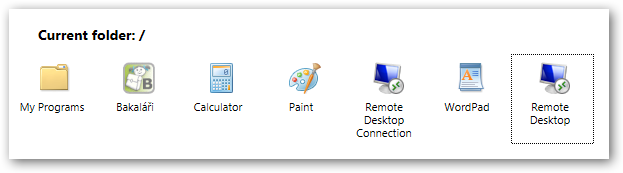
But RemoteApps Programs in Server Manager doesn't incorporate 'Remote Desktop' application (Windows Explorer is under My Programs folder):
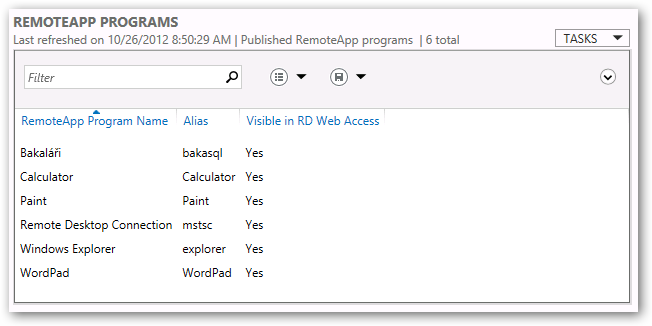
In addition, when I launch 'Remote Desktop' application it opens Remote Desktop to non-existing host - RD Web server was renamed.
'Remote Desktop Connection' application (vs 'Remote Desktop' application) was added among published applications manually by me and works fine.
Where does 'Remote Desktop' application come from? How I can remove it from Work Resources page. It is quite confusing for users, particularly when it tries to open RD session to non-existing host.
Thursday, November 1, 2012 5:34 AM
Hi,
OK, now I understand your main concern is the redundant 'Remote Desktop' icon. Since there is not any suspected log in RDWeb logging, let's try to enable the RDMS UI Tracing on the RD Connection Broker Server.
When troubleshooting any problem with Remote Desktop Services installation or Collection Creation, or RD Connection Broker issues, the RDMS UI Logs should be enabled. RDMS UI logs must be enabled by using Event Viewer and adding a SYSTEM environment variable to the Connection Broker (RDMS) server.
To enable RDMS UI log and Event Logs, do the following:
a. Open an administrative CMD prompt and create a system environment variable named RDMSUI_TRACING and set the value to 1
b. Launch Server Manager from the same CMD window by entering servermanager and then pressing Enter.
c. Open Event Viewer, click View in the Menu Bar, and then click Show Analytic and Debug Logs.
d. In Event Viewer, navigate to the following path: Applications and Services Logs\Microsoft\Windows\RDMS-UI\Debug. Right click on Debug log and select Enable Log.
e. Reproduce the issue and check whether there are any related event logs.
Regards,
Please remember to click “Mark as Answer” on the post that helps you, and to click “Unmark as Answer” if a marked post does not actually answer your question. This can be beneficial to other community members reading the thread.
Sunday, November 11, 2012 10:33 AM
So I switched on Debug Log for RDMS, but the only error I was able to find is:
Component RdmsUI: Error in script execution on rdweb.domainname.tld :
Component RdmsUI: Failed to fetch local DB connection string from server: rdweb.domainname.tld : System.Management.Automation.RemoteException: Property DBConnString does not exist at path HKEY_LOCAL_MACHINE\SYSTEM\CurrentControlSet\Services\Tssdis\Parameters.
at Microsoft.RemoteDesktopServices.Common.DeploymentModel.ExecutePowerShellScript(String serverName, String script, Object argumentList, Boolean isLocalhost)
at Microsoft.RemoteDesktopServices.Common.DeploymentModel.IsHighAvailabilityConfigured(String managementServer)
I do not have any idea if this is connected to my problem, because it appears in the log in times when I didn't log to RD Web. In addition, it doesn't give me any clue what I should do to narrow my situation.
Doesn't anybody have an advice of type - open a file/a registry key, check/delete a value?
Tuesday, November 13, 2012 10:10 AM
Hi,
It seems the RDMS error log didn't related with the duplicate "Remote Desktop" icon.
From the previous screenshot, I noticed that the Windows Explorer RemoteApp didn't show in RDWeb, please try to hide all the RemoteApp and check whether the duplicate Remote Desktop icon still persists.
Regards,
Please remember to click “Mark as Answer” on the post that helps you, and to click “Unmark as Answer” if a marked post does not actually answer your question. This can be beneficial to other community members reading the thread.
Monday, November 19, 2012 9:05 AM
I also have this exact same issue.
Old Published ICONS showing up and I cant get rid of them
Wednesday, December 12, 2012 4:00 PM
The only thing i've found so far is a workaround (bodge) Script the launch using vbscript and use VBsedit to create an executable with your favourite icon embedded....
Regards
Glenn Rose-Ward
Tuesday, March 19, 2019 11:45 AM | 2 votes
Get-RDRemoteApp -Alias "[The alias of your app]" | Set-RDRemoteApp -IconPath "[C:\your_icon_file.ico]" -CollectionName "QuickSessionCollection"
Example:
Get-RDRemoteApp -Alias "iexplore" | Set-RDRemoteApp -IconPath "C:\icon_file.ico" -CollectionName "QuickSessionCollection"
Works like a charm
Monday, June 29, 2020 1:54 PM
Thank you. Such great example and worked for me :)