Note
Access to this page requires authorization. You can try signing in or changing directories.
Access to this page requires authorization. You can try changing directories.
Question
Monday, March 2, 2020 11:59 PM
Attempted to do backup 2nd server data section and then recovery.
In Windows Server Backup selected: Backup Once, Different Options, Custom, Add items, select Bare metal recovery, Ok, Next, Remote shared folder, Server., \server1\folder (left default Inherit), Next
The backup was listed as completely successfully.
I tried to restore by booting from Windows Server 2019 disk. Selected Next to Windows Server 2019 window. repair your computer, Troubleshoot, System Image Recovery, Windows Server. But the only backup is one done to bare metal recovery USB drive earlier and no sign of the backup just done.
Tried Select a system image. Again only earlier backup is seen.
Tried Advanced..., Search for a system image on the network, Yes to Are you sure you want to connect to the network, Entered the \server1\folder
Then I am getting enter credentials.
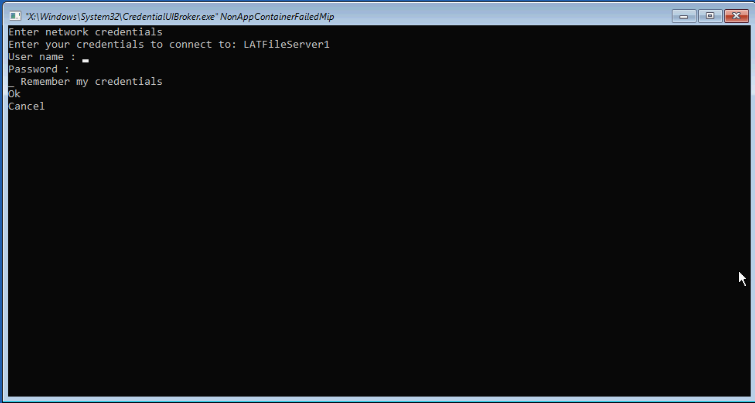
Does not look like a place to enter credentials. The script has passed by User Name: and Password.
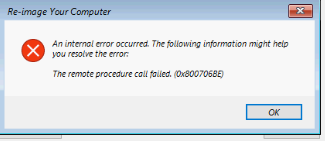
Closing the windows gets remote procedure call failed. 0x800706BE
All replies (23)
Tuesday, March 3, 2020 12:46 AM
Hi,
My guess is that it cannot access the USB drive, have you tried creating a shared folder on the USB drive, give Everyone "Full Control" share permissions on the share, then backup to that shared folder.
Then attempt to perform a restore from that shared folder.
Note: Windows Server Backup needs its own specific created path for detecting a backup on a internal or external location, if you browse to the wrong folder it will not find any backups.
So if you have your USB drive connected to a server, create for example ShareX on the USB drive, it would look something like this:
- \SERVER.domain.com\ShareX
Once the backup has been created, it will look like this:
- \SERVER.domain.com\ShareX\WindowsImageBackup
When trying to restore and to search for the image backup, you need to make sure to browse to \SERVER.domain.com\ShareX\ and not deeper.
Also ensure that the server which has the USB drive connected, is not blocking any network communication from the server you are trying to perform the restore on.
Best regards,
Leon
Blog: https://thesystemcenterblog.com LinkedIn:
Tuesday, March 3, 2020 2:35 AM
- I have a 140G USB drive connected to USB port. I can backup and restore from the USB drive.
- I have a second server with no USB drive. I can backup to that second server and see the WindowsImageBackup folder and the server subfolder for the backup with Windows Server 2019 file explorer. I can not restore from the WindowsImageBackup folder that contains the backup that I can see using Windows Server 2019.
Tuesday, March 3, 2020 4:54 AM
If the server where the backups are stored is a domain-joined server, try entering a domain account to access the backups, make sure the account has access to the server (try a domain account, i.e. ”DOMAIN\Username”) and to the share where the Bare Metal Recovery (BMR) backups are located.
Note:
When a computer boots into Windows Recovery Environment, it becomes a non-domain computer and cannot access the usual network shares. Only those computers that allow non-domain computers to access the share can be used as a backup storage location in this way. You can also address this issue by adding the computer that is your backup storage location to a workgroup and placing the backup in a shared folder. A computer running Windows Recovery Environment behaves as if it is in a workgroup, enabling you to access the shared folder with the backup.
Recover the Operating System or Full Server
Blog: https://thesystemcenterblog.com LinkedIn:
Tuesday, March 3, 2020 6:13 AM
Hi,
1.Please verify that Complete PC backup was done successfully on your machine (the backup supported Complete PC Restore/System Image Recovery).
Open Admin Cmd Prompt in Windows/Recovery Environment:
wbadmin get versions -backuptarget:<Drive:>
If the text contains 'Can recover: Bare Metal Recovery' then Complete PC Restore is supported else it's not.
2. Make sure that your account has the permission to access the USB drive. Please look at this thread:
3. Make sure your restore process is right:
https://www.ubackup.com/windows-server/windows-server-backup-2012-restore-from-network-location.html
For more infromation, you can refer to:
Hope this can help you.
Best Regards,
Daniel
Please remember to mark the replies as answers if they help.
If you have feedback for TechNet Subscriber Support, contact
Wednesday, March 4, 2020 7:16 PM
>> If the server where the backups are stored is a domain-joined server, try entering a domain account to access the backups, make sure the account has access to the server (try a domain account, i.e. ”DOMAIN\Username”) and to the share where the Bare Metal Recovery (BMR) backups are located.
Both servers are Domain Controllers. Backup is made with Domain administrator account.
>> When a computer boots into Windows Recovery Environment, it becomes a non-domain computer and cannot access the usual network shares. Only those computers that allow non-domain computers to access the share can be used as a backup storage location in this way. You can also address this issue by adding the computer that is your backup storage location to a workgroup and placing the backup in a shared folder. A computer running Windows Recovery Environment behaves as if it is in a workgroup, enabling you to access the shared folder with the backup.
Then you are saying I can not recover from another domain controller.
These are basically the steps followed. The Windows Server 2008 has
different wording.
>> Hi,
1.Please verify that Complete PC backup was done successfully on your machine (the backup supported Complete PC Restore/System Image Recovery).
Open Admin Cmd Prompt in Windows/Recovery Environment:
wbadmin get versions -backuptarget:<Drive:>
If the text contains 'Can recover: Bare Metal Recovery' then Complete PC Restore is supported else it's not.
I am dismayed that we are still on USB when that was not part of the original question
If the backup had not occurred then I would expect Windows server backup to complain.
The command given would be for local. The location is remote.
wbadmin get versions -backuptarget:\Server1\share –machine:Server2 gives “The remote shared folder does not exist.”
Leon seems to indicate that I can not access the share.
>> 2. Make sure that your account has the permission to access the USB drive. Please look at this thread:
Should not the backup be prevented if the permissions are wrong? I can see that the backup folders\files look correct on the second server.
>>. Make sure your restore process is right:
https://www.ubackup.com/windows-server/windows-server-backup-2012-restore-from-network-location.html
This instruction skips over the problem I had. It says “Type username and passwordif you are asked.” That is where I am having trouble as the Command Prompt window has already passed those steps and I can not enter anything. I would assume that the username and password is the same account used to make the backup in the first place.
>> For more infromation, you can refer to:
Not sure how this relates.
Wednesday, March 4, 2020 7:31 PM
Remote Procedure Call (RPC) may also be a firewall blocking the connection, do you have any firewall on the destination server that holds the backup, or any physical firewall?
Here's the official guide for performing a full server recovery of a DC:
Performing a Full Server Recovery of a Domain Controller
Blog: https://thesystemcenterblog.com LinkedIn:
Wednesday, March 4, 2020 11:30 PM
Started more testing. Backed up Server 1 to Server 2 D: Backed up Server 2 to Server 2 D:.
Run into the same recovery problem as before with not able to input username and password if I go the Advanced route. However, the backups appear but drive is incorrect and shows the drive is C not D:
The wbadmin get versions -backuptarget:D: did not show anything but wbadmin get versions -backuptarget:C: did. (did complain that the command was not complete and I know.)
That made me stop and allow the server to boot. Yes, the backups are on D: not C:
Well if that is the case, then I should be able to back up Server 2 to Server 1, copy Server 2 backup on Server 1 back to Server 2 and restore.
Tested restore using the incorrect labeled Drive C backup copied from Server 1 and that worked.
Can not recommend the way but I did restore from the backup to server 1 to server 2.
Looks like there are problems with the Windows Server Backup in the advanced method not working and incorrect drive letter.
Wednesday, March 4, 2020 11:48 PM
Since you are entering a Windows Preinstallation Environment (WinPE) you cannot rely on the drive letters to be the same as in the operating system, the drive letter assignments change each time you boot, and can change depending on which hardware is detected, why they change in the first place is another deeper technical topic.
So it is not actually an issue, and especially not an issue with Windows Server Backup, it is by design in WinPE, therefore it is very important to assign your own identifier for each partition so that it can easily be recognized.
You can also query the Boot Configuration Data (BCD), for example:
bcdedit /enum
Blog: https://thesystemcenterblog.com LinkedIn:
Thursday, March 5, 2020 4:30 PM
>> Since you are entering a Windows Preinstallation Environment (WinPE) you cannot rely on the drive letters to be the same as in the operating system…
Thanks for the explanation.
>> therefore it is very important to assign your own identifier for each partition so that it can easily be recognized
I am not sure how to assign an identifier. Looking at the Re-image your computer window, I see in location, File (for the no drive letter bare metal recover) and Local Disk ( C: ). I am relying on the date because I know when each backup was made.
>> You can also query the Boot Configuration Data (BCD), for example: bcdedit /enum
Not sure the command helps. It only tells me that two backups exists some place with one on C: drive. It also seems to be specific to server 2 (on server 2). I know there are 2 server 2 backups and 1 server 1 backups and only two backups are showing with bcdedit /emum. Whereas, three backups show during backup recovery.
Thursday, March 5, 2020 4:34 PM
I only mentioned the bcdedit in case you needed to identify which drive is which, as you’ve noticed the drive letters may swap in WinPE.
But you got it working in the end or what’s the current status?
Blog: https://thesystemcenterblog.com LinkedIn:
Thursday, March 5, 2020 5:32 PM
The original question was can I backup one server to second server then do a recovery from the second server.
The Windows Server Backup Advanced Network option does not seem to work.
I was able to backup to another server, copy the backup to the original server. However, that does not seem to be a good option.
Leon bought up the PEWin environment for recovery does not look the same as when the backup was made. There does not seem to be a way in PEWin environment to reach the second server. I proved if I backup to a drive in the same server I can do that but the backup to select will not look the same as when I made the backup.
I am ready to conclude that I can not do the backup of one server to second server and be able to recovery from the second server.
Thursday, March 5, 2020 6:06 PM
It is possible to do a backup from a server, and store it to any other server, it is also possible to recover any server with identical hardware (if it's a virtual machine then the disks have to be equally sized as was used for the server that was backed up).
I have successfully attempted this many times, why it's not working for you could be many reasons, but RPC errors usually are caused by firewalls or communication issues, so I would start analyzing that.
Blog: https://thesystemcenterblog.com LinkedIn:
Friday, March 6, 2020 8:36 PM
I started by uninstalling Symantec endpoint protection.
I next looked for dropped packets on the firewall using port 135, Ether type IP, IP types TCP,UDP from the server ip address. I did not see anything.
What would be the next step?
Sunday, March 8, 2020 5:44 PM
Did you try disabling all available firewalls (software and physical firewalls), temporarily just to check that this isn't the issue?
What kind of account are you trying to access the backup with when you enter the path to the share? Also make sure to use the FQDN (\servername.domain.com\Share).
Blog: https://thesystemcenterblog.com LinkedIn:
Monday, March 9, 2020 2:58 AM
>> Did you try disabling all available firewalls (software and physical firewalls), temporarily just to check that this isn't the issue?
I did a try with the Windows Defender domain, private and public firewalls disabled.
>> Also make sure to use the FQDN (\servername.domain.com\Share).
Yes, did use the \servername.domain.com\Share format
>> What kind of account are you trying to access the backup with when you enter the path to the share?
Can not get that far. The text in the command prompt windows sweeps beyond the username and password. I am not allowed to enter username and password. I can type an username but can not input it.
Monday, March 9, 2020 2:36 PM
Can not get that far. The text in the command prompt windows sweeps beyond the username and password. I am not allowed to enter username and password. I can type an username but can not input it.
Is the server you are trying to perform this connected to the network? This should work without issues, unless the network adapter's drivers haven't been loaded, then you might encounter network connectivity issues.
Blog: https://thesystemcenterblog.com LinkedIn:
Tuesday, March 10, 2020 4:34 AM
>> Is the server you are trying to perform this connected to the network?
Yes, server 1 is connected to the network. However, things are not what they were. I had to go backwards as what was working before now was failing.
Could not see the server 2 in File Explorer. Could not turn on network discovery. Had to start the following Function Discovery Resource Publication. Had to enable and start SSDP Discovery and UPnP Device Host.
Could not use remote desktop. Had to go into administrator account and enable remote desktop in Windows Defender. https://support.microsoft.com/en-gb/help/17463/windows-7-connect-to-another-computer-remote-desktop-connection
On server 1, Symantec Endpoint protection was not uninstalled. Had to get SymantecRemovalToolExtractorV2.exe from support and run that. Windows Defender would not start and displayed “This app is turned off by group policy”. Had to go into the registry and change DisableAntiSpyware to 0. Then enable Windows Defender and update definition.
Since I do not know when I lost remote desktop, network discovery and Symantec Endpoint was not uninstalled, my original testing was invalid.
Reran the Windows Server backup restore and that failed.
Ran Server 2 Windows Server backup to Server 1
Next you said to disable the firewall. I did that on Server 2. This time I disabled the Windows Defender firewall on Server 1.
No Change.
>> This should work without issues, unless the network adapter's drivers haven't been loaded, then you might encounter network connectivity issues.
Checked the NIC driver for each server. Both are current.
Tuesday, March 10, 2020 6:54 AM
If you encountered that many issues, it seems that something’s not right in those servers and this could also be affecting the recovery process.
1. I’d set up a fresh server with no policies/software and try to perform a recovery.
2. If that doesn’t work I’d try having two freshly installed servers, 1 which will perform the recovery, and the other one containing the backup, then try a recovery.
Blog: https://thesystemcenterblog.com LinkedIn:
Thursday, March 12, 2020 6:09 PM
I am short a computer at the moment.
Server 2 can recover from bare metal USB drive and from separate server 2 volume. Suggesting the problem is server 1.
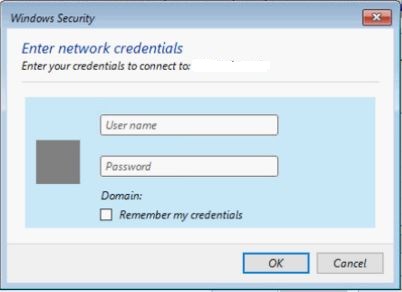
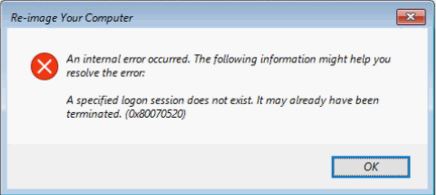
To continue documenting I tried to restore server 1 from server 2. I note server 1 can not see the backup made to another volume on server 1.
Tuesday, March 17, 2020 1:33 AM
Hi,
According to your description, the issue seems a little strange, we are trying to involve someone more professional to look into this issue, if there's any useful information or suggestions, we'll feedback as soon as possible.
Best Regards,
Daniel
Please remember to mark the replies as answers if they help.
If you have feedback for TechNet Subscriber Support, contact
Wednesday, March 18, 2020 12:04 AM
I upgraded the Windows Server 2016 to Windows Server 2019. That eliminated the Windows Security Network Enter network Credentials. Instead I get the same results as the first Windows Server 2019 listed at the top.
I noticed after selecting system image there was listed a backup on the second server. I tried to restore from that image. The restore looked Ok, but I found I could not access my desktop on the redirected folder. Get a message to check with administrator about permissions. Instead of looking at the permissions, I just did a restore from the Server Data volume to get back my access to my desktop.
Friday, March 20, 2020 2:02 AM
I have noticed that you post another thread over here:
If you need further help, please feel free to let us know.
Best Regards,
Daniel
Please remember to mark the replies as answers if they help.
If you have feedback for TechNet Subscriber Support, contact
Friday, March 20, 2020 2:55 AM
What I did for https://social.technet.microsoft.com/Forums/windowsserver/en-US/b2aa36e7-b4b6-4908-b788-d95ac6f58bab/windows-server-2016-windows-server-backup-a-specified-logon-session-does-not-exist-it-may-already?forum=winservergen#69facae1-3bd8-47ac-b400-df07ad792cb4 is upgrade to Windows Server 2019. Now that Windows Server 2019 is showing the same problems as the Windows Server 2019 I first describe in this thread.