Note
Access to this page requires authorization. You can try signing in or changing directories.
Access to this page requires authorization. You can try changing directories.
Question
Wednesday, March 21, 2018 1:04 PM
Unable to create Search Service Application. Getting the following error.
Fetching app info failed: Microsoft.Office.Server.Search.Query.SearchServiceNotFoundException: The search request was <o:p></o:p>
unable to connect to the Search Service at <o:p></o:p>
Microsoft.Office.Server.Search.Administration.SearchServiceApplicationProxy.GetProxy(SPServiceContext ServiceContext) <o:p></o:p>
at Microsoft.Office.Server.Search.WebControls.SearchCommon.GetSearchCenterUrl() 65ab559e-44cd-e01b-a501-a86b32b1e56e
The operation "Waiting for SPServiceInstanceJobDefinition Name=job-service-instance-635fb211-0e01-48f9-8b0f-1e63c91b1f08" has not yet completed. Time elapsed : 00:00:20.0282769 82ad559e-84a6-e01b-a501-a1fabbd89d5b
All replies (12)
Monday, March 26, 2018 10:58 AM ✅Answered
Managed to remove the search service application by refering the following link.
https://sharepoint.stackexchange.com/questions/229851/cant-remove-search-service
http://expertsharepoint.blogspot.com/2014/07/the-search-service-is-not-able-to_19.html
Thanks a lot for your help
Thursday, March 22, 2018 2:13 AM
Hi
Seems the Search Service Application Proxy does not exist in the farm. If yes, it does not have the proxy then create a new proxy using PowerShell cmdlets:
$searchServiceApp = Get-SPEnterpriseSearchServiceApplication
New-SPEnterpriseSearchServiceApplicationProxy -SearchApplication $searchServiceApp
Thursday, March 22, 2018 2:20 AM
Hi ghsajith,
To troubleshoot the issue, check things below:
1. You could run the PowerShell command below to check if there is search service application in the SharePoint farm. If it returns no result, then there is no search service application in the SharePoint farm.
Get-SPEnterpriseSearchServiceApplication

Get-SPEnterpriseSearchServiceApplicationProxy
2. You could run the PowerShell command to check which timer job has not completed. If you find the timer job, you could stop and re-run the timer job.
Get-SPTimerJob -Identity 635fb211-0e01-48f9-8b0f-1e63c91b1f08
3. If you can get the search service application by the command “Get-SPEnterpriseSearchServiceApplication”, you could run the PowerShell below to create the proxy for search service application.
$searchServiceApp = Get-SPEnterpriseSearchServiceApplication

New-SPEnterpriseSearchServiceApplicationProxy -SearchApplication $searchServiceApp
More reference:
SharePoint : Search queries fail with "The search request was unable to connect to the Search Service" error.
Best regards,
Sara Fan
Please remember to mark the replies as answers if they helped. If you have feedback for TechNet Subscriber Support, contact [email protected].
Click here to learn more. Visit the dedicated forum to share, explore and talk to experts about Microsoft Teams.
Thursday, March 22, 2018 7:53 AM
The output of the following commands shows no result.
Get-SPEnterpriseSearchServiceApplication
Get-SPEnterpriseSearchServiceApplicationProxy
Get-SPTimerJob -Identity 635fb211-0e01-48f9-8b0f-1e63c91b1f08
When I try to run the following commands, it throws the below error
$searchServiceApp = Get-SPEnterpriseSearchServiceApplication
New-SPEnterpriseSearchServiceApplicationProxy -SearchApplication $searchServiceApp
New-SPEnterpriseSearchServiceApplicationProxy -SearchApplication $searchServiceApp New-SPEnterpriseSearchServiceApplicationProxy : Cannot bind argument to parameter 'SearchApplication' because it is null. At line:1 char:67 + ... iseSearchServiceApplicationProxy -SearchApplication $searchServiceApp + ~~~~~~~~~~~~~~~~~ + CategoryInfo : InvalidData: (:) [New-SPEnterpris...pplicationProxy], ParameterBindingValidationExceptio n + FullyQualifiedErrorId : ParameterArgumentValidationErrorNullNotAllowed,Microsoft.Office.Server.Search.Cmdlet.New SearchServiceApplicationProxy
Thursday, March 22, 2018 8:03 AM
When I try to create search service application from Central Admin, Getting the same above error
Fetching app info failed: Microsoft.Office.Server.Search.Query.SearchServiceNotFoundException: The search request was unable to connect to the Search Service. at Microsoft.Office.Server.Search.Administration.SearchServiceApplicationProxy.GetProxy(SPServiceContext ServiceContext) at Microsoft.Office.Server.Search.WebControls.SearchCommon.GetSearchCenterUrl() 16ee559e-54b2-e01b-a501-a1605ef5feff<o:p></o:p>
Thursday, March 22, 2018 8:46 AM
Hi ghsajith,
To troubleshoot the issue, check things below:
1. Check if all search services are started. Go to Central Administration->manage services on server->check “Search Host Controller Service”, “Search Query and Site Settings Service” and “SharePoint Server Search” are started.
And go to computer->start->administrative tools->services->” SharePoint Search Host Controller” and “SharePoint Server Search 15” are started.
2. Create the search service application by farm account.
3. Check the details about the error in the ULS log.
ULS log path:
C:\Program Files\Common Files\Microsoft Shared\Web Server Extensions\15\Logs
Best regards,
Sara Fan
Please remember to mark the replies as answers if they helped. If you have feedback for TechNet Subscriber Support, contact [email protected].
Click here to learn more. Visit the dedicated forum to share, explore and talk to experts about Microsoft Teams.
Thursday, March 22, 2018 9:20 AM
SharePoint Server Search status shows starting in manage services on server
Log
SPLoggingLock held lock for 156 milliseconds. Call stack: (not slow enough for stack trace) 23f1559e-24ab-e01b-a501-afb8436c9a7c
An SPPerformanceCounter was not properly disposed. This could cause excessive memory use.
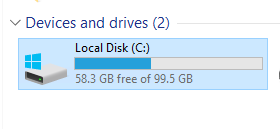
The DR server hard disk is 100 GB and memory is 16 GB
Thursday, March 22, 2018 12:09 PM
After clearing the cache, Search Service application started. Still Issue persists
Application Server Administration job failed for service instance Microsoft.Office.Server.Search.Administration.SearchServiceInstance (635fb211-0e01-48f9-8b0f-1e63c91b1f08).
Reason: No active topology exists for : Search Service Application
Technical Support Details:
Microsoft.Office.Server.Search.Administration.Topology.InvalidTopologyException: No active topology exists for : Search Service Application
at Microsoft.Office.Server.Search.Administration.SearchServiceInstance.Synchronize()
at Microsoft.Office.Server.Administration.ApplicationServerJob.ProvisionLocalSharedServiceInstances(Boolean isAdministrationServiceJob)
Friday, March 23, 2018 1:43 AM
Hi ghsajith,
Remove the search service application completely according to the article below.
SharePoint 2013: How to completely remove Search service application.
After removing the search service application completely, you could re-create the search service application.
Best regards,
Sara Fan
Please remember to mark the replies as answers if they helped. If you have feedback for TechNet Subscriber Support, contact [email protected].
Click here to learn more. Visit the dedicated forum to share, explore and talk to experts about Microsoft Teams.
Sunday, March 25, 2018 8:38 AM
Getting timeout error when i tried to remove the search service applications using the Central Admin
Powershell command is not responding
$spapp = Get-SPServiceApplication -identity e78a053b-f478-4c8a-994a-4e8593b08dc2
Remove-SPServiceApplication $spapp -RemoveData
The search service is not able to connect to the machine that hosts the administration component. Verify that the administration component '41982641-1d0b-45fa-9e21-3f911b1b6b6a' in search application 'Search Service Application' is in a good state and try again.<o:p></o:p>
Error
1) failed to synchronize the search service instance for application Search Service Application: Microsoft.Office.Server.Search.Administration.Topology.InvalidTopologyException: No active topology exists for : Search Service Application at Microsoft.Office.Server.Search.Administration.SearchServiceInstance.Synchronize() 12e6569e-649e-e01b-a501-aaf23fb0e328
2) Error 0x8007001f starting timer job {E75A1266-09F2-48BE-BBAA-D6A733D06B6F} [Rebalance crawl store partitions for Search Service Application] in store for service {9F6321E4-047F-4AF2-BF7A-CC8293A0C2F8}, vserver {00000000-0000-0000-0000-000000000000} 9d4e505b-f3e6-46a2-acac-8c6a1c4ec3a2 03/25/2018 11:47:00.86 OWSTIMER.EXE (0x2D0C) 0x246C SharePoint Foundation Timer ap5qz High Error 0x8007001f starting server-scoped timer job {E75A1266-09F2-48BE-BBAA-D6A733D06B6F} [Rebalance crawl store partitions for Search Service Application] in store, retry count 0. 9d4e505b-f3e6-46a2-acac-8c6a1c4ec3a2 03/25/2018 11:47:00.86 OWSTIMER.EXE (0x2D0C) 0x246C SharePoint Foundation Timer aq8oi High Error 0x8007001f starting server-scoped timer job {E75A1266-09F2-48BE-BBAA-D6A733D06B6F} [Rebalance crawl store partitions for Search Service Application] in store -- error is not listed as retryable. 9d4e505b-f3e6-46a2-acac-8c6a1c4ec3a2 03/25/2018 11:47:00.86 OWSTIMER.EXE (0x2D0C) 0x246C SharePoint Foundation Timer b9xk High Unable to load the job definition for execution. Id: e75a1266-09f2-48be-bbaa-d6a733d06b6
Monday, March 26, 2018 8:41 AM
Hi ghsajith,
To troubleshoot the issue, you could run SharePoint 2013 products configuration wizard.
Then you could consider re-installing SharePoint 2013.
Best regards,
Sara Fan
Please remember to mark the replies as answers if they helped. If you have feedback for TechNet Subscriber Support, contact [email protected].
Click here to learn more. Visit the dedicated forum to share, explore and talk to experts about Microsoft Teams.
Tuesday, March 27, 2018 1:12 AM
Hi ghsajith,
It is very happy that the issue is resolved.
Thank you for your sharing and it will help others have the same issue.
Best regards,
Sara Fan
Please remember to mark the replies as answers if they helped. If you have feedback for TechNet Subscriber Support, contact [email protected].
Click here to learn more. Visit the dedicated forum to share, explore and talk to experts about Microsoft Teams.