Note
Access to this page requires authorization. You can try signing in or changing directories.
Access to this page requires authorization. You can try changing directories.
Question
Tuesday, April 2, 2019 7:47 AM
Hi,
Using powershell script i ma trying to move search service from my id to farmSvcacct , but I am getting error
Add-PSSnapin Microsoft.SharePoint.PowerShell -ErrorAction SilentlyContinue
#Custom Function to change Service account of given service
Function Set-ServiceIdentity($svc, $UserName)
{
#Get the current service account
$ProcessIdentity = $svc.Service.ProcessIdentity
if ($ProcessIdentity.Username -ne $UserName)
{
$ProcessIdentity.Username = $UserName
$ProcessIdentity.Update()
Write-Host "Service Account Set!"
}
}
#Get the Service
$Service = Get-SPServiceInstance | Where {$_.TypeName -eq "Search Service Application"}
Set-ServiceIdentity $Service "Domain\farmSvcacct"
Below is the error i am getting please suggest, where i am doing mistake
Property 'Username' cannot be found on this object; make sure it exists and is settable.
At Drive:\sfdfs\Test\change Service account of given service.ps1:13 char:8
+ $ProcessIdentity.Username = $UserName
+ ~~~~~~~~~~~~~~~~~~~~~~~~~~~~~~~~~~~~~
+ CategoryInfo : InvalidOperation: (:) [], RuntimeException
+ FullyQualifiedErrorId : PropertyNotFound
You cannot call a method on a null-valued expression.
At Drive:\chdfdfh\Test\change Service account of given service.ps1:14 char:8
+ $ProcessIdentity.Update()
+ ~~~~~~~~~~~~~~~~~~~~~~~~~
+ CategoryInfo : InvalidOperation: (:) [], RuntimeException
+ FullyQualifiedErrorId : InvokeMethodOnNull
All replies (7)
Thursday, April 4, 2019 9:50 AM ✅Answered
Hi, Gayam,
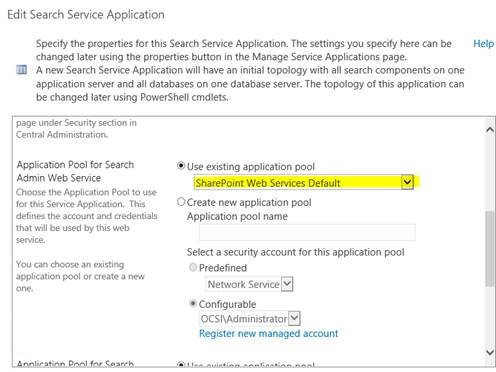
For changing service account for Search Administration Web Service for Search Service Application, you can go CA> Application management>manage service applications, choose your search service application and click on properties on Ribbon. Find the application pool the search admin web service locate.
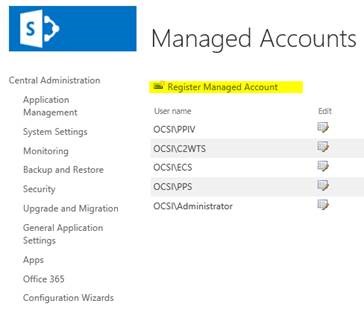
Go security>configure managed accounts. Register the new account as managed account if you do not find you account here.
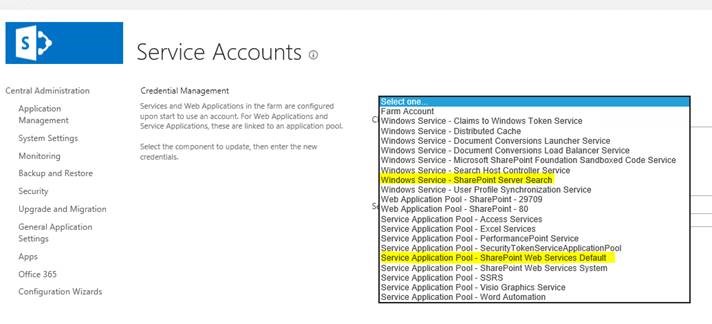
Then go Security>configure service accounts. Choose the search service and the application pool holding search admin web service. Change the account to the one you want.
Best Regards
Jerry Xu
Please remember to mark the replies as answers if they helped. If you have feedback for TechNet Subscriber Support, contact [email protected].
SharePoint Server 2019 has been released, you can click
here to download it.
Click
here to learn new features. Visit the dedicated
forum to share, explore and talk to experts about SharePoint Server 2019.
Tuesday, April 2, 2019 4:55 PM
Hello Gayam,
Please find a blog post to change the service account. It may help you.
https://www.softvative.com/blog/2018/04/change-distributed-cache-service-account/
Thanks Ravikant Chaturvedi
Wednesday, April 3, 2019 6:23 AM
Hi, Gayam,
Try to use this script, make sure the account you use is registered as a managed account:
$MgtAccount = Get-SpManagedAccount -Identity "Domain\ManagedAccountusername"
$procId = (Get-SPEnterpriseSearchService).get_ProcessIdentity()
$procId.CurrentIdentityType = "SpecificUser"
$procId.ManagedAccount = $MgtAccount
$procId.Update()
I have tested it in my environment and it works good.
Best Regards
Jerry Xu
Please remember to mark the replies as answers if they helped. If you have feedback for TechNet Subscriber Support, contact [email protected].
SharePoint Server 2019 has been released, you can click
here to download it.
Click
here to learn new features. Visit the dedicated
forum to share, explore and talk to experts about SharePoint Server 2019.
Wednesday, April 3, 2019 6:50 AM
Thanks
I have tried below script to change from my id to farmid , but getting the error
|
|
$MgtAccount = Get-SpManagedAccount -Identity "domain\SVcfarm"
$procId = Get-SPEnterpriseSearchServiceApplication -Identity "Search Service Application" # (Get-SPEnterpriseSearchService).get_ProcessIdentity()
$procId.CurrentIdentityType = "SpecificUser"
$procId.ManagedAccount = $MgtAccount
$procId.Update()
ERROR:
Property 'CurrentIdentityType' cannot be found on this object; make sure it exists and is settable.
At D:\yjy\Test\change Service account of given service.ps1:75 char:1
- $procId.CurrentIdentityType = "SpecificUser"
-
+ CategoryInfo : InvalidOperation: (:) [], RuntimeException
+ FullyQualifiedErrorId : PropertyAssignmentException
[DBG]: PS C:\Windows\system32>>
Property 'ManagedAccount' cannot be found on this object; make sure it exists and is settable.
At D:\fgdfgd\Test\change Service account of given service.ps1:77 char:1
- $procId.ManagedAccount = $MgtAccount
-
+ CategoryInfo : InvalidOperation: (:) [], RuntimeException
+ FullyQualifiedErrorId : PropertyAssignmentException
please suggest where i am doing mistake
Wednesday, April 3, 2019 8:46 AM
Hi, Gayam,
You do not need to change the script except the user account. “$procId = Get-SPEnterpriseSearchServiceApplication -Identity "Search Service Application" #” is not needed and not included in the script I provide.
Also do not forget to change the domain to your domain name.
$MgtAccount = Get-SpManagedAccount -Identity "Your domain name\ managed account name"

$procId = (Get-SPEnterpriseSearchService).get_ProcessIdentity()

$procId.CurrentIdentityType = "SpecificUser"

$procId.ManagedAccount = $MgtAccount

$procId.Update()
Best Regards
Jerry Xu
Please remember to mark the replies as answers if they helped. If you have feedback for TechNet Subscriber Support, contact [email protected].
SharePoint Server 2019 has been released, you can click here to download it.
Click here to learn new features. Visit the dedicated forum to share, explore and talk to experts about SharePoint Server 2019.
Wednesday, April 3, 2019 9:36 AM
I need to change these two components
1.Search Administration Web Service for Search Service Application
2. Search Service Application
Monday, April 8, 2019 1:27 AM
Hi, Gayam,
Have you tried the solution? Is there any update with your issue?
Best Regards
Jerry Xu
Please remember to mark the replies as answers if they helped. If you have feedback for TechNet Subscriber Support, contact [email protected].
SharePoint Server 2019 has been released, you can click
here to download it.
Click
here to learn new features. Visit the dedicated
forum to share, explore and talk to experts about SharePoint Server 2019.