Note
Access to this page requires authorization. You can try signing in or changing directories.
Access to this page requires authorization. You can try changing directories.
Question
Monday, October 21, 2013 2:23 PM | 3 votes
Is it possible to transfer files between host and client computer using Microsoft Remote Desktop version 8 on a Mac? Either by drag-and-drop or copy/paste.
All replies (17)
Tuesday, October 29, 2013 2:57 PM ✅Answered | 2 votes
Hi Jaknudsen,
check this out
under:
Redirection
Folder redirection enables access local folders during the remote session. Click the + button at the bottom of the dialog and choose a folder you want to have redirected.
Configure Folder Redirection
-
Click the + button.
In the Add Local Folder window, enter the following information:
- Name: Set a name for the folder to be available during the remote session.
Path: Select the path to the folder to be available during the remote session.
cheers Stephan
Monday, November 11, 2013 1:54 PM ✅Answered | 13 votes
6. on button tap the “+” sign, following select the “Path” under “Browse” you want to redirected.
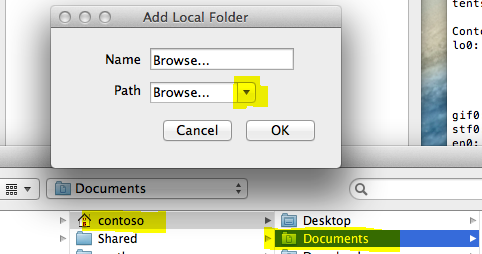
7. Say OK
8. now you should see the folder e.g.
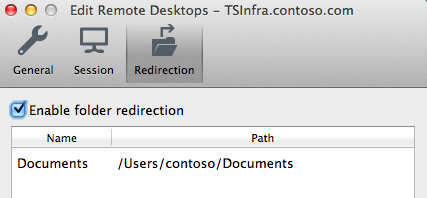
Thursday, October 24, 2013 5:08 AM | 2 votes
Make Local Devices and Resources Available in a Remote Session
8 out of 16 rated this helpful
Applies To: Windows Server 2008 R2
Remote Desktop Services provides users the ability to access their local devices and resources in remote sessions. Users can access resources such as local drives, printers, the Clipboard, and supported Plug and Play devices. This is usually referred to as redirection.
In Windows Server 2008 and Windows Server 2008 R2, redirection has been enhanced and expanded. Now you can redirect Windows Portable Devices, specifically media players based on the Media Transfer Protocol (MTP) and digital cameras based on the Picture Transfer Protocol (PTP).
Users can specify which types of devices and resources they would like to redirect to the remote computer on the Local Resources tab of Remote Desktop Connection.
You can specify which local devices and resources will be available to users for remote sessions by using a connection on the RD Session Host server. You can enable or disable the redirection of the following:
- Drives
- Printers
- LPT Port
- COM Port
- Clipboard
- Audio
- Supported Plug and Play devices
| Remote Desktop Services in Windows Server 2008 R2 supports redirection of some additional supported Plug and Play devices. These additional supported Plug and Play devices exclude the various kinds of Plug and Play devices that are already supported in other categories, such as Drives, Printers, or Smart Cards. For example, a USB thumb drive that gets installed as a drive letter on the client computer will be listed as available for redirection under the Drives category, and a USB Plug and Play printer attached to the client computer will be redirected under the Printers category. |
If you disable redirection of the Clipboard, for example, users connecting remotely to the RD Session Host server on this connection will not be able to redirect their Clipboard in their remote session, even if they select the Clipboard check box on the Local Resources tab under Options in Remote Desktop Connection. If you enable redirection of a local device or resource on the RD Session Host server, users will still have to specify that they want to redirect that type of local device or resource by making the appropriate selection on the Local Resources tab under Options in Remote Desktop Connection.
Use the following procedure to enable or disable the redirection of local devices and resources for the connection on the RD Session Host server.
Membership in the local Administrators group, or equivalent, on the RD Session Host server that you plan to configure, is the minimum required to complete this procedure. Review details about using the appropriate accounts and group memberships
To enable or disable the redirection of local devices and resources
-
On the RD Session Host server, open Remote Desktop Session Host Configuration. To open Remote Desktop Session Host Configuration, click Start, point toAdministrative Tools, point to Remote Desktop Services, and then click Remote Desktop Session Host Configuration.
Under Connections, right-click the name of the connection, and then click Properties.
In the Properties dialog box for the connection, click the Client Settings tab.
Under Redirection, do one of the following for a given local device or resource category:
- Select the check box to disable redirection of that type of local device or resource.
Clear the check box to enable redirection of that type of local device or resource.
Click OK.
You can also configure which local devices and resources will be available to users in their remote sessions by applying Group Policy settings.
Tuesday, October 29, 2013 9:41 AM
Is it possible to transfer files between host and client computer using Microsoft Remote Desktop version 8 on a Mac? Either by drag-and-drop or copy/paste.
It is not possible to copy any files from a remote Win OS to Finder in Mac OS nor to a Win VM.
Tuesday, October 29, 2013 3:03 PM
I've tried to set this up but I can't find where to access the folders when on the RDC.
Pat M
Friday, November 8, 2013 11:44 AM | 1 vote
Hei HagedornS, thanks for your reply.
In Remote Desktop Session Host Configuration -> Connection -> Properties -> Client settings -> Redirection, I am not able to add folders. This is a screenshot of what I see:

The RD host computer is running Windows Server 2008 R2.
Monday, November 11, 2013 1:54 PM | 2 votes
Hi,
Please Try this:
1. open Microsoft Remote Desktop for Mac
2. goto "My Desktops" and choose your Connection Entry
3. Type Edit
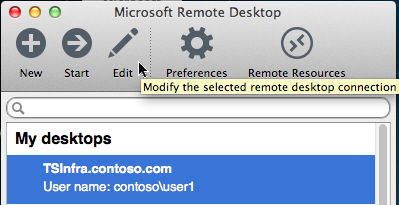
4. goto the Tap "Redirection"
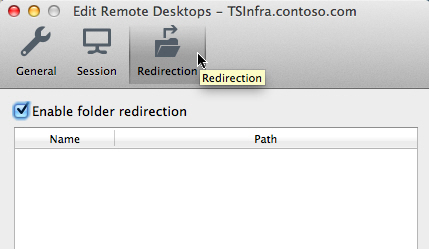
5. Make sure that the hook is set "Enable Folder redirection"
Monday, November 11, 2013 1:55 PM | 4 votes
9. whenn you connect to the Remote Computer you can see under "Computer" the redirected Folder.....
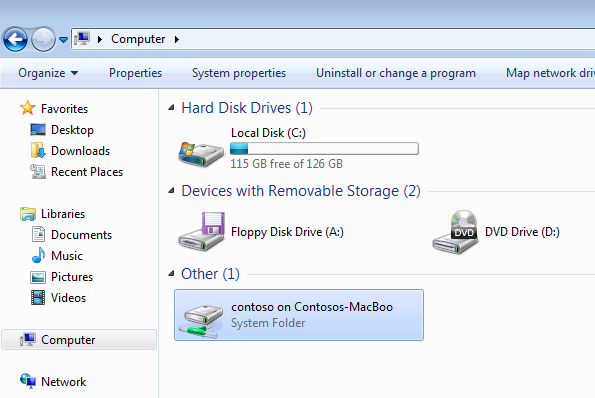
If it still does not work, please try using the Microsoft Remote Desktop Client (mstsc.exe) to connect the drives.
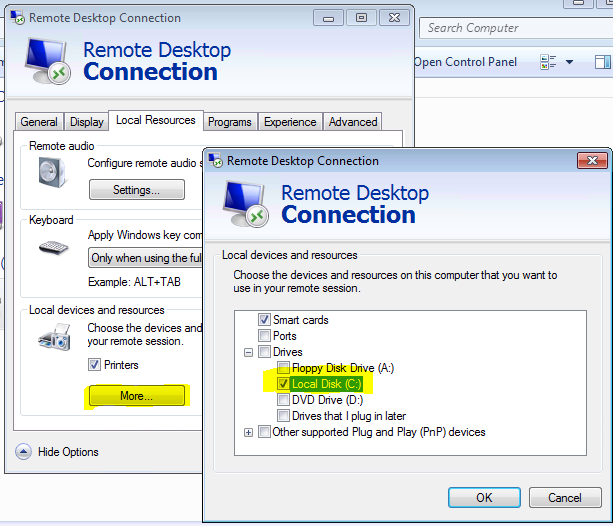
please post the result:)
cheers Stephan
Tuesday, November 12, 2013 9:51 AM
That worked! Thanks a lot :)
Tuesday, November 12, 2013 9:53 AM
It is not possible to copy any files from a remote Win OS to Finder in Mac OS nor to a Win VM.
You are fortunately mistaken, Jens Ole! See the latest reply from HagedornS.
Tuesday, November 12, 2013 9:53 AM
I've tried to set this up but I can't find where to access the folders when on the RDC.
Please see the latest reply from HagedornS for the solution.
Tuesday, September 2, 2014 12:44 PM
Thanks friend!!
Solve my problem!!!
BR,
Friday, October 31, 2014 1:13 PM
It is not possible to copy any files from a remote Win OS to Finder in Mac OS nor to a Win VM.
You are fortunately mistaken, Jens Ole! See the latest reply from HagedornS.
I guess he meant that it is not possible to copy them over the clipboard.
That's exactly the problem I have, because the Remote Desktop Session Host Configuration has drive redirection deactivated, but allowed just clipboard redirection. With MSTSC (the Windows Remote Desktop Client) it works, but not on a Mac.
Any idea why?
Friday, January 16, 2015 11:48 AM
Hey Stephan,
That link at top of your reply, it just comes back to your basic message. Tried adding 'Record' at end of link, after 'c', no change in behavior.
Thanks,
Wolfgang
Thursday, September 17, 2015 2:34 PM
Thanks, this worked for me.
Friday, September 2, 2016 5:23 PM
Thanks for the post!!!
Wednesday, January 18, 2017 2:31 AM
I have a macbook pro mid 2010 and it's updated to the most recent software. I am using Microsoft Remote Desktop to connect to my server at work. Unfortunately I am trying to copy pdf files from my macbook pro to the remote desktop folders. I tried to the redirection method but when I select the folder all the files are grey out.
I am having a real hard time copying and pasting files.