Note
Access to this page requires authorization. You can try signing in or changing directories.
Access to this page requires authorization. You can try changing directories.
Question
Wednesday, March 20, 2013 3:09 PM
Hi,
I created a new page in SP2013, worked great.
Now when I go to that same page - the 'Files|Library' option on the ribbon are missing?!?
Not sure what I did to make them go away, now I can't upload a document.
qeqw
All replies (12)
Wednesday, March 20, 2013 4:51 PM ✅Answered
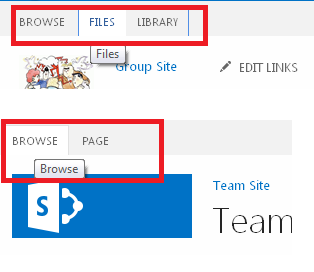
In AllItems.aspx you will see
Browse Files Library
On your page.aspx you will see
Browse Page
Miguel de Hortaleza
Thursday, March 21, 2013 9:00 AM ✅Answered
Hi rqwew,
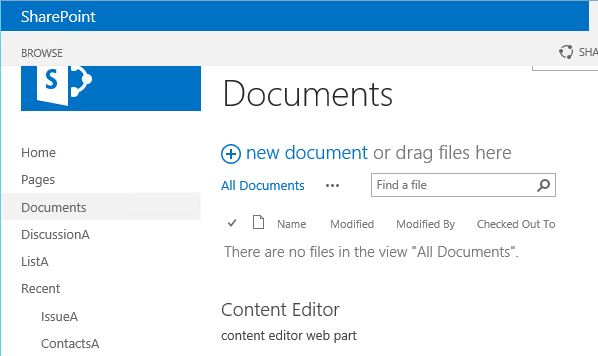
Please check if you have edited the library view page (e.g. AllItems.aspx) and inserted the other webparts, if yes, you can remove all the other webparts, the "Files|Library" tab will come back.
Or you can click/select the original document webpart area, the library "Files|Library" tab also will be displayed.
Thanks
Daniel Yang
TechNet Community Support
Thursday, June 25, 2015 10:03 AM
Same issue for me, I tried above solution but no luck. Once i edit page, i got the all option in ribbon. When published, even 'Browse' option is not come. How to fix this?
Tuesday, October 6, 2015 4:33 PM
Add a document. Click the drop down arrow of the posted doc.
Look quick and the ribbon should appear. Click on File or Library tab quickly.
Friday, November 25, 2016 4:50 PM
The Tool Menu (RIBBON TABS) get hidden when there are web parts added to a document library page. In order to get rid of the web parts on the page so the Tool Menu will reappear.
This applies to SharePoint 2010 and 2013. The example below is from SharePoint 2010.
Navigate to the document library that is missing the tool menu.
Click on Site Actions, Edit Page.
Delete the unwanted web-part/s by navigating to the far right of the web-part and clicking the arrow seen below. Click on delete, click Yes to the permanently delete the web part box.
Click on Stop Editing and the library tools will be back.
Monday, May 15, 2017 10:55 AM
Go to the Settings/ "Library Off" and switch to "On" (right side click on Wheel Settings Icon)
Thursday, April 5, 2018 3:19 PM
I have the same issue, except the only ribbon showing is Browse. To resolve this:
1. Open site in a Non-IE browser, I used Chrome.
2. Scroll to bottom and On the left select switch to Classic. NOTE this selection does NOT appear in the IE rendering of the EXACT same page.
Viola, all available ribbons now appear. Really is a shame that MS can't even get IE to work with its own tools.
Friday, June 8, 2018 12:19 PM | 1 vote
In AllItems.aspx you will see
Browse Files LibraryOn your page.aspx you will see
Browse Page
Miguel de Hortaleza
You really don't help at all here!
Friday, June 8, 2018 12:21 PM | 1 vote
Go to the Settings/ "Library Off" and switch to "On" (right side click on Wheel Settings Icon)
Sorry but where is that exactly?
If you can details a little bit than don't answer at all because that doesn't help
Don't know which "settings" you are talking about...
I have looked under "Site Setting" but there a nothing for library on and/or off.
Thursday, February 7, 2019 4:30 PM
That worked for me - thanks!
Tuesday, March 5, 2019 3:47 PM
I have the same issue but only when viewing ALL
Another work around is to click select all, it looks like a tick, all items are selected, plus the ribbon will appears
Now Deselect all by clicking the tick again, all items are then deselected but the ribbon says.
I also found if you create a new view call it All Docs, don't set any filter or groups, the ribbon appears.
Thursday, April 4, 2019 7:08 PM
Yeah, I agree that just sending text instruction are a poor way of communicating directions. A simple pictures with a red outlined box would help tremendously. It should be a requirement that for every 1 or 2 sentences there should be a picture.
I'm curious if you ever got this added to your Windows Explorer?