Note
Access to this page requires authorization. You can try signing in or changing directories.
Access to this page requires authorization. You can try changing directories.
Question
Friday, January 10, 2014 9:47 PM
Hello, I am trying to create a script that lists all the virtual machines in a given hyper-v cluster, and it also needs to list the maximum and the current size of the virtual disks that are attached to each virtual machine.
I started by getting this line that lists all the virtual machines in a given cluster –
Get-ClusterGroup -Cluster “myclustername” | Where GroupType –EQ ‘VirtualMachine’ | Get-VM
But unfortunately it does not give me any info about the maximum and the current size of the virtual disks that are attached to each virtual machine.
Can anyone help me here?
All replies (13)
Friday, January 10, 2014 11:09 PM ✅Answered | 3 votes
Hi,
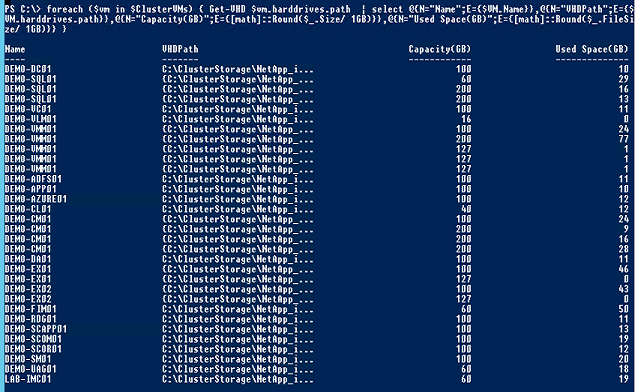
Quick example on how you could do looping trough all VM's. Below could of course be done different depending how you want to format the output... It will give you one row per virtual disk, and of course it would be possible to export it to a csv or something like that if needed :)
#Get all vms in the specific cluster and store in a variable
$ClusterVMs = Get-ClusterGroup -Cluster cluster | where grouptype -eq 'virtualmachine' | Get-VM
#Loop trough each vm and check for hard drives and select output
foreach ($vm in $ClusterVMs) { Get-VHD $vm.harddrives.path  | select @{N="Name";E={$VM.Name}},@{N="VHDPath";E={$VM.harddrives.path}},@{N="Capacity(GB)";E={[math]::Round($_.Size/ 1GB)}},@{N="Used Space(GB)";E={[math]::Round($_.FileSize/ 1GB)}} }
Hope this helps you!
Microsoft Certified Trainer
MCSE: Desktop, Server, Private Cloud, Messaging
Blog: http://365lab.net
Sunday, January 12, 2014 9:45 AM ✅Answered | 5 votes
Make the following changes to the Get-VHD command in Johan's script:
Get-VHD -computername $vm.computername -path $vm.harddrives.path
Hope this helps.
Sunday, January 12, 2014 7:08 PM ✅Answered | 1 vote
Hi,
Great that you got it working.
I've put to gether a small function for you on http://365lab.net/2014/01/11/analyze-your-vhdx-usage-with-powershell/ . (which is a bit easier to read as well :) ) Simply put the code in a psm1-file, run import-module get-vhdstat.psm1.
Then you will be able to run for example below line to get all information to a csv:
Get-VHDstat -Cluster YourClustername |export-csv AllVHDs.csv -NoTypeInformation
Hope this helps you out, let us know if you need further info.
Microsoft Certified Trainer
MCSE: Desktop, Server, Private Cloud, Messaging
Blog: http://365lab.net
Saturday, January 11, 2014 8:58 AM
Johan, thank you very much for the response, very helpful.
When I tried the script, the first few returned positive results, but then it turned into this -
Get-VHD : Failed to get the disk information.
Failed to open attachment 'C:\ClusterStorage\blablabla-D.VHDX'. Error: 'The process cannot access the file because it is being used by another process.'.
The operation cannot be performed while the object is in use.
At line:3 char:32
- foreach ($vm in $ClusterVMs) { Get-VHD $vm.harddrives.path | select @{N="Name"; ...
+ ~~~~~~~~~~~~~~~~~~~~~~~~~~~
+ CategoryInfo : ResourceBusy: (Microsoft.Hyper...l.VMStorageTask:VMStorageTask) [Get-VHD], VirtualizationOperationFailedException
+ FullyQualifiedErrorId : ObjectInUse,Microsoft.Vhd.PowerShell.GetVhdCommand
And it went on for the 1000 vm's after that...
Do you have any idea why this happens?
Saturday, January 11, 2014 9:42 AM | 1 vote
Ok, Get-Vhd normally work on online vhds as well, as long as they are not locked with snapshots or running backups?
Might that be the case?
Microsoft Certified Trainer
MCSE: Desktop, Server, Private Cloud, Messaging
Blog: http://365lab.net
Saturday, January 11, 2014 9:13 PM
No, nothing seems to be locking them, would you recommend a specific method to confirm that?
When I run the command "Get-VM | Select-Object vmid | Get-VHD" on any node, I get a result of all the VM's running on it, and full VHD path of these VM's with their storage status, if something was locking them, wouldn't these be locked too?
Is there another way of getting it working?
Sunday, January 12, 2014 6:42 PM
Very good!!! It worked!!!
One final question, right now it does not display all the path of the VHD's making it impossible to identify the one that is being selected, some VM's have multiple VHD's. How do I make it display the full path?
Thank you so much!
Sunday, January 12, 2014 7:35 PM
BEAST!!! :)))
Thank you!!!
Sunday, January 12, 2014 7:48 PM
No problems, happy to help :)
Microsoft Certified Trainer
MCSE: Desktop, Server, Private Cloud, Messaging
Blog: http://365lab.net
Wednesday, February 19, 2014 1:31 PM
dude... thanks a lot.. how can i forget the computername parameter...
thanks a lot dude. you save my time here. :)
Thursday, May 11, 2017 6:57 AM
Hi,
I am too poor in PS scripting.
Can you help me by writing the script with below details which is related to my environment.
Cluster Name: CLU01
Hyper-V Host name: HV1
VM name: BSDVM1
And from where I need to run this script? please mention
Thursday, May 11, 2017 1:00 PM
The best way to learn scripting is to actually take something that is known to work and modify it a little at a time until it works in your environment.
For example, here is the original line shown above:
$ClusterVMs = Get-ClusterGroup -Cluster cluster | where grouptype -eq 'virtualmachine' | Get-VM
To modify it for your cluster you would make it look like this:
$ClusterVMs = Get-ClusterGroup -Cluster 'CLU01' | where grouptype -eq 'virtualmachine' | Get-VM
That would retrieve all the VMs located on the cluster named 'CLU01'. If you want to select a specific VM, then you simply ignore the 'where' clause and instead specify the VM's name on the Get-VM cmdlet.
If you simply do not want to learn how to script, there are other resources available. The Repository is a searchable database of pre-written scripts that you may be able to adapt to suit your needs. If you want to ask someone to write a script for you, you can post a request at the script request page.
tim
Sunday, April 22, 2018 12:23 PM
Easy Way to do it
(Get-ClusterNode).name | % {get-vm -ComputerName $_ } | Get-VMHardDiskDrive