Note
Access to this page requires authorization. You can try signing in or changing directories.
Access to this page requires authorization. You can try changing directories.
Question
Saturday, July 7, 2018 8:26 AM
I'm getting a Printer Not Ready message when using the following virtual printer drivers: Microsoft Print to PDF, Send to OneNote 2016, Microsoft Document XPS driver, Corel PDF Creator.
The same error message does not appear when using the following virtual printer drivers: Scansoft PDF Create!, NovaPDF 9, Gaaiho PDF. I can also send prints to actual printers without issue.
Any assistance would be much appreciated.
All replies (4)
Monday, July 9, 2018 2:28 PM
What’s the specific version of your office? Only Outlook has printing problems? Can other Office applications (such as Word, Excel etc.) and non-Office apps (such as Notepad, IE etc.) use these virtual print devices for printing?
If other non-Office apps have no problem, try the following methods:
•Please make sure you have installed the latest updates. See More: Install Office updates.
•Use Safe mode to open Outlook:
Try to troubleshoot whether a third party add-in caused the problem. Learn how to start Outlook in safe mode and disable add-ins by referring to this article.
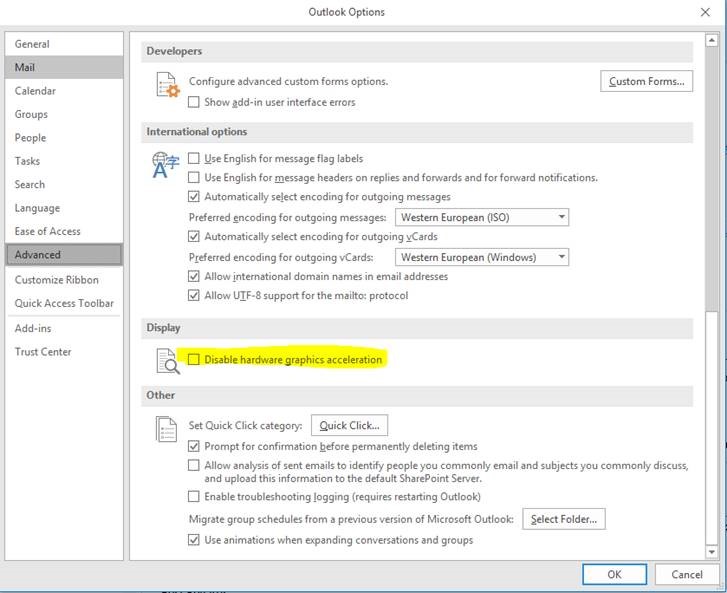
•Try turning off hardware acceleration to see if it can be printed.
•You also can try to repair office or reload to fix it. See more: Repair an Office application.
If other non-Office applications cannot print, there may be a problem with the virtual printer setup.
To check the print device:
•Recommended to update the print driver
•Disable the three-party antivirus software
•Reset the default print device
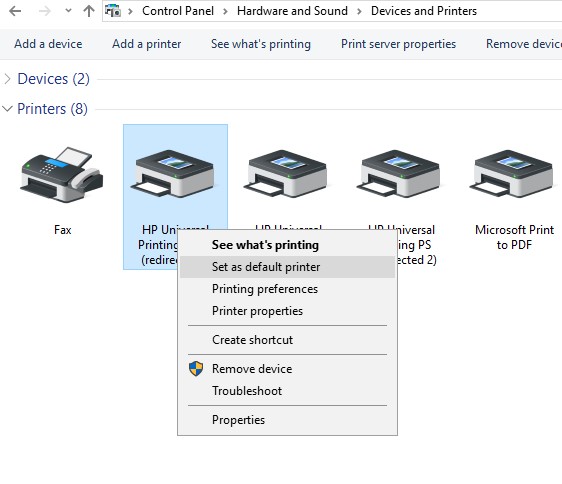
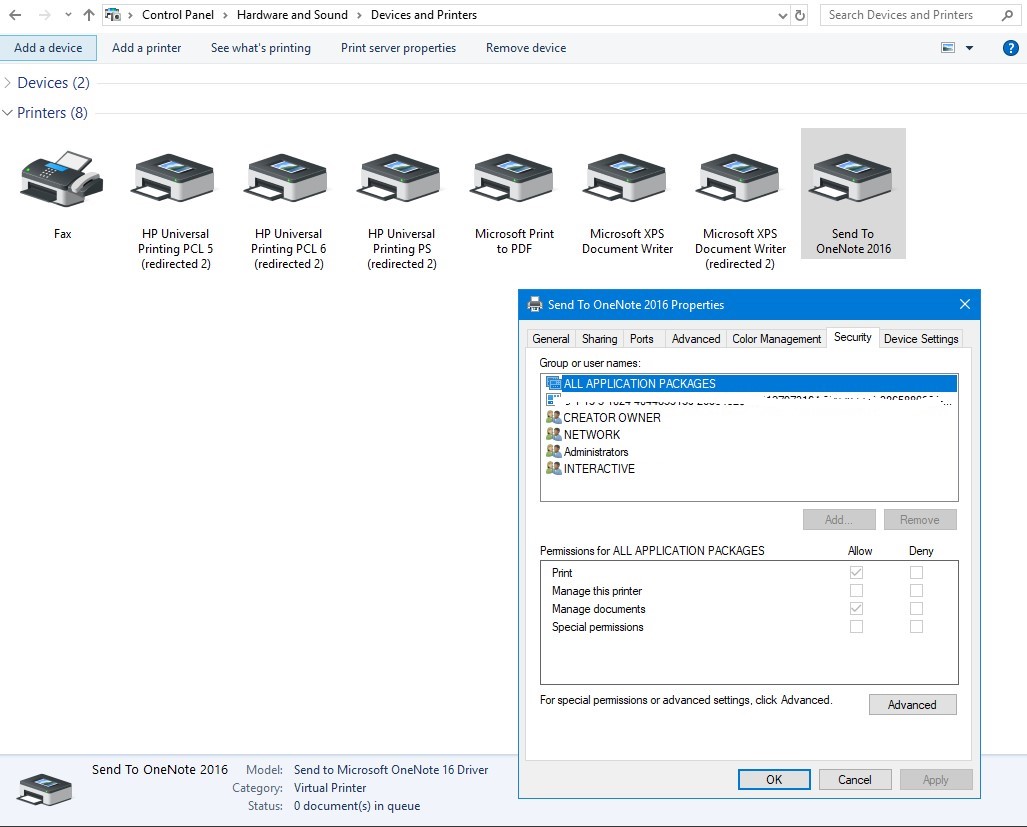
•Check the printer property settings and compare them to other device references that can be printed. On Control Panel >Hardware and Sound>Devices and Printers,right-click these virtual print devices, click Printing properties.
•Try to remove and reload
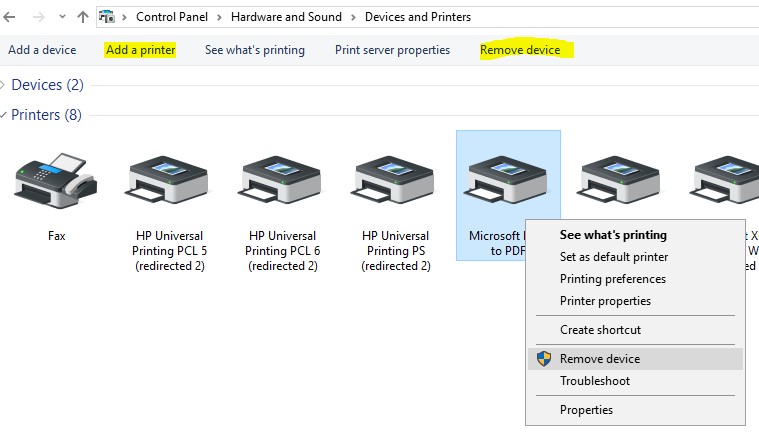
•You can also right-click these virtual print devices to use diagnostic tool.
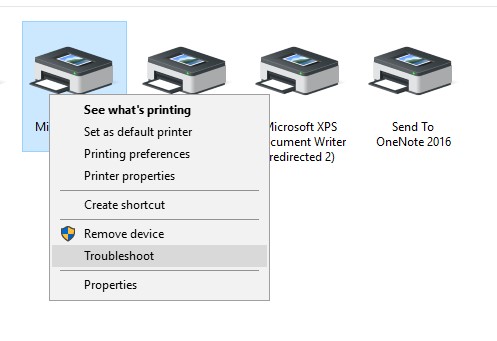
If you have any question or update, please feel free to let me know.
Best Regards,
Herb Gu
Please remember to mark the replies as answers if they helped. If you have feedback for TechNet Subscriber Support, contact [email protected].

Click here to learn more. Visit the dedicated forum to share, explore and talk to experts about Microsoft Teams
Sunday, July 15, 2018 9:48 AM
Hello,
Any update here? Have you solved the problem? Is my answer helpful to you?
I'm looking forward to your response. If you have any additions, or update, please feel free to let me know.
Best Regards,
Herb Gu
Please remember to mark the replies as answers if they helped. If you have feedback for TechNet Subscriber Support, contact [email protected].
Click here to learn more. Visit the dedicated forum to share, explore and talk to experts about Microsoft Teams
Tuesday, August 7, 2018 1:21 AM
Hi,
This thread has been around for a long time.Please remember to mark the replies as answers if they helped.Please help us close the thread.
Thank you for understanding! If you have any question, or update, please feel free to let me know.
I wish you a happy life!
Herb Gu
Please remember to mark the replies as answers if they helped. If you have feedback for TechNet Subscriber Support, contact [email protected].
Click here to learn more. Visit the dedicated forum to share, explore and talk to experts about Microsoft Teams
Wednesday, March 6, 2019 6:52 PM
Just to clarify here, this is a common issue. The problems have several route causes.
1. Outlook behaves differently than any other programs in that it caches and stores attachments and opened email message in a temp location "OLK" folder for document security. It then is sending that file from a Temp folder to another program spooler.exe. This is program to program access from a temp location=big red flag.
2. It happens with HP, LexMark, and many other model printers. Updating the drivers does not solve. Interestingly you may find that only printers are affected and Copiers are not. That is my case. I have Sharp copiers and they don't exhibit the behaviors. There is a setting usually in Printer Properties under the Advanced Tab for job Spooling. Selecting "Start Printing after the last page is spooled" helped in some cases but not others.
3. Antivirus programs have policies that can block potentially dangerous actions such as Malware trying to run from a temp location. This is half the battle. You want to block viruses and malware and lock down Temp folders but you have to find that balance. I have tried to use Rule Exceptions in Virus Scans such as Exclude outlook.exe and spooler.exe from being blocked from executive functions within temp locations. That does not work at all. Im still trying to find the magic wand here too.
4. I have even heard of someone trying to say it was because if custom fonts but you cant print the body of an email either which is default calibri font
5. I have heard another discussion where they blamed it on the fact that typical users only have read access to the OLK or temp folder and not write permissions. That is also blowing smoke as Admins have the same issue who have the "S" right and can do anything. I myself had this happen to me several times.
I have found this usually stems around those who use a print server rather than printing directly through IP to a printer. I have gotten around this for those users who for some reason must print their emails out and file them.... lol by creating a new printer that prints through IP direct to the printer, however... I just had a user who I had this fix in place call me stating she is getting the error again.
*** I do not think this is 100% solvable until Outlook is programmed to treat these files in more of the same manner as Word or Excel does. With the fact that the "OLK" was created to obscure the locations of these files so nobody can retrieve them easily..."Hackers"... I don't see this being solved any time soon..