Note
Access to this page requires authorization. You can try signing in or changing directories.
Access to this page requires authorization. You can try changing directories.
Question
Wednesday, February 20, 2019 6:15 PM
Steps to reproduce:
1. Login to some site collection as an owner.
2. Create a SharePoint Group "Security Department".
3. In the library, select any existing document and click "Share"
4. Start typing "Secur"
Expected: Group name suggestions.
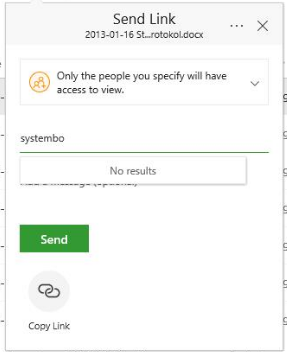
In fact, it says "No results"
Something like this:
Is it just this particular installation issue or do you have the same experience?
All replies (12)
Wednesday, February 20, 2019 6:18 PM
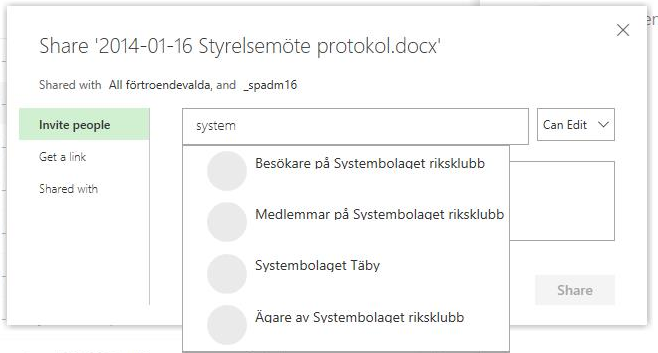
By the way, on the same site, if I try to use the old sharing dialog, it works fine:
Thursday, February 21, 2019 6:45 AM
Hi,
The “Send Link” is only used to send a link to a person or a group such as Office 365 group. We will not get the SharePoint groups from the people picker.
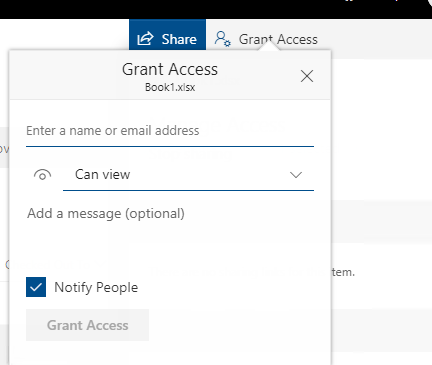
If you want to share the document to a SharePoint group, on the Send Link display, click the ellipses icon in the upper right, and then click Manage Access to go to the Permissions page. On the Permissions page, click the Grant Access in the upper right. Type the group name here.
Best regards,
Linda
Please remember to mark the replies as answers if they helped. If you have feedback for TechNet Subscriber Support, contact [email protected].
SharePoint Server 2019 has been released, you can click
here to download it.
Click
here to learn new features. Visit the dedicated
forum to share, explore and talk to experts about SharePoint Server 2019.
Monday, February 25, 2019 10:43 AM
Hi,
How are things going?
If the reply is useful, please mark it as the answer.
Best regards,
Linda
Please remember to mark the replies as answers if they helped. If you have feedback for TechNet Subscriber Support, contact [email protected].
SharePoint Server 2019 has been released, you can click
here to download it.
Click
here to learn new features. Visit the dedicated
forum to share, explore and talk to experts about SharePoint Server 2019.
Tuesday, February 26, 2019 10:52 AM
Hi, sorry for late response.
Here is what I found so far. The scenario is the same on both SharePoint 2019 and Online.
User CAN use "Share" (or "Send link") not just for sending the link but for actual permissions change. Here are use cases.
#1 Sharing with a user account. User ckicks on "Share" button, in "Send Link" dialog user selects "Specific people" (which is selected by default in our SP 2019 on prem), then user clicks "Send". Done, permissions are applied on the document.
#2 Sharing with a group is very tricky, here's how I tested. I have a library with 2 documents. First I use "Grant Access" dialog to apply permissions to "document01.docx" to specific group. Then want to share another document and I use "Share" button and actually when I start typing the name of the group, now it appears as a suggestion. But I can only see this group that I already shared the first document with. So it feels like it is somehow cached.
Anyway, the behavior is very confusing for the user, or don't you agree? The way it should be I believe is that granting permissions to the document must be really easily accessible, one click away. So in my ideal world, the "Share" button must provide permissions granting experience (as it now does but in a very strange way)
Tuesday, February 26, 2019 3:21 PM
Just in case if anyone is interested in some more details, when user types into "Send Link" people text box, SharePoint front end app actually sends requests to https://sp.host.name/sites/76879874855/_api/SP.UI.ApplicationPages.ClientPeoplePickerWebServiceInterface.ClientPeoplePickerSearchUser and furthermore, this one responds with the list of corresponding SharePoint Groups. However, they are not rendered. So the only groups that are rendered are those that user is already shared content with earlier.
Tuesday, February 26, 2019 3:30 PM
And when I clear the browser cache, it stops showing these groups again, so it is some client side cache effect.
Thursday, February 28, 2019 10:38 AM
Hi,
Per my testing results, using “Send link”, we cannot share with a SharePoint group. It is used to share with a person or a Office 365 group. Even if I use “Grant Access” to give a group permissions, I still cannot find the group in “Send Link”.
It is by design.
I suggest you send feedback to UserVoice. UserVoice is a platform for getting thoughts about Microsoft Office products. We’re eager to hear your feedback and use it to continuously provide the best intranet in your pocket.
Best Regards,
Linda
Please remember to mark the replies as answers if they helped. If you have feedback for TechNet Subscriber Support, contact [email protected].
SharePoint Server 2019 has been released, you can click
here to download it.
Click
here to learn new features. Visit the dedicated
forum to share, explore and talk to experts about SharePoint Server 2019.
Thursday, February 28, 2019 4:39 PM
Thanks for your answer Linda. So now you see that "Send link" can actually grant access to different identities but not to SharePoint Groups? And it is "By design"? Ok, I can swallow this.
And yes, you are right, I also now noticed that it does not always work even after I grant access to this group. But please try to follow these steps in order to replicate this strange behavior:
- Close the browser and open new InPrivate window, so that you don't have cache data.
2. Open the SharePoint site
3. Select "Document A" and grant access to a SharePoint group.
4. Select "Document B" and click "Share"
5. Select "Specific people" option in the dropdown.
6. Start typing the name of the Group and you can see the group suggested.
7. Confirm the change with clicking "Send".
I hope then you get the same experience as I got - permissions are granted to SharePoint Group.
Monday, March 4, 2019 11:20 AM
Hi,
I can reproduced that in a SharePoint 2019, but I cannot reproduce it in SharePoint Online.
I have tried following steps in a site in SharePoint Online, “Send Link” cannot find the group:
1. Open the site permissions page -> create a SharePoint group named “test group”.
2. Close the browser and open new InPrivate window.
3. Open a document library.
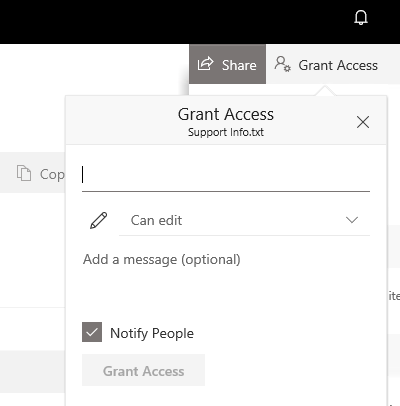
4. Select a document (document A) -> Share -> ellipses icon -> Manage Access -> Grant Access -> Type “test group” and click on Grant Access -> Access Granted successfully.
5. Select another document (document B) -> Share -> Specific people -> typing the name of the group, it still cannot find this group and return “No results”.
Then, I tried it in a SharePoint 2019 site, “Send Link” can find the group after the group was invited. Here are steps:
1. Open the site permissions page -> create a SharePoint group named “test group”.
2. Close the browser and open new InPrivate window.
3. Open a document library.
4. Select a document (document A) -> Share -> ellipses icon -> Manage Access -> Grant Access -> In “Invite People” panel, type “test group” and click on Share -> Shared successfully.
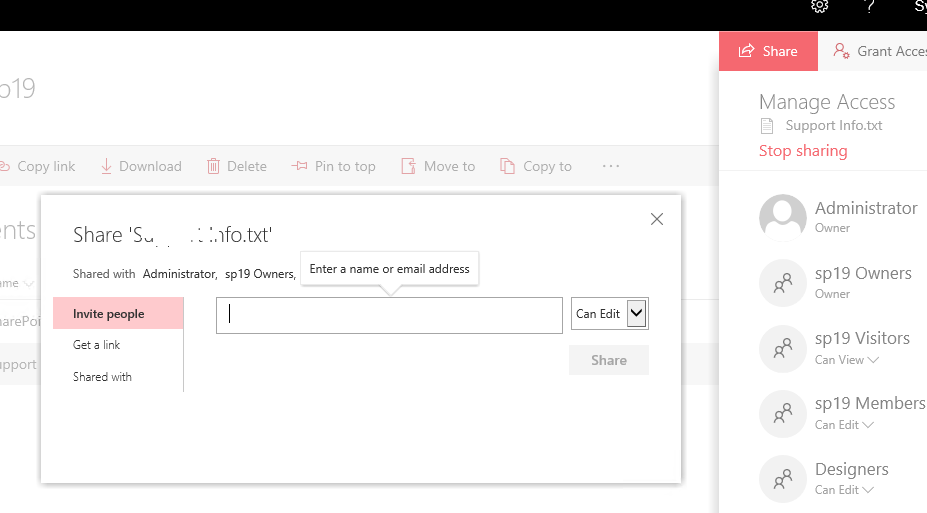
5. Select another document (document B) -> Share -> Specific people -> typing the name of the group, we can get this group.
Best Regards,
Linda
Please remember to mark the replies as answers if they helped. If you have feedback for TechNet Subscriber Support, contact [email protected].
SharePoint Server 2019 has been released, you can click
here to download it.
Click
here to learn new features. Visit the dedicated
forum to share, explore and talk to experts about SharePoint Server 2019.
Monday, March 4, 2019 5:22 PM
Hi Linda,
Thanks again. Now when I am testing in SharePoint Online, I cannot also replicate the sequence. I also found out that I might have been wrong when I said that I could add SharePoint group in SharePoint online because as far as I can see now, it was not a SharePoint group but AD group with accidentally the very same name as my test SharePoint group.
So should we conclude that this functionality is already removed from SharePoint Online and it will be also removed from SharePoint on premise with some later updates? This would be unfortunate because it means we will have to implement a similar user action by our own for our customer: they need to be able to add permissions in a simple way, without need to do 3-4 clicks… And we also really need it when user is editing the document and wants to adjust the permissions to share the document with colleagues.
Monday, March 4, 2019 5:32 PM
It still feels very strange that this "Share" button can adjust permissions for active directory identities but not SharePoint groups, and then there is "Grant Access" functionality that can change permissions for both AD and SharePoint identities. Since this "design" is strange and rather confusing for users, one can assume that it will be changed soon. But then again who knows what direction it will be changed?
Tuesday, March 5, 2019 2:25 AM
Hi,
I cleared the IE cache and re-opened the IE, opened a SharePoint 2019 library, the “test group” did not show up in “Send Link” event if I got it before clearing the cache.
Per this official article, when using “Send Link”, if “Specific people” is enabled, you can share with specific people that you specify. It will create a link and you can send the access link via the email. This allows for both internal and external sharing, as well as sharing with specific people and security groups.
Using “Grant Access”, you can grant specific access to a given user account, or grant access to an Office 365 Group, a security group, or a SharePoint group.
They are different features.
Best Regards,
Linda
Please remember to mark the replies as answers if they helped. If you have feedback for TechNet Subscriber Support, contact [email protected].
SharePoint Server 2019 has been released, you can click
here to download it.
Click
here to learn new features. Visit the dedicated
forum to share, explore and talk to experts about SharePoint Server 2019.