Note
Access to this page requires authorization. You can try signing in or changing directories.
Access to this page requires authorization. You can try changing directories.
Question
Sunday, March 22, 2020 12:54 PM
I am using my personal laptop to remote into a work desktop to use Skype for Business on the work PC.
To be able to hear and speak in the remote desktop connection, I choose the following options when initiating the remote connection under 'Remote Desktop Connection' - Local Resources' - 'Remote Audio Settings':
1. Remote Audio Playback: Play on this computer --> play audio back on the personal laptop
2. Remote audio recording: Record on this computer --> use mic input from personal laptop
However, when in the remote desktop connection, I can only hear what the other person is saying and they cannot hear me. I've tested the laptop microphone outside of the remote connection and verified that it is working. It just doesn't seem to work when remote desktop connection is established even with the right settings.
I even purchased a separate equipment for USB audio output/input, thinking it could be a hardware issue with the laptop mic input jack, and the mic input from my laptop is still not being registered in the Remote Connection.
My colleagues are able to use their microphone by setting the same settings under Remote Audio Settings and I seem to be an isolated case. What could be the cause of this?
All replies (3)
Friday, March 27, 2020 11:20 AM ✅Answered
Hi Sharon,
It turned to be that I had to install Citrix HDX on my computer, as my work place is using Citrix VPN connection. This allowed mic input from my computer to work on the RDP.
Thank you for your help with this!
Monday, March 23, 2020 6:59 AM
Hi JH000,
Does the microphone work well when you connect directly to the work PC in a Skype for Business audio meeting? If so, it may be a remote desktop connection issue.
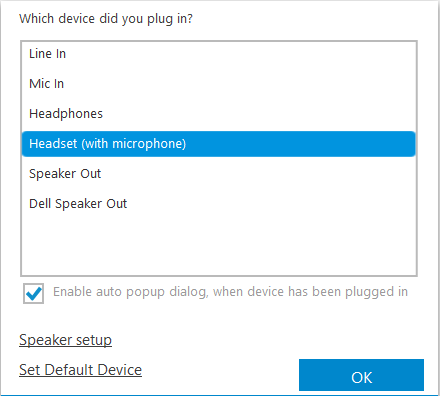
When you plug in the microphone, you need to choose the option “Headset (with microphone)”. Then, in the Skype for Business client, go to Audio Device and check if the device is what you used.
It recommends you check the driver version of Microphone in Device Manager in your personal computer. If there is any update of the driver, please update to the latest version.
If it is no luck, check if there is any error message related to the microphone in the event viewer: go to event viewer > Custom Views > Device Manager – Microphone.
Best Regards,
Sharon Zhao
Please remember to mark the replies as answers if they helped. If you have feedback for TechNet Subscriber Support, contact [email protected].
Friday, March 27, 2020 6:23 AM
Hi JH000,
Is there any update on this case?
Please feel free to drop us a note if there is any update.
Have a nice day!
Best Regards,
Sharon Zhao
Please remember to mark the replies as answers if they helped. If you have feedback for TechNet Subscriber Support, contact [email protected].