Note
Access to this page requires authorization. You can try signing in or changing directories.
Access to this page requires authorization. You can try changing directories.
Question
Friday, September 1, 2017 2:23 AM
Hi there,
Does anyone know how I can change the "Signature algorithm" for issued certificates.
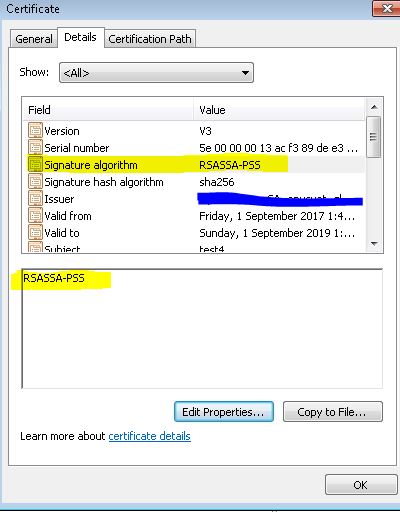
All my issues certificates are being signed with the RSASSA-PSS algorithm but I need to change it to something else for my Skype for Business server certs because that particular algorithm causes issues for certain call functions as per this MS article here https://technet.microsoft.com/en-us/library/gg398066%28v=ocs.15%29.aspx?f=255&MSPPError=-2147217396
Cheers
C
All replies (5)
Monday, September 4, 2017 7:24 AM ✅Answered | 2 votes
Hi Craig,
- Changing the CA signature algorithm will not invalid the existing certificates. They just stay as they are. And in my experience, you would not experience any issues. However, it seems that you need the new signature algorithm, in this case, you could reissue the certificates. And as far as I know, reissuing works for both auto-enrolled certificated and manually enrolled certificates.
- If the AlternateSignatureAlgorithm=1 is in the CAPolicy.inf file, the root certificate will be created with the algorithm = RSASSA-PSS. Microsoft defined the attribute AlternateSignatureAlgorithm=1 in the CApolicy.inf file as the method to indicate to a CA that you want it to sign certificates created by that CA to be signed with PKCS #1 v2.1 – at least on standalone CAs such as Root and Policy CAs. This format is supported by Windows CryptoAPI clients, however most legacy and 3rd party clients may not support this. You could see more details from:
RSASSA-PSS – Why Your Certificate Can’t Be Validated
https://pkisolutions.com/thepkiguy/
Please Note: Since the web site is not hosted by Microsoft, the link may change without notice. Microsoft does not guarantee the accuracy of this information.
Best regards,
Wendy
Please remember to mark the replies as answers if they help.
If you have feedback for TechNet Subscriber Support, contact [email protected].
Sunday, September 3, 2017 9:05 AM | 2 votes
On CA server run the following command:
certutil -setreg ca\csp\alternatesignaturealgorithm 0
net stop certsvc && net start certsvc
and reissue affected certificates.
Vadims Podāns, aka PowerShell CryptoGuy
My weblog: www.sysadmins.lv
PowerShell PKI Module: PSPKI
Check out new: SSL Certificate Verifier
Check out new: PowerShell File Checksum Integrity Verifier tool.
Sunday, September 3, 2017 11:41 PM
Thanks that worked. Couple more questions though.
1. Why do I have to re-issue all the existing certs from the CA, won't the old certs still be trusted? Also the re-issuing will only work for auto-enrolled certs so what do I do about manually enrolled certs?
2. What is it at the install of the CA that creates that HKEY_LOCAL_MACHINE\SYSTEM\CurrentControlSet\Services\CertSvc\Configuration\Opus-Issuing-CA\CSP\AlternateSignatureAlgorithm value of 1 as I'd like to avoid it being set on my next CA install?
Cheers
Craig
Wednesday, September 6, 2017 8:43 AM
Hi,
Just checking in to see if the information provided was helpful. And if the replies as above are helpful, we would appreciate you to mark them as answers, please let us know if you would like further assistance.
Best Regards,
Wendy
Please remember to mark the replies as answers if they help.
If you have feedback for TechNet Subscriber Support, contact [email protected].
Friday, September 8, 2017 7:53 AM | 1 vote
Hi,
Was your issue resolved? If you resolved it using our solution, please "mark it as answer" to help other community members find the helpful reply quickly.
If you resolve it using your own solution, please share your experience and solution here. It will be very beneficial for other community members who have similar questions. If no, please reply and tell us the current situation in order to provide further help.
Best Regards,
Wendy
Please remember to mark the replies as answers if they help.
If you have feedback for TechNet Subscriber Support, contact [email protected].