Note
Access to this page requires authorization. You can try signing in or changing directories.
Access to this page requires authorization. You can try changing directories.
Question
Tuesday, January 17, 2017 9:23 PM
I have a form in SharePoint Online that has four fields - User Name, Job Title, Department and Office. The User Name field is a people picker field. I want people to select a person using the people picker field and then the other three fields automatically populate with the details for the selected user. At the moment I'm editing the form using InfoPath.
I want to do this in the simplest way possible with as little coding as I can get away with. I'd be grateful if someone could give me any pointers with this, as I thought it was going to be straightforward but it is proving more difficult than first thought.
Thanks in advance for your help.
All replies (5)
Wednesday, January 18, 2017 5:37 AM ✅Answered
Hi gjayne,
To get user information by people picker column, we need to use GetUserCollectionFromGroup method in InfoPath.
Here are the steps for your reference:
1. Open InfoPath and click the DATA tab, then click From SOAP Web Service under From Web Service.
2. Enter the location of the SOAP Web service definition: http://<site>/_vti_bin/userprofileservice.asmx, then click Next.
3. Select GetUserProfileByName and click Next.
4. Make sure ‘Automatically retrieve data when form is opened’ is checked.
5. Add a people picker control and other control as you want to use in the form.
6. Insert a button for querying and loading user information.
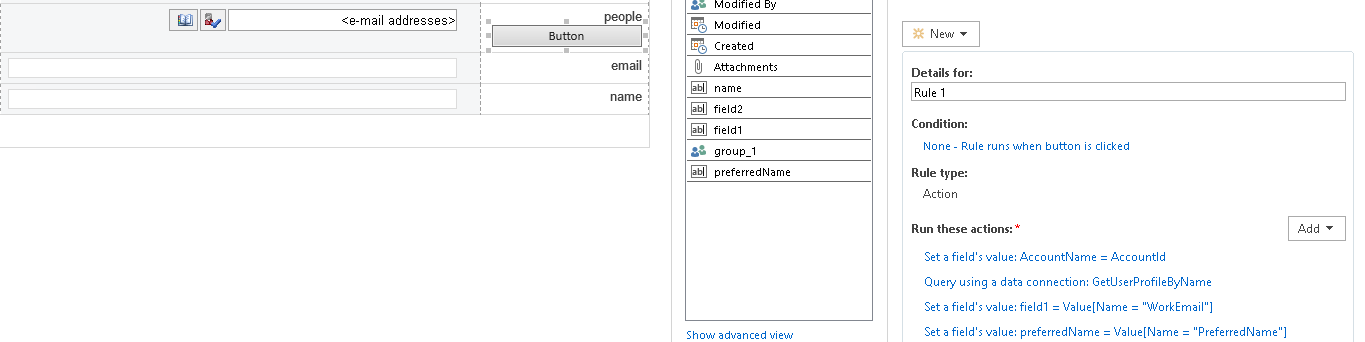
(1) Highlight the button, and then create an Action rule.
(2) Set AccountName with the AccoundId from the people picker column for querying user information.
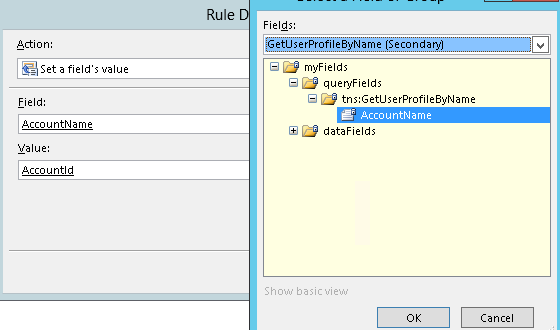
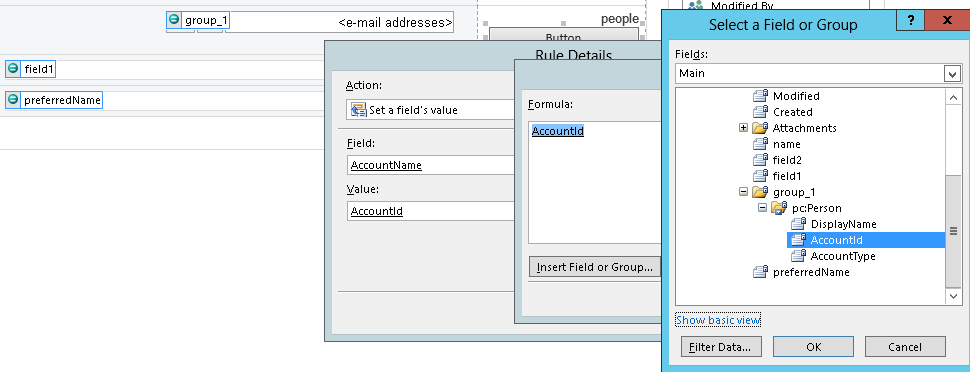
(3) Query the data connection with the new AccountName.
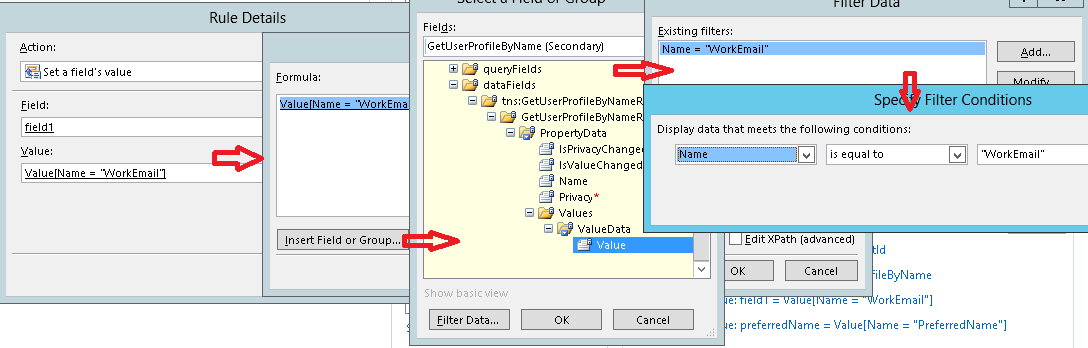
(4) Set other fields.
Leave the middle drop down as is (‘is equal to’) and in the last drop down choose ‘type a text…’. Type “FirestName” or ” LastName” which you want to show in the field.
For more information, please read the blog below.
Best regards,
Linda Zhang
Please remember to mark the replies as answers if they help.
If you have feedback for TechNet Subscriber Support, contact [email protected]
Wednesday, January 18, 2017 12:47 PM
Thank you so much Linda, that's great. I've been searching for this for a couple of days now but those instructions you posted were absolutely perfect!
Thursday, January 19, 2017 1:34 AM
Hi gjayne,
I am glad that the issue has been resolved.
If you think the reply helps you, please mark it as an answer to help other users who meet the same issue in this forum.
Best Regards,
Linda Zhang
Please remember to mark the replies as answers if they help.
If you have feedback for TechNet Subscriber Support, contact [email protected]
Friday, December 15, 2017 10:11 AM
Hi Linda ... I am getting such mixed messages with regards to InfoPath. We're told everywhere to avoid new form designs because InfoPath is being deprecated and yet your answer only deals with InfoPath. What are we supposed to do? Can this look up and auto populate functionality be done without InfoPath?
Tuesday, February 6, 2018 3:36 PM
Hi,
Here is the steps you can use to auto populate user name into the form
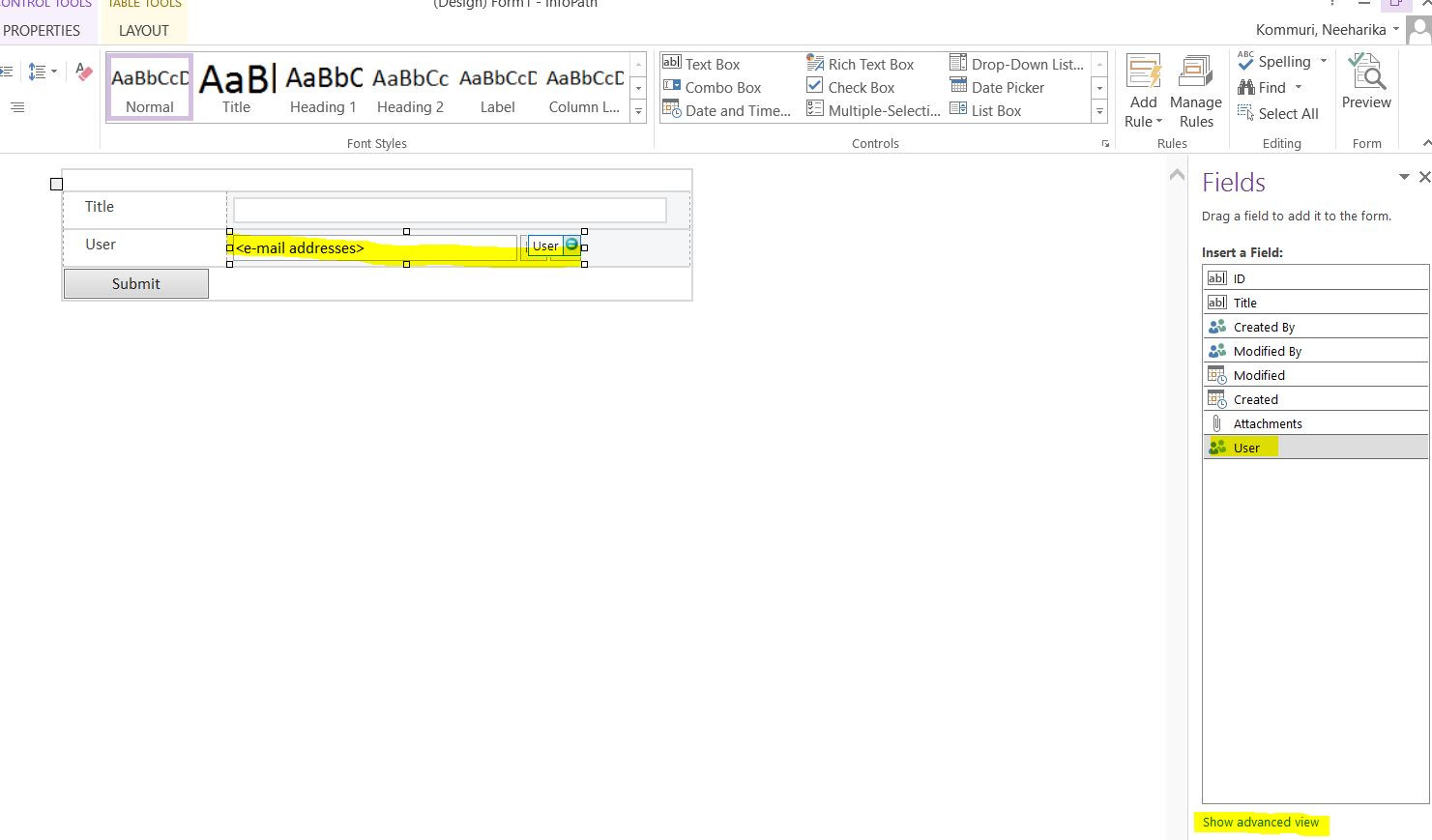
Open any test list->customize InfoPath->click on people picker you want to auto populate-> right side->Fields panel-> (down) click on Show Advanced view->
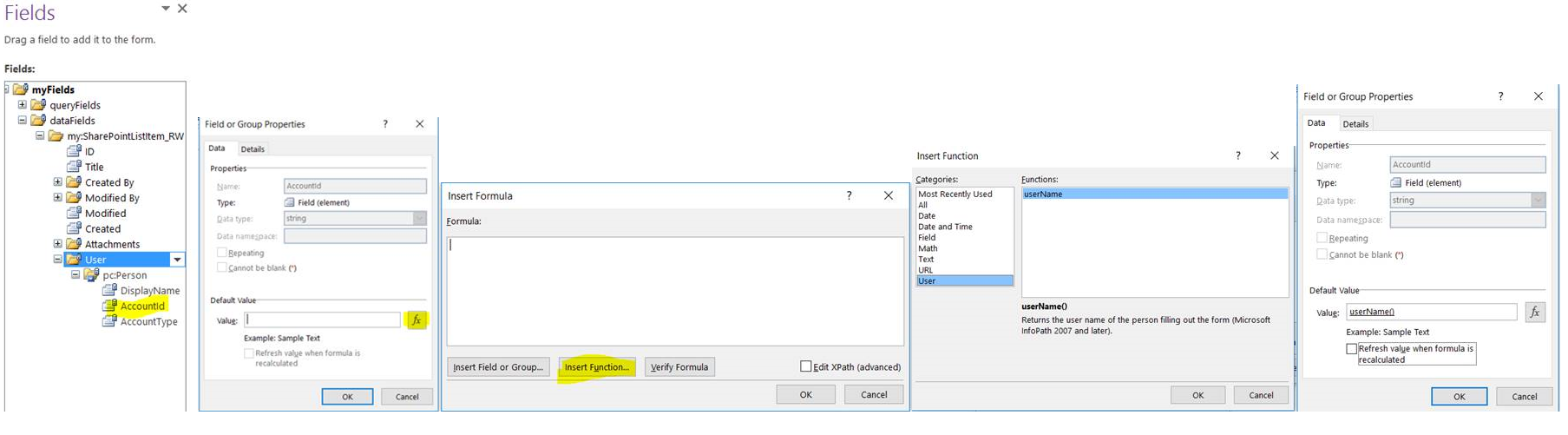
Click on (+) for expansion->First right click on AccountId properties->click on fx->click on insert function->User->username->click ok button->ok->ok
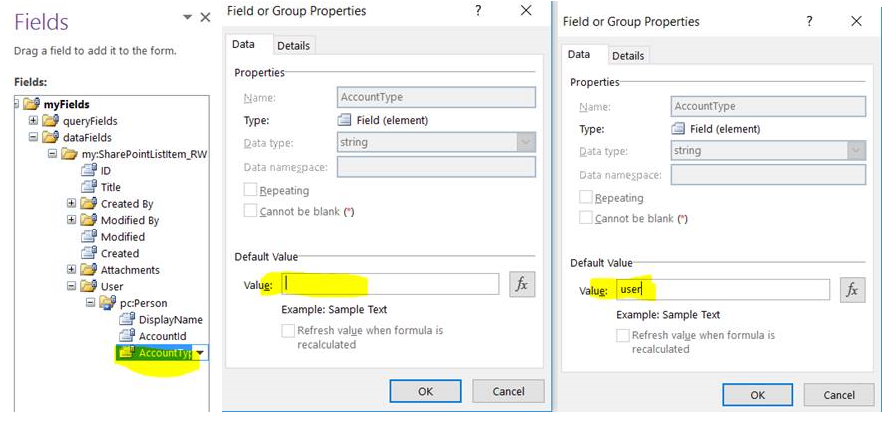
Now come back infopath design path again on right hand side Fields-> now right click on AccountType->right click on properties->in value text box->just type-user->click ok button.
Publish to SharePoint->it will autocomplete the user into the form in SharePoint.
For new item-> after submitting the form-> you can see the user with status
I hope this will helps.