Note
Access to this page requires authorization. You can try signing in or changing directories.
Access to this page requires authorization. You can try changing directories.
Question
Thursday, May 8, 2014 5:07 PM
Hello All,
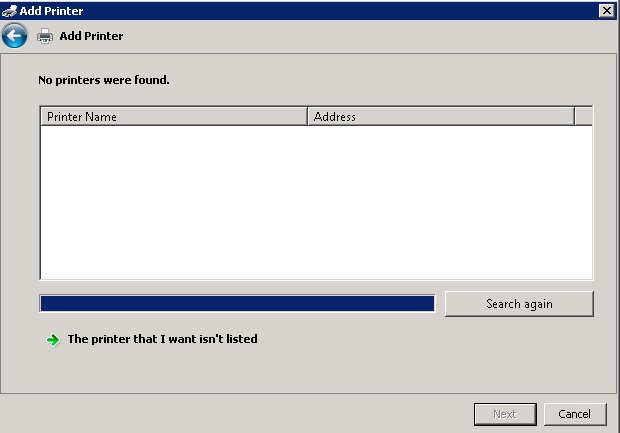
I have tried a few different recommended fixes to no avail. When simply going to Devices and Printers, Add Printer, then Network.... no printers are found, until you click the The Printer isn't listed and find under the directory, they are all seen. Nothing has changed with the server itself and everything seems to be in order. This is a problem since I'll be rolling a bunch of new larger MFD printers in the coming weeks. I will mention, and not sure if the timing is just coincidence, but I did install the NFS file service to the server, then promptly removed it, and this seemed to happen around that time. Any help/lead would be appreciated.
Below are the items I have tried.
-
- Removed/Relisted all printers in Printer Management
- Confirmed the printer permissions as correct
- Confirmed the printers are shared and visible when browsing to the printer server via UNC path
- Printers are visible in the Default Naming Context for that server within ADSIedit
- Network Discovery (for domain users) is enabled IN and OUT on the printer server as well as on any client machine trying to find/add one of these printers
- Event View or the Role events show NO errors for that particular service
- The SSDP service is running
- Using local gpedit, published the printers manually (can only be seen from the print server itself and no other client, but also doesn't show name or location of the printer)
All replies (16)
Tuesday, May 13, 2014 4:49 PM ✅Answered
The Location field is populated using a GPO setting or from the Location Field that is configured on the router located in Sites and Services. The location field that the client searches on must exactly match the string that is defined in the Printer / Properties / Location. If these two do not match, nothing will be listed.
If the client is looking at "" but all the published printers have "Building X" defined in their properties, nothing will be displayed.
I believe the Printer objects should be located under the machine objects in the same domain but not 100% sure that's a requirement.
I assume you only have one domain and the users and computers are all joined to the same.
Alan Morris Windows Printing Team
Friday, May 9, 2014 7:01 PM
What do you have for Location on the printers?
Does this location match that set on the client GPO?
Computer / Admin Templates / Printers / Computer location
There is also the
Computer / Admin Templates / Printers / Add Printer Wizard -Network Scan Page (Managed Network)
Make sure the Directory Printers value did not get set to 0.
Alan Morris Windows Printing Team
Friday, May 9, 2014 7:14 PM
Alan,
There are people out there! Thanks for replying, I do appreciate it.
As it stands right now and before I did not use GPO's to deploy the printers or publish them. The Printer role installed on that server to direct clients to their location. Everyone simply utilized the add network printer aspect as the printers were shared properly and every has ND turned on.
With that said, I did open up the local gp and Computer Location is Not Configured as suspected.
I also browsed our domain GP's, and still nothing set or changed that would make these printers not visible to a standard search.
Friday, May 9, 2014 7:44 PM
I really don't suspect it's related to GPO's. As I mentioned earlier I added the Service for NFS on the server then removed it shortly afterwards. I really wonder if that installation interfered with the printer services in some way. I believe the issue was discovered right around that time.
Saturday, May 10, 2014 2:24 AM
Hi, you mean if you browse the unc path with a client computer you see the share ? I guess the "list in directory" is selected too.
The GPO will be able to map them if soo, if it's the Add printer that does not list them, I would check your DC, to be sure the spooler service is not disabled or off. I suspect the list does not populate because something happened with the list the DC's maintain.
Regards, Philippe
Don't forget to mark as answer or vote as helpful to help identify good information. ( linkedin endorsement never hurt too :o) )
Answer an
interesting question ? Create a wiki article about it!
Saturday, May 10, 2014 2:44 AM
Yes, if I browse the UNC patch of the print server, I see all the printers there, shared out as they should be. Along with the shared out folders. The spoolers are running just fine on the DC's.
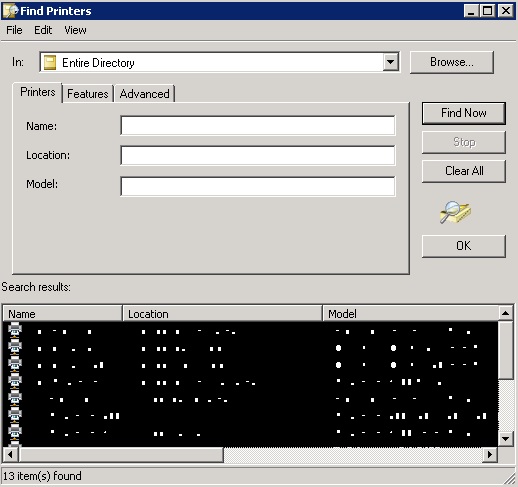
I also don't think it has anything to do with the DC's since when no printers are found I click the "The Printer That I Isn't Listed" button, then by clicking the find in directory option, all the printers appear in that list after searching the entire directory.
Monday, May 12, 2014 4:46 AM
Does the client typically have a blank location field? I'd expect the one printer in the image with no location to be displayed on this client .
Alan Morris Windows Printing Team
Monday, May 12, 2014 12:15 PM
Alan,
In the example I blocked out the names and locations of the printers that appear in the directory. I was just trying to show that in the simple network search for the printers, nothing appears (first screen). But when you search the entire directory on the subsequent pages, it populates and shows 13 network shared printers from the primary print server as well as other localized shares (second screen).
This happened out of no where to be honest. No major updates recently aside from the usual windows updates.
Tuesday, May 13, 2014 3:39 AM
Hi JS1980,
Sorry for my interrupting. Just confirm something more.
Based on your description, did you mean that you can connect those printers and use them as normal, when find printers via feature “Find a printer in the directory, based on location or feature”? Meanwhile, if logged on with an administrator account, will encounter the same issue?
In addition, I know that you didn’t suspect it’s related to group policy settings. Just for a confirmation, would you please use Gpresult command to check? Or you can send the result to OneDrive then post the link here. (Please hide or remove private and protected information)
Meanwhile, there seems has a similar thread. Please refer to and check if can help you.
Windows 7 Not Seeing one or more AD Printers when adding printers
Hope this helps.
Best regards,
Justin Gu
Tuesday, May 13, 2014 6:44 AM
Hi JS1980,
you have to fill Location property at each published printer queue (Printer Properties > General tab).
check also:
- Computer Configuration\Administrative Templates\Printers\Pre-populate printer search location text: Enabled
- Computer Configuration -> Policies -> Administrative Templates -> Printers -> Add Printer wizard - Network scan page (Managed network) = Enabled
Number of directory printers 200
You can fine tune:
Hive: HKLM
Key Path: SOFTWARE\Policies\Microsoft\Windows NT\Printers
Value name: PhysicalLocation
Value type: REG_SZ
Value data: string
Also, if this priners are already installed on your PC, they will not be shown at the first page of search result.
Tuesday, May 13, 2014 3:03 PM
I assume all the client machines are Windows 7. I'm not sure how NFS would impact your Active Directory settings.
Have you published a printer from a different machine in the domain. You do not have to use a print server. Any machine can publish printers to AD as long as one does not block this through domain policy.
Publish a printer with the correct Location data from one of the Win7 machines and see how it's displayed in Add Printer - Network scan page. The printer can be a fake printer to LPT1: .
Alan Morris Windows Printing Team
Tuesday, May 13, 2014 3:35 PM
@Justin
Yes, they all appear in the in the 'Find a printer in the directory, based on location or feature' and the default location is Entire Directory.
@Sergey
They all have and had location properties (physical location as it relates to floor and office)
After applying the 200 printer list for TCP/IP printers, the printers showed up in the list, but with only IP Address and Printer Name, didn't show location or the friendly share name. Also, this only worked Locally. The second gp modification didn't not work.
I removed all printers from my machine to test this earlier, not a single one appears in the standard printer discovery. Only in the find in directory page.
@Alan
Yes, all of our users are using Windows 7. I added the NFS file service to use a share on the server within our VMware environment as a staging folder.
Yes, there are other individual machines sharing our printers that DO NOT show up on the search list. nothing shows up on the search list, not just the printer server.
Tuesday, May 13, 2014 3:58 PM
I just wanted to confirm shared and published printers from other machines appear under Entire Directory.
What is the default Location data that you use for the client? Add Printer Wizard makes a call to AD for the search Location. This is a string value and can be Null.
For me this returns USA/REDMOND, WA/27. This is the data that is configured in Sites and Services AD snapin for the router that I am connected to.
I assume you have this setup the same way.
Alan Morris Windows Printing Team
Tuesday, May 13, 2014 4:07 PM
@Alan
Yes, other shared out printers appear in the Entire Directory. The list shows columns for Name, Location, Model, Server name and Comment, all of which populate correctly.
I understand the question but I am not sure how to answer it exactly? Is this a configuration setting I would look at? When I use the standard Add Printer wizard and choose network, it automatically searches, not sure what location it specifies but I can tell you this wasn't an issue ever, until now that is.
Tuesday, May 13, 2014 5:06 PM
Alan,
You sir are my hero. For the life of me I couldn't think of anything I changed THEN finally you jarred something loose in my head. I did in fact change something. I changed the site location for our primary subnet in AD Sites and Services. I did this a while ago and probably didn't notice until now when I had to add a couple of new printers to the server. I removed the name from the location field and the printers are appearing as they should be. A little learning lesson for me. Thanks again everyone for your help.
Tuesday, May 13, 2014 5:20 PM
I think the "jarred loose" must have occurred when hand hit forehead. Glad it made sense. There is a complete guide here. It's not that long.
http://technet.microsoft.com/en-us/library/bb727034.aspx
Alan Morris Windows Printing Team