Note
Access to this page requires authorization. You can try signing in or changing directories.
Access to this page requires authorization. You can try changing directories.
Question
Thursday, December 20, 2018 4:03 PM
We use a mailbox calendar to book our conference room using Exchange 2010/Outlook 2010. We are migrating to Exchange 2016/Outlook 2016. Because I am glutton for punishment, I am going to try to switch this to a Room Mailbox, which appears to be how Microsoft wants to do this now. Exporting the calendar to a PST was an easy task but getting the PST into the Room mailbox is not work. My first attempt was to add open the Room calendar and import but I could not select the Room calendar as a destination. Then I gave myself Full Access to the Room and it automatically popped up in my Outlook navigation pane. However, I can't expand it and, when I select it as a PST import destination, it fails with the error "The operation failed". Is there any way to get this PST data into the Room mailbox? Thank you in advance!
All replies (8)
Friday, December 28, 2018 4:32 PM ✅Answered
Thank you.
I found the solution is to use User Mailboxes instead of Room Mailboxes to manage room bookings. User mailboxes are far more intuitive and manageable but, most importantly, allow the import of PST files. Not only does it make this migration possible but it will make future migrations easier.
Thursday, December 20, 2018 6:36 PM
Give yourself Full access permissions *without* automapping, then add the Room mailbox as additional account (via File -> Add account) in Outlook. This will expose the full functionality, including being able to import a PST file.
Or you can do it "server-side": /en-us/exchange/recipients/mailbox-import-and-export/import-procedures?view=exchserver-2019
Thursday, December 20, 2018 6:58 PM
Thank you for your reply!
How do I give Full Access without Automapping?
The second approach you suggested does not cover Room mailboxes, are you sure it applies to them?
Friday, December 21, 2018 10:46 AM
Hi,
You can use the following command to grant Full Access right without Automapping:
Add-MailboxPermission -Identity <MailboxIdParameter> -User <SecurityPrincipalIdParameter> -AccessRights FullAccess -InheritanceType All -AutoMapping $false
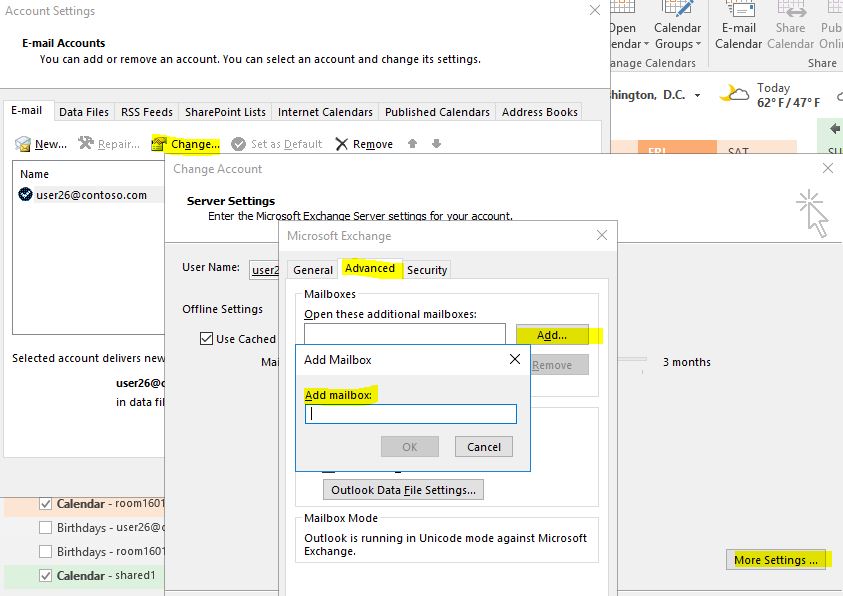
Click File > Account Settings > Change Account > More Settings > Advanced > click Add to add additional mailboxes:
Regards,
Lydia Zhou
Please remember to mark the replies as answers if they helped. If you have feedback for TechNet Subscriber Support, contact [email protected].
Click here to learn more. Visit the dedicated forum to share, explore and talk to experts about Microsoft Teams.
Monday, December 24, 2018 11:08 AM
Just checking in to see if above information was helpful.
If you have any questions or need further help on this issue, please feel free to post back. If the issue has been resolved, please mark the helpful replies as answers, this will make answer searching in the forum easier and be beneficial to other community members as well.
Regards,
Lydia Zhou
Please remember to mark the replies as answers if they helped. If you have feedback for TechNet Subscriber Support, contact [email protected].
Click here to learn more. Visit the dedicated forum to share, explore and talk to experts about Microsoft Teams.
Thursday, December 27, 2018 3:36 PM
I used the method Lydia posted to add the Room Mailbox to my Outlook without 'automapping' but encountered the same problem. I cannot expand the Room Mailbox or import a PST. I will try doing this on the server side.
Lydia > How do I undo what the command you provided did?
Thursday, December 27, 2018 4:17 PM
I was able to import a PST using the EMS after creating a Role Group and assigning permissions. However, the process changed events in the PST. For example, an event named "TEST EVENT" when exported was changed to "Free" when imported. Why is the import/export process changing the names of items?
Friday, December 28, 2018 10:29 AM
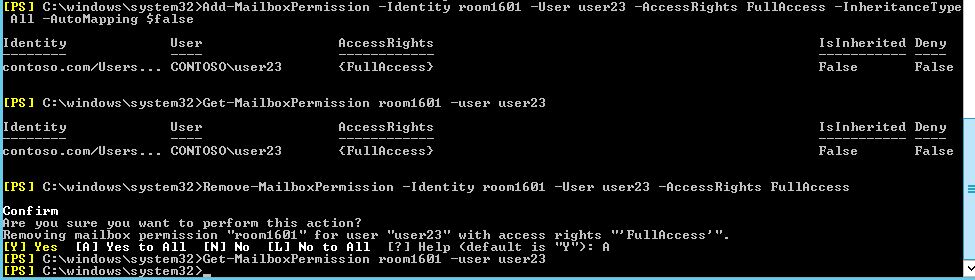
You can use the following commands to remove and check Full Access permission:
Remove-MailboxPermission -Identity <MailboxIdParameter> -User <SecurityPrincipalIdParameter> -AccessRights FullAccess
Get-MailboxPermission <MailboxIdParameter> -User <SecurityPrincipalIdParameter>
Test result is shown below:
For the event name issue, maybe you don’t have permissions to see the detail meeting information.
Try to use following command to grant access rights:
Add-MailboxFolderPermission <mailbox name:\Calendar> -User <user name> -AccessRights Owner
For more information about mailbox folder permission, check: -AccessRights
Regards,
Lydia Zhou
Please remember to mark the replies as answers if they helped. If you have feedback for TechNet Subscriber Support, contact [email protected].
Click here to learn more. Visit the dedicated forum to share, explore and talk to experts about Microsoft Teams.