Note
Access to this page requires authorization. You can try signing in or changing directories.
Access to this page requires authorization. You can try changing directories.
Question
Friday, September 4, 2015 2:10 PM
Hello!
I need to change TTL in windows 10.
Changing registry parameter is not working:
HKEY_LOCAL_MACHINE \SYSTEM\CurrentControlSet\Services\Tcpip\Parameters
Name: DefaultTTL
Type: REG_DWORD
Valid Range: 1-255
How can I do it?
All replies (14)
Tuesday, August 22, 2017 1:22 AM ✅Answered
It works!
HKEY_LOCAL_MACHINE \SYSTEM\CurrentControlSet\Services\Tcpip\Parameters
Name: DefaultTTL
Type: REG_DWORD
Valid Range: 1-255
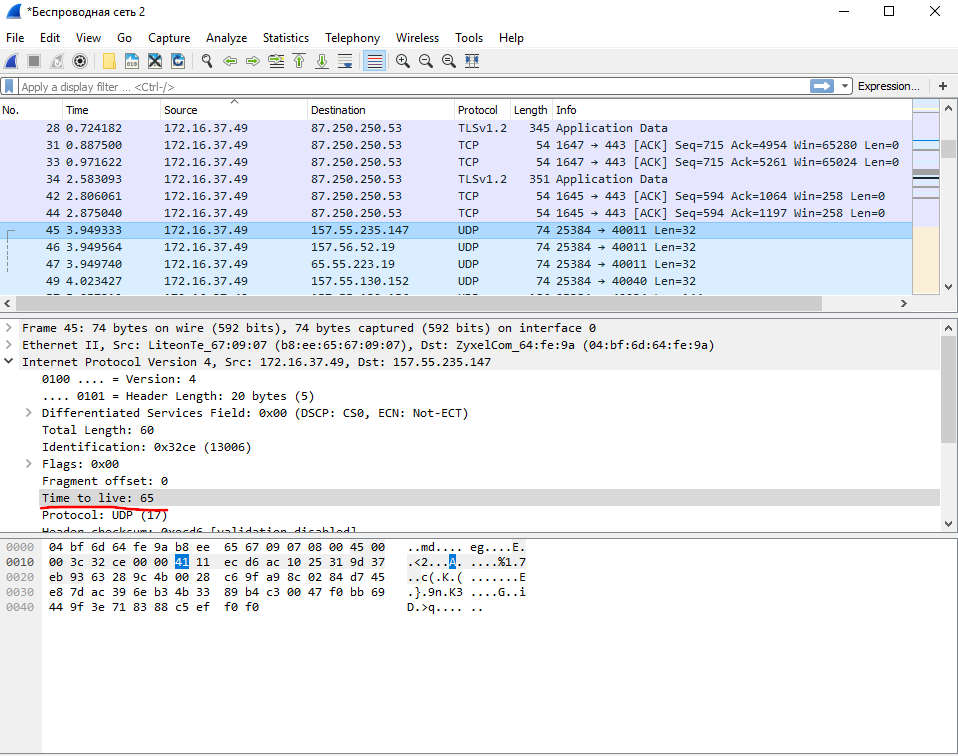
I needed to use wireshark to check TTL. Thanks.
Monday, September 7, 2015 4:00 AM
After tweaking the registry you need to restart the system. Did you do that?
S.Sengupta, Windows Experience MVP
Monday, September 7, 2015 9:03 AM
You could also try using a netsh command ?
netsh int ipv4 set glob defaultcurhoplimit=<value>
netsh int ipv6 set glob defaultcurhoplimit=<value>
Friday, September 18, 2015 12:18 PM | 1 vote
After tweaking the registry you need to restart the system. Did you do that?
Yes, I did.
Friday, September 18, 2015 12:32 PM
You could also try using a netsh command ?
netsh int ipv4 set glob defaultcurhoplimit=<value>
netsh int ipv6 set glob defaultcurhoplimit=<value>
This is not working:
netsh int ipv4 set glob defaultcurhoplimit=65
netsh int ipv6 set glob defaultcurhoplimit=65
TTL still 64
Monday, September 21, 2015 6:45 AM
Hi Navff,
I have tried the netsh command line and it will add an registry key as the path you have posted automatically.
How did you verify the TTL settings?
Best regards
Please remember to mark the replies as answers if they help, and unmark the answers if they provide no help. If you have feedback for TechNet Support, contact [email protected].
Monday, September 21, 2015 6:52 AM
ping 192.168.1.1.
This is my local router.
Thursday, September 24, 2015 2:07 AM
Hi Navff,
I made a test again on my Windows 10 Enterprise machine and ping this machine. It works.
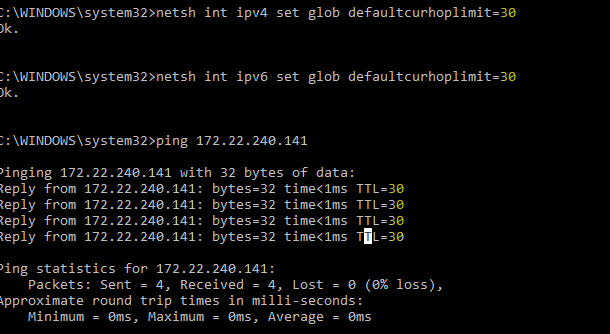
Please try to change with different values to have a check.
Best regards
Please remember to mark the replies as answers if they help, and unmark the answers if they provide no help. If you have feedback for TechNet Support, contact [email protected].
Tuesday, February 2, 2016 4:53 PM
Hi MeipoXu,
I wanted to change TTL, but it does not work.
As in your example - it works only when you ping localhost (in my case IP of localhost is 192.168.0.110 and 192.168.0.1 is router address):
C:\Windows\system32>systeminfo | findstr /R /C:"OS "
OS Name:                   Microsoft Windows 10 Pro
OS Version:                10.0.10240 N/A Build 10240
OS Manufacturer:           Microsoft Corporation
OS Configuration:          Standalone Workstation
OS Build Type:             Multiprocessor Free
BIOS Version:              Dell Inc. A11, 03.10.2012

C:\Windows\system32>netsh int ipv4 set glob defaultcurhoplimit=100
Ok.


C:\Windows\system32>netsh int ipv6 set glob defaultcurhoplimit=100
Ok.
C:\Windows\system32>ping 127.0.0.1

Pinging 127.0.0.1 with 32 bytes of data:
Reply from 127.0.0.1: bytes=32 time<1ms TTL=100
Reply from 127.0.0.1: bytes=32 time<1ms TTL=100
Reply from 127.0.0.1: bytes=32 time<1ms TTL=100
Reply from 127.0.0.1: bytes=32 time<1ms TTL=100

Ping statistics for 127.0.0.1:
    Packets: Sent = 4, Received = 4, Lost = 0 (0% loss),
Approximate round trip times in milli-seconds:
    Minimum = 0ms, Maximum = 0ms, Average = 0ms
C:\Windows\system32>ping 192.168.0.110

Pinging 192.168.0.110 with 32 bytes of data:
Reply from 192.168.0.110: bytes=32 time<1ms TTL=100
Reply from 192.168.0.110: bytes=32 time<1ms TTL=100
Reply from 192.168.0.110: bytes=32 time<1ms TTL=100
Reply from 192.168.0.110: bytes=32 time<1ms TTL=100

Ping statistics for 192.168.0.110:
    Packets: Sent = 4, Received = 4, Lost = 0 (0% loss),
Approximate round trip times in milli-seconds:
    Minimum = 0ms, Maximum = 0ms, Average = 0msC:\Windows\system32>ping 192.168.0.1

Pinging 192.168.0.1 with 32 bytes of data:
Reply from 192.168.0.1: bytes=32 time<1ms TTL=64
Reply from 192.168.0.1: bytes=32 time=1ms TTL=64
Reply from 192.168.0.1: bytes=32 time=1ms TTL=64
Reply from 192.168.0.1: bytes=32 time=1ms TTL=64

Ping statistics for 192.168.0.1:
    Packets: Sent = 4, Received = 4, Lost = 0 (0% loss),
Approximate round trip times in milli-seconds:
    Minimum = 0ms, Maximum = 1ms, Average = 0ms

C:\Windows\system32>ping www.google.com

Pinging www.google.com [216.58.209.68] with 32 bytes of data:
Reply from 216.58.209.68: bytes=32 time=24ms TTL=57
Reply from 216.58.209.68: bytes=32 time=24ms TTL=57
Reply from 216.58.209.68: bytes=32 time=24ms TTL=57
Reply from 216.58.209.68: bytes=32 time=22ms TTL=57

Ping statistics for 216.58.209.68:
    Packets: Sent = 4, Received = 4, Lost = 0 (0% loss),
Approximate round trip times in milli-seconds:
    Minimum = 22ms, Maximum = 24ms, Average = 23ms
and I can't find any other solution online, does it mean that setting default TTL value is broken in Windows 10?
Wednesday, March 16, 2016 11:37 PM
I'm seeing exactly the same behaviour. Change registry, ping local host ttl is my number. Ping anything else and the ttl could pretty much be anything!
Saturday, December 10, 2016 11:55 PM
You could also try using a netsh command ?
netsh int ipv4 set glob defaultcurhoplimit=<value>
netsh int ipv6 set glob defaultcurhoplimit=<value>
This is not working:
netsh int ipv4 set glob defaultcurhoplimit=65
netsh int ipv6 set glob defaultcurhoplimit=65
TTL still 64
if you put a sniffer to see, actuality it is working
Thursday, March 16, 2017 7:39 AM | 1 vote
Hi, guys.
I have a question: why you are looking on TTL of ICMP __REPLY__? You should check TTL of ICMP __REQUEST__ instead. You may try to use WireShark for example or another network analyzer.
Best regards.
Wednesday, April 25, 2018 1:25 PM
So this worked for me, and everything that I do on my Windows 10 Surface Pro is using the TTL value of 64.
However, I'm trying to extend this connection to other devices (source is being tethered from iPhone). So I'm using the Windows 10 Hotspot feature to share the connection with my other devices. Unfortunately, the devices that connect to my Windows 10 PC are not also pulling with the TTL value of 64, despite the PC doing so.
I'm kind of confused as to why this is happening. If anyone has any idea, I'd love some help and hopefully a fix. Thanks!
Tuesday, March 12, 2019 1:43 AM
I have the same problem and would like to know whether you fixed that somehow or not.