How to fix color profiles on Windows 11?

Ishan Joshi 0 Reputation points
2026-09-01T14:04:27.3566667+00:00

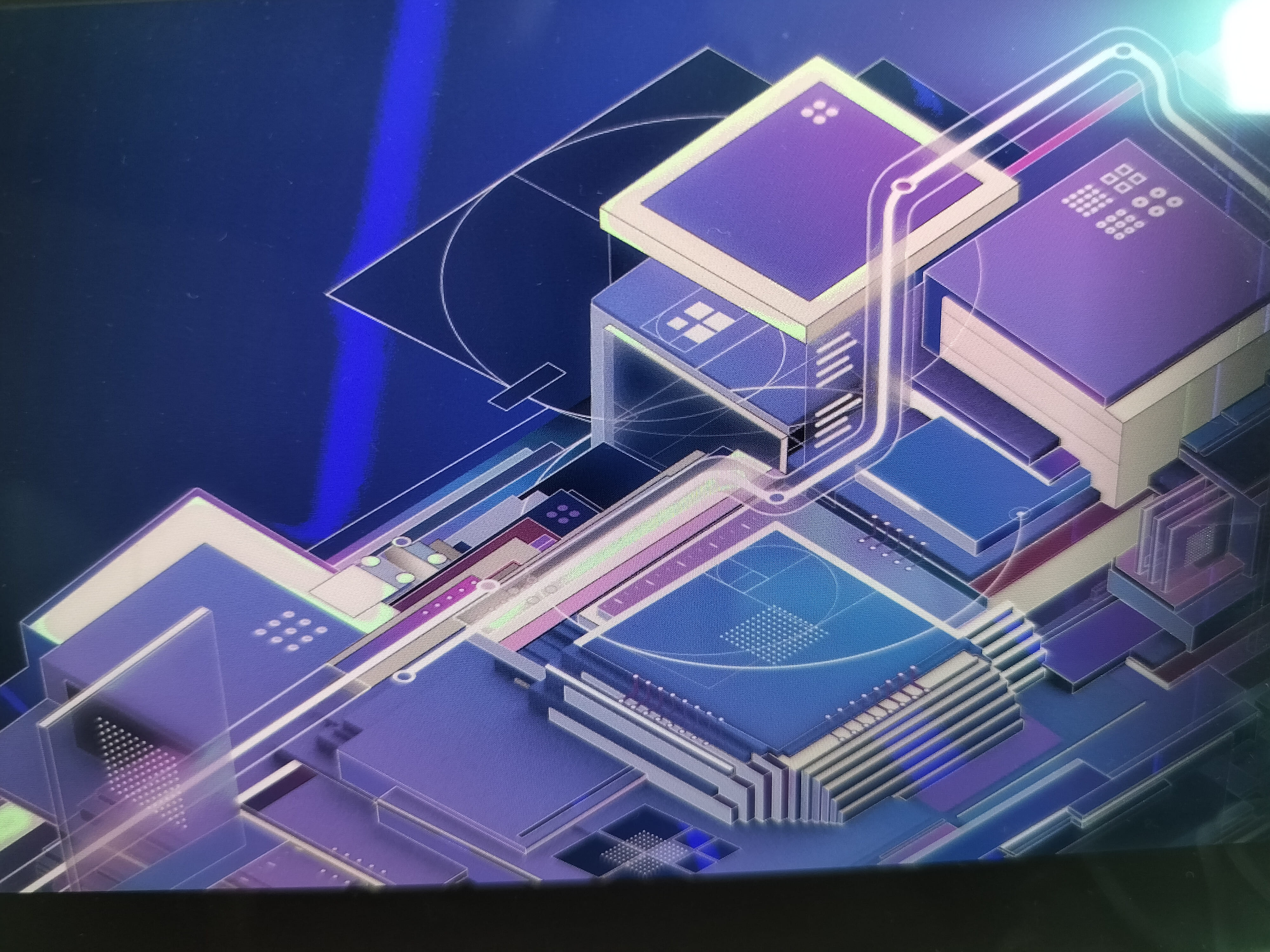
Recently, the colors on my screen have been glitching out. The first image attached is a screenshot of the home page of this site, and the second image is a picture taken on my phone at the same time with the Web (sRGB) color profile; notice the streak of blue and patches of green.Screenshot (nothing wrong)
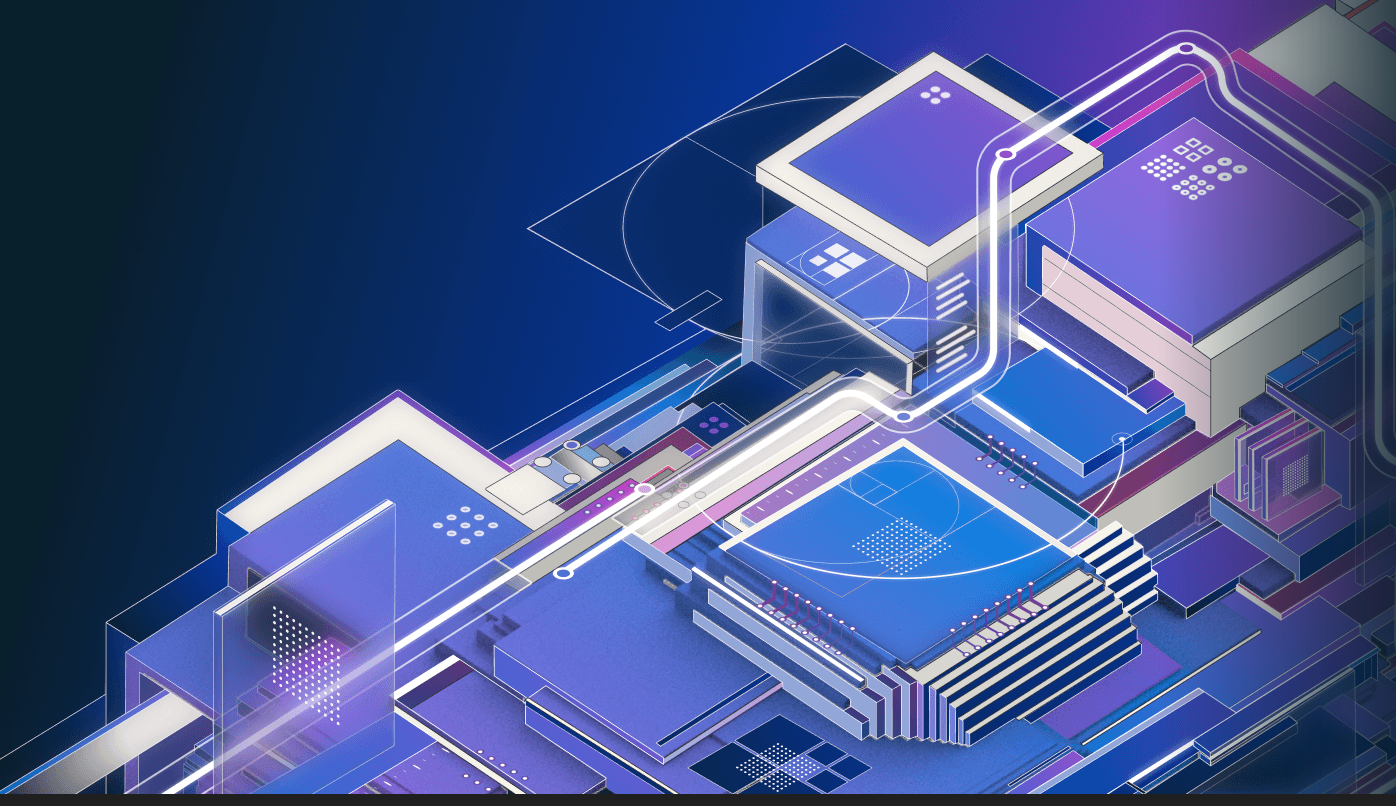
Picture (wrong colors)

Also it appears to be based on the values of the colors, rather than anything else, as seen in the next picture.
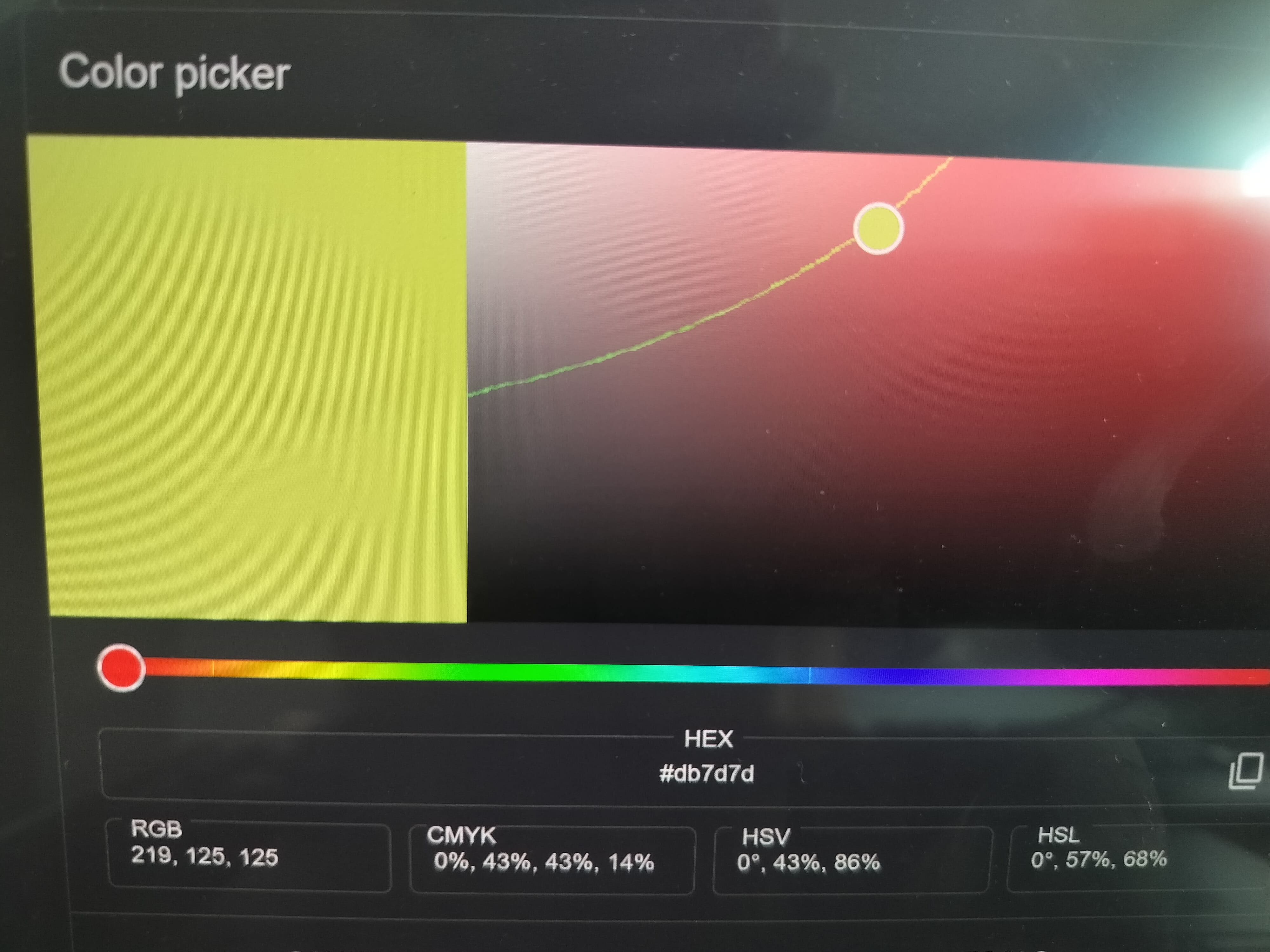
color picker miscolored

Through some testing, I've figured out that the problem is the color profile I'm using at the time. Different profiles have different colors glitching out. Doing hardware checks doesn't fix or change the problem. Restarting my laptop and cycling the profiles, such as Web (sRGB) -> Native -> Default -> Web (sRGB), both seem to temporarily solve the problem, but it always comes back. I'm also on Windows 11, if that helps.

Windows for home | Windows 11 | Display and graphics
0 comments No comments

2 answers

Sort by: Newest
  1. Carl-L 21,320 Reputation points Microsoft External Staff Moderator
    2026-09-02T07:21:28.2066667+00:00

    Hello Ishan Joshi,

    Welcome to Microsoft Q&A forum.

    May I know if the AI assistant helps you? Please let me know the results.

    Before we proceed, since the issue seems to relate to the color profile. Can you please try to remove all custom profiles and use the default one for a while to see if it reappears?

    I'm waiting for your reply.

    Was this answer helpful?


  2. AI answer

    2026-09-01T14:04:55.0666667+00:00

    Since switching profiles temporarily fixes it and the problem returns, the most likely causes are a bad color profile assignment or a graphics driver/app color-management issue.

    Try this in order:

    1. Reset the display color profile
      • Go to Settings > System > Display > Color profile.
      • Select the affected display.
      • If multiple profiles are listed, set the intended one as default with Set profile.
      • If a profile looks suspicious or was added manually, expand it and select Remove.
    2. Re-add a standard profile
      • In Settings > System > Display > Color profile for that display, select Add profile.
      • Add the profile that matches the display use case, then set it with Set profile.
      • If the issue started after changing profiles, this helps replace a corrupted assignment.
    3. Turn off automatic app color management for testing
      • Go to Settings > System > Display > Color profile.
      • Select the display.
      • Turn off Automatically manage color for apps if it is enabled.
      • This setting can affect how colors appear in apps, especially when color handling is inconsistent.
    4. Recalibrate the display
      • In Settings > System > Display > Color profile, select Calibrate display and complete the calibration.
      • This creates a new color profile for that display.
    5. Check whether the graphics stack is glitching
      • Press Windows logo key + Ctrl + Shift + B to reset the graphics driver.
      • If the colors immediately return to normal, that points to a display driver issue rather than the panel itself.
    6. Check for a display driver or app problem
      • Open Task Manager with Ctrl + Shift + Esc while the issue is happening.
      • If Task Manager also flickers or shows the same problem, the display driver is the likely cause.
      • If Task Manager looks normal while other apps look wrong, an incompatible app is more likely.
    7. If an app is involved, update or remove it
      • For Store apps: check for updates in Microsoft Store.
      • To remove a suspected app: Start > Settings > Apps > Installed apps > select app > Uninstall.
      • Restart after uninstalling and test again.
    8. Update the display driver
      • If Night light is grayed out, Microsoft specifically recommends updating the display driver, and driver issues are also a known cause of screen flickering and display anomalies.

    If the problem only affects the built-in laptop screen after resetting profiles and recalibrating, and it keeps returning even after the graphics driver is reset, that points more strongly to either a corrupted GPU driver installation or a hardware issue with the laptop display path.


    References:

    AI-generated content may be incorrect. Read our transparency notes for more information.

    Was this answer helpful?

Your answer

Answers can be marked as 'Accepted' by the question author and 'Recommended' by moderators, which helps users know the answer solved the author's problem.