Microsoft Teams | Microsoft Teams for education | Settings | Other
Additional settings-related features and issues within Microsoft Teams for Education

This browser is no longer supported.
Upgrade to Microsoft Edge to take advantage of the latest features, security updates, and technical support.
' cx='32' cy='32' r='32' /%3E%3Ctext x='50%25' y='55%25' dominant-baseline='middle' text-anchor='middle' fill='%23FFF' %3EKL%3C/text%3E%3C/svg%3E)
Hi there.
I am a lecturer at a college and use Teams for all communication and coursework.
The college is Microsoft based and uses PCs.
We were asked recently by the college to change our password for Microsoft logins and since this change, I haven't been able to use the Teams app on my Mac.
When loading, the app asks me which login to use, it displays my college user and associated email, so I click that.
Then the app displays the message:
No Network Connection. Please check your network settings and try again. [2604]
(My internet is working just fine btw!)
Have tried:
Deleting Teams caches in the old locations and new locations
Reinstalling Teams
....no luck after either.
Any suggestions welcome to a fix here.
Oh, Teams works fine when I log on through Chrome so defo an app problem...Cheers
[Moderator note: Personally Identifiable Information removed]
Teams Version 26072.608.4595.8484
Macbook Pro M1
OS Ventura 13.5
Additional settings-related features and issues within Microsoft Teams for Education
Hi there @Anonymous Thanks for your messages. My replies in bold italics.
If you have any more ideas on how to fix this that would be great!
Step 1: Sign out and fully quit Teams
Step 2: Clear Microsoft tokens from Keychain Access
These entries can contain expired authentication tokens from before the password reset.
None of these found.
' cx='32' cy='32' r='32' /%3E%3Ctext x='50%25' y='55%25' dominant-baseline='middle' text-anchor='middle' fill='%23FFF' %3EA%3C/text%3E%3C/svg%3E)
Hi @Keir Long,
Thank you for your prompt response.
I appreciate the time you took to review the information. To better assist, could you please share a screenshot of the tokens in Keychain Access so that I can review it further? Moreover, have you tried clearing Teams in the paths guided earlier?
If the issue still persists after taking these steps, I recommend trying these steps to delete Office license files and disable auto proxy:
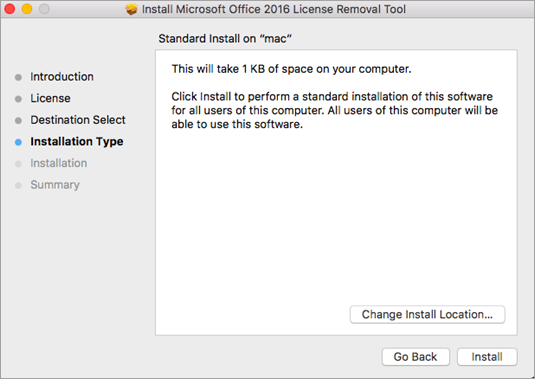
Once you finish these steps, please try logging in to your Teams again.
I hope these steps are helpful. Please try these steps and let me know if it works or not.
Should you have any further questions or need additional assistance, please feel free to reach out and let me know.
Looking forward to your response.
Hi @Keir Long,
I hope everything is going well on your end.
I’m following up on the support thread we've been working through together. I wanted to check in and see if the information I shared in my previous answer helped resolve the issue you were experiencing.
If you're still experiencing any issues or have further questions, please feel free to reach out at any time. I’m always happy to help if you need anything else.
I want to ensure everything is functioning smoothly and that your experience remains seamless.
Thank you again for your collaboration throughout the troubleshooting process.
I look forward to hearing from you soon.
Warm regards,
Hi @Keir Long,
I hope everything is going well on your end.
I’m following up on the support thread we've been working through together. I wanted to check in and see if the information I shared in my previous answer helped resolve the issue you were experiencing.
If you're still experiencing any issues or have further questions, please feel free to reach out at any time. I’m always happy to help if you need anything else.
I want to ensure everything is functioning smoothly and that your experience remains seamless.
Thank you again for your collaboration throughout the troubleshooting process.
I look forward to hearing from you soon.
Warm regards,
Hi @Keir Long,
I hope you are doing well.
Thank you for reaching out and for sharing details about the environment and troubleshooting steps taken. Based on your description, this issue is most likely related to cached Microsoft authentication tokens stored on the Mac after the recent password change, rather than an actual network problem.
Even though Teams has been reinstalled, macOS can retain old sign-in credentials in Keychain Access and local Teams cache folders. When Teams attempts to use these outdated tokens, it can trigger the “No Network Connection [2604]” error during sign-in. Since Teams works correctly in Chrome, this points to the desktop app authentication cache specifically.
Please try the steps below to fully clear the stored credentials and reset Teams on the Mac:
Step 1: Sign out and fully quit Teams
Step 2: Clear Microsoft tokens from Keychain Access
These entries can contain expired authentication tokens from before the password reset.
Step 3: Clear Teams cache
Step 4: Use Teams on the web
While troubleshooting the desktop application, you can continue using Teams through the web browser as a temporary workaround.
Since Teams is working correctly in Chrome, this should allow continued access to chats, meetings, and coursework while the local app issue is being resolved.
I hope this information is helpful. Please follow the steps above and let me know if it works for you. If not, we can continue working together to resolve the issue.
Thank you for your patience and understanding. If you have any questions or need additional assistance, please don’t hesitate to reach out so I can continue to support you. If you found the response useful, please consider marking it as accepted, as this may help other community members who are looking for similar guidance.
I look forward to continuing the conversation.
If you have extra questions about this answer, please click "Comment".
Note: Please follow the steps in our documentation to enable e-mail notifications if you want to receive the related email notification for this thread.
AI answer
Based on the provided information and context, error 2604 with “No Network Connection” on Mac is an app/platform issue rather than a real network problem, especially since Teams works in Chrome and the issue started after changes plus on macOS Ventura.
From similar reported cases:
Given what is available in the context, the only supported guidance is:
Because the context does not provide a reliable, repeatable in-app fix for error 2604 on Mac beyond OS-level changes, no additional concrete remediation steps can be given.
References: