Microsoft Teams | Microsoft Teams for education | Chats | Group chats
Conversations among multiple participants for collaboration and communication in Teams

This browser is no longer supported.
Upgrade to Microsoft Edge to take advantage of the latest features, security updates, and technical support.
' cx='32' cy='32' r='32' /%3E%3Ctext x='50%25' y='55%25' dominant-baseline='middle' text-anchor='middle' fill='%23FFF' %3ENS%3C/text%3E%3C/svg%3E)
Someone external to my org sent me a chat but I am unable to see it. How do I send and receive chat for an external to my org contact (already in my contacts).
Thanks
Conversations among multiple participants for collaboration and communication in Teams
' cx='32' cy='32' r='32' /%3E%3Ctext x='50%25' y='55%25' dominant-baseline='middle' text-anchor='middle' fill='%23FFF' %3EVH%3C/text%3E%3C/svg%3E)
Dear @Neelu Sinha,
Thank you for posting your question in the Microsoft Q&A forum.
In Microsoft Teams, being able to chat with someone outside your organization depends on external access settings, not just whether the contact is saved.
To send and receive chats with external users, both organizations must allow external chat in Teams. If this setting is restricted on either side, the chat may not appear at all.
In this case, I recommend you reach out to your IT Admin to check if these settings are enabled. For more information, please refer to IT Admins - Manage external meetings and chat with people and organizations using Microsoft identities
Go to Teams Admin Center > Users > External access > Choose which external domains your users have access to.
Then, Admin can choose to enable or disable chats and meetings with external unmanaged Teams users (users not managed by an organization, such as Microsoft Teams (free)).
If enabled, your IT admin can also control if people with unmanaged Teams accounts can start chats and meetings with users in your organization.
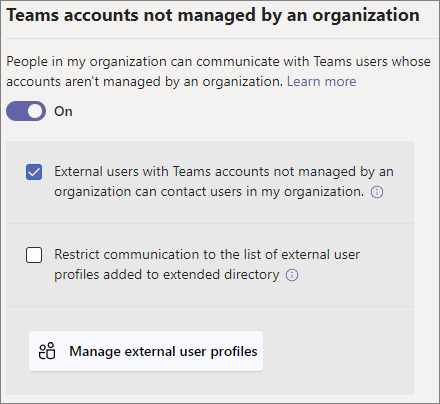
Once both organizations must allow external chat in Teams, you can add or invite people outside of your organization to a one-on-one chat. This includes anyone who uses Teams, Teams Free, and Skype for Business.
If the issue still persists, to help identify why the external chat isn’t appearing, could you please confirm the following:
Note: Please understand that as a forum moderator, my role is to provide general guidance and troubleshooting support. I don’t have access to internal systems or backend tools, and I appreciate your understanding of these limits.
I hope the information shared helps point you in the right direction. Please try the steps above and let me know if they work. If not, we can continue working together to narrow this down.
The first response may not always resolve the issue right away, but with your help and more details, we can work toward a solution.
Thank you for your patience and understanding. I'm looking forward for your reply.
If the answer is helpful, please click "Accept Answer" and kindly upvote it. If you have extra questions about this answer, please click "Comment".
Note: Please follow the steps in our documentation to enable e-mail notifications if you want to receive the related email notification for this thread.
Dear @Neelu Sinha,
Good day and I hope you're doing well. I just wanted to check in and see if there is any update from you
If you're still facing any problems, please feel free to share more details about the current error or steps you're stuck on. I’ll be happy to assist further.
Looking forward to your update.
AI answer
To send and receive chat with external contacts in Microsoft Teams, you need to ensure that external access is enabled for your organization. Here are the steps you can follow:
If you continue to experience issues, you may want to check with your IT administrator to ensure that your organization’s settings allow for external chat and meetings.
References: