Microsoft Teams | Microsoft Teams for education | Class Notebook | Manage Class Notebook
Organizing sections, permissions, and content within the Class Notebook

This browser is no longer supported.
Upgrade to Microsoft Edge to take advantage of the latest features, security updates, and technical support.
' cx='32' cy='32' r='32' /%3E%3Ctext x='50%25' y='55%25' dominant-baseline='middle' text-anchor='middle' fill='%23FFF' %3EDS%3C/text%3E%3C/svg%3E)
As an owner I accidently changed the permission access in onenote. Everyone can see everyone elses sections. Some are stating they can't edit their own anymore. I need to return it to where everyone has access and editing to their own sections and the collaboration space only.
Organizing sections, permissions, and content within the Class Notebook
' cx='32' cy='32' r='32' /%3E%3Ctext x='50%25' y='55%25' dominant-baseline='middle' text-anchor='middle' fill='%23FFF' %3EVH%3C/text%3E%3C/svg%3E)
Dear @Deb Still,
Thank you for your update!
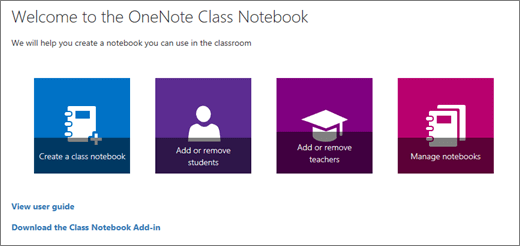
Based on your screenshot, the setting and this view is for managing student access/view. If you want to manage teacher permission, you can do it via Manage Notebooks, I recommend you remove users' permission and assign add users again.
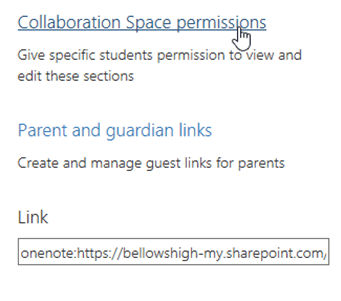
Option 1: Use Collaboration Space Permissions to:
Assign edit rights only to specific users or groups.
Lock or unlock the Collaboration Space.
Option 2: Use Manage Notebooks to:
Each OneNote Class Notebook is organized into three parts:
In this case, to ensure a teacher can edit and access only their own section in OneNote (and not others). Since there is some confusion in the web design, as I understanding that this note is only for teacher and you want to make sure that teacher can edit and access their own section, there are two options for you to manage permission (make sure you have assigned them correct permission):
Option 2: Add or remove teachers (for OneNote owners and have full control in notebook)
I hope this information is helpful. Please follow the steps and let me know the outcome.
If you have any questions, please feel free to reach out.
Thank you for your patience and understanding. I'm looking forward for your reply.
If my answer is helpful, please click "Accept Answer" and kindly upvote it. If you have extra questions about this answer, please click "Comment".
Note: Please follow the steps in our documentation to enable e-mail notifications if you want to receive the related email notification for this thread.
Dear @Deb Still,
Good day and I hope you're doing well. I just wanted to check in and see if the issue has been resolved.
If you're still facing any problems, please feel free to share more details about the current error or steps you're stuck on. I’ll be happy to assist further.
Looking forward to your update.
Dear @Deb Still,
I hope this message reached you.
This is my second time reaching out to check if your issue has been resolved. I really want to make sure your experience is as smooth as possible. If your issue persists or if you encounter any new difficulties, please share more details about the current steps you are taking. I am always happy to assist you whenever you need.
While waiting for your response, I will also be monitoring other customer questions on the forum to assist them. If you have any further questions or updates, please tag (@Vivian-HT) in the reply so I can assist you more promptly and thoroughly.
I look forward to hearing from you soon.
Dear @Deb Still,
Thank you for posting your question in the Microsoft Q&A forum.
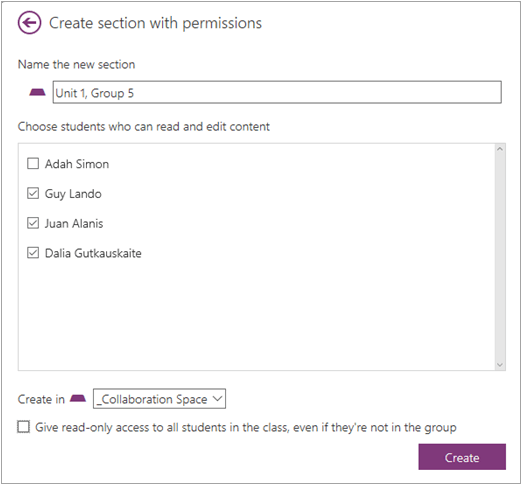
Since you have already created sections in your Class Notebook Collaboration Space to facilitate student group work. Therefore, you can choose which students can view and edit within that section. Grant read-only permissions to the whole class if you'd like everyone to see a section but not edit it.
Moreover, you can Distribute pages and sections to Class Notebooks. Please follow these instructions via Distribute pages and sections to Class Notebooks
I hope this information is helpful. Please follow the steps and let me know the outcome.
If you have any questions, please feel free to reach out.
Thank you for your patience and understanding. I'm looking forward for your reply.
If my answer is helpful, please click "Accept Answer" and kindly upvote it. If you have extra questions about this answer, please click "Comment".
Note: Please follow the steps in our documentation to enable e-mail notifications if you want to receive the related email notification for this thread.
Dear @Deb Still,
Good day and I hope you're doing well. I just wanted to check in and see if the issue has been resolved.
If you're still facing any problems, please feel free to share more details about the current error or steps you're stuck on. I’ll be happy to assist further.
Looking forward to your update.
Dear @Deb Still,
I hope this message reached you.
This is my second time reaching out to check if your issue has been resolved. I really want to make sure your experience is as smooth as possible. If your issue persists or if you encounter any new difficulties, please share more details about the current steps you are taking. I am always happy to assist you whenever you need.
While waiting for your response, I will also be monitoring other customer questions on the forum to assist them. If you have any further questions or updates, please tag (@Vivian-HT) in the reply so I can assist you more promptly and thoroughly.
I look forward to hearing from you soon.
Hi Vivien Its been partially fixed. Some teachers now have access to edit their sections. Some can not, some can still access others sections and edit. It's a big mess. I don't understand. Which one should it be so she can edit and access only her section?

Hello Deb Still,
No worries—this happens more often than you’d think, and it’s fortunately easy to reverse. Here’s the quickest path back to the standard “private student sections + shared Collaboration Space” setup in your Class Notebook:
Make sure every student is listed as Member (not Owner). If anyone is an Owner, switch them back to Member and save.
From the same class in Teams:
Click the Class Notebook tab.
Choose Class Notebook → Manage Notebook → Fix Permissions. This resets each student’s private section so only they (and teachers) can open it, while leaving the Collaboration Space editable by everyone.
If you prefer the desktop OneNote add-in:
Go to Class Notebook → Manage Notebooks → Reset All Permissions.
After the tool finishes, have students close and reopen—or simply hit Sync. They should now see:
Their own section (full edit rights)
Content Library (read-only)
Collaboration Space (edit)
Nothing else.
While you’re in Manage Notebook, you can:
Lock the Collaboration Space temporarily, or
Use Collaboration Space Permissions to give editing rights only to specific groups.
Open the notebook in OneDrive/SharePoint (Class Notebooks folder).
Right-click the notebook → Manage access → Advanced.
Remove any individual student entries at the notebook root—only the class “Students” group should have Read.
Use Check Permissions on a sample student to confirm they no longer have access to other students’ sections.
In the rare case the structure is beyond repair, create a new Class Notebook and drag each student’s section over—but nine times out of ten, the steps above fix everything.
Best regards,
Jerald Felix
hey thanks for that. I am confused though...I'm using one note not class notebook. It is for teachers, not a class. I did step 1 and 2 and checked ownership etc. All fine. But their was no fix permissions in one note. I managed to find fix notebook but I have no notebooks listed to fix. Are one note and class notebook the same?