Exchange | Exchange Server | Management
The administration and maintenance of Microsoft Exchange Server to ensure secure, reliable, and efficient email and collaboration services across an organization.
This browser is no longer supported.
Upgrade to Microsoft Edge to take advantage of the latest features, security updates, and technical support.
' cx='32' cy='32' r='32' /%3E%3Ctext x='50%25' y='55%25' dominant-baseline='middle' text-anchor='middle' fill='%23FFF' %3EES%3C/text%3E%3C/svg%3E)
Exchange 2013 CU23
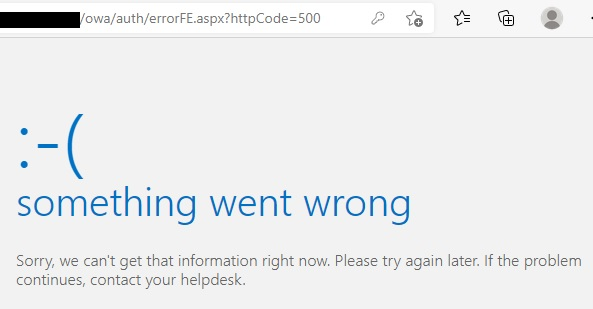
After login to OWA or ECP, I encountered http code 500.
Before that, I was updated security update KB5004778 (after a few failed attempts).
I followed "OWA or ECP stops working after you install a security update" but failed.
https://learn.microsoft.com/en-us/exchange/troubleshoot/client-connectivity/owa-stops-working-after-update
I run security update KB5004778 again without any issue.
But I still got http code 500.
Please advise, thanks.
The administration and maintenance of Microsoft Exchange Server to ensure secure, reliable, and efficient email and collaboration services across an organization.
' cx='32' cy='32' r='32' /%3E%3Ctext x='50%25' y='55%25' dominant-baseline='middle' text-anchor='middle' fill='%23FFF' %3EDS%3C/text%3E%3C/svg%3E)
After installing updates kb5004778
https://mail.ourexchange.com/owa/auth/errorFE.aspx?httpCode=500
X-ClientId: SSLX - LPN0 - IOTY - WLWHQW
X-FEServer: MAIL
Date: 19.07.2021 11:19:36
' cx='32' cy='32' r='32' /%3E%3Ctext x='50%25' y='55%25' dominant-baseline='middle' text-anchor='middle' fill='%23FFF' %3EKY%3C/text%3E%3C/svg%3E)
Hi @EM Support
Sorry I need to add the following questions to get some more information:
And was the detailed HTTP 500 error message "HMACProvider.GetCertificates:protectionCertificates.Length<1"?
If it is the case, this issue may be caused by the OAuth certificate is missing or expired.

Please run this command to first check if the OAuth certificate is missing or expired:
Get-ExchangeCertificate (Get-AuthConfig).CurrentCertificateThumbprint
If there is no result returned or the OAuth certificate has expired, please follow this link to create a new OAuth certificate and see if it can get rid of the problem.
If the response is helpful, please click "Accept Answer" and upvote it.
Note: Please follow the steps in our documentation to enable e-mail notifications if you want to receive the related email notification for this thread.
Hi @EM Support
I am writing here to confirm with you how thing going now?
Did the issue get resolved?
' cx='32' cy='32' r='32' /%3E%3Ctext x='50%25' y='55%25' dominant-baseline='middle' text-anchor='middle' fill='%23FFF' %3EMM%3C/text%3E%3C/svg%3E)
KaelYao,
I am having a similar issue with my exchange environment? Any way we can connect somehow?
Hi,
Sorry but here we mainly focus on supporting via forum posts.
If your issue is very urgent, please consider opening a support ticket via phone.
You can get the numbers in this link: Global Customer Service phone numbers
Besides, did the recreating new OAuth certificate solution not work for you?

I recently reproduced a related scenario where the Exchange Auth Certificate was already valid and configured as Current, but Get-ExchangeCertificate was still returning blank output.
The Exchange Data Serialization log showed:
HmacCryptoProvider.HmacProvider==null
The important part in my case was the certificate effective time. The certificate could already appear valid while the HMAC signing path still did not have an active key.
I documented the lab tests, including the UTC timing behavior, here:
https://ceyhunkirmizitas.net/get-exchangecertificate-blank-valid-auth-certificate/
' cx='32' cy='32' r='32' /%3E%3Ctext x='50%25' y='55%25' dominant-baseline='middle' text-anchor='middle' fill='%23FFF' %3EAA%3C/text%3E%3C/svg%3E)
Worked for me too and take 2 hours and half
' cx='32' cy='32' r='32' /%3E%3Ctext x='50%25' y='55%25' dominant-baseline='middle' text-anchor='middle' fill='%23FFF' %3EC%3C/text%3E%3C/svg%3E)
We did the following to resolve the issue. A tip of the hat to ArunKumar.. comments were spot on.
Get-ExchangeCertificate
Thumbprint Subject
7F7B8143A318C4E93796099E53D9D748F2FE0xxx CN=Microsoft Exchange Server Auth Certificate
Set-AuthConfig -NewCertificateThumbprint 7F7B8143A318C4E93796099E53D9D748F2FE0xxx -NewCertificateEffectiveDate (Get-Date)
Set-AuthConfig -PublishCertificate
Set-AuthConfig -ClearPreviousCertificate
In our case, we restarted the server. You may also be able to get away with an IIS reset. Once the restart was done, the issue was resolved.
' cx='32' cy='32' r='32' /%3E%3Ctext x='50%25' y='55%25' dominant-baseline='middle' text-anchor='middle' fill='%23FFF' %3EAK%3C/text%3E%3C/svg%3E)
Worked for me.
It took roughly 2 hours for ecp/owa to start working again.
' cx='32' cy='32' r='32' /%3E%3Ctext x='50%25' y='55%25' dominant-baseline='middle' text-anchor='middle' fill='%23FFF' %3EJP%3C/text%3E%3C/svg%3E)
Step2 worked for me, It did take more than 2 hours for ECP/OWA to start working again. (
Andrew Kenny) You saved me several hours....Thank you.