Exchange Online
A cloud-based service included in Microsoft 365, delivering scalable messaging and collaboration features with simplified management and automatic updates.
This browser is no longer supported.
Upgrade to Microsoft Edge to take advantage of the latest features, security updates, and technical support.
' cx='32' cy='32' r='32' /%3E%3Ctext x='50%25' y='55%25' dominant-baseline='middle' text-anchor='middle' fill='%23FFF' %3ECR%3C/text%3E%3C/svg%3E)
Hello,
We are migrating an Exchange Server 2010 to Exchange Online. All user mailboxes were already migrated. There are 10 mailboxes that were used by server applications, using a Receive Connector with IP addresses cofigured for every source server. The idea is to migrate the app mailboxes to cloud (because the customer does not want to use the Exchange on.premise in order to not depend of it and only depend on the service from cloud). I really doubt if the applications really use their mailboxes because I really doubt that they receive emails, I think that they only send emails like reports to different users, but the idea of the system administrator is to migrate those mailboxes and configure server applications to use Exchange Online in order to send their reports.
The question is, what is the configuration the server applicationes need to use? What is the recommended way to do it? Are they going to authenticate? because I think that is not going to be possible to do an open relay as we can do with the Receive Connectors, isn' it?
A cloud-based service included in Microsoft 365, delivering scalable messaging and collaboration features with simplified management and automatic updates.
The administration and maintenance of Microsoft Exchange Server to ensure secure, reliable, and efficient email and collaboration services across an organization.
The administration of a hybrid deployment that connects on-premises Exchange Server with Exchange Online, enabling seamless integration and centralized control.
' cx='32' cy='32' r='32' /%3E%3Ctext x='50%25' y='55%25' dominant-baseline='middle' text-anchor='middle' fill='%23FFF' %3ELZ%3C/text%3E%3C/svg%3E)
There are three options to send email from devices or applications in O365. You can check the comparison of these options, and choose one according to your requirements:
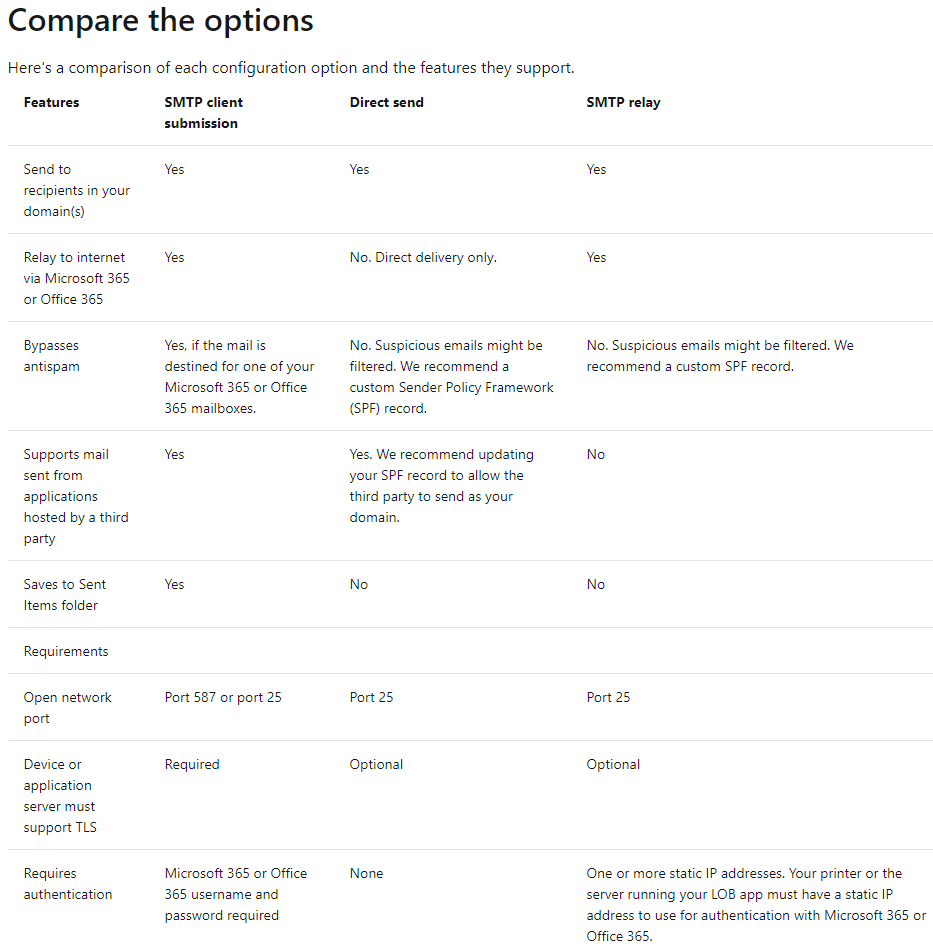
For more details about these three options and how to configure, you can check: How to set up a multifunction device or application to send email using Microsoft 365 or Office 365.
If the response is helpful, please click "Accept Answer" and upvote it.
Note: Please follow the steps in our documentation to enable e-mail notifications if you want to receive the related email notification for this thread.
It's great that you can get useful information here. If you have other issues about Exchange, please feel free to post with related tags.
Have a nice day.
If the response is helpful, please click "Accept Answer" and upvote it.
Note: Please follow the steps in our documentation to enable e-mail notifications if you want to receive the related email notification for this thread.